> ## Documentation Index
> Fetch the complete documentation index at: https://docs.min-ai.ar/llms.txt
> Use this file to discover all available pages before exploring further.
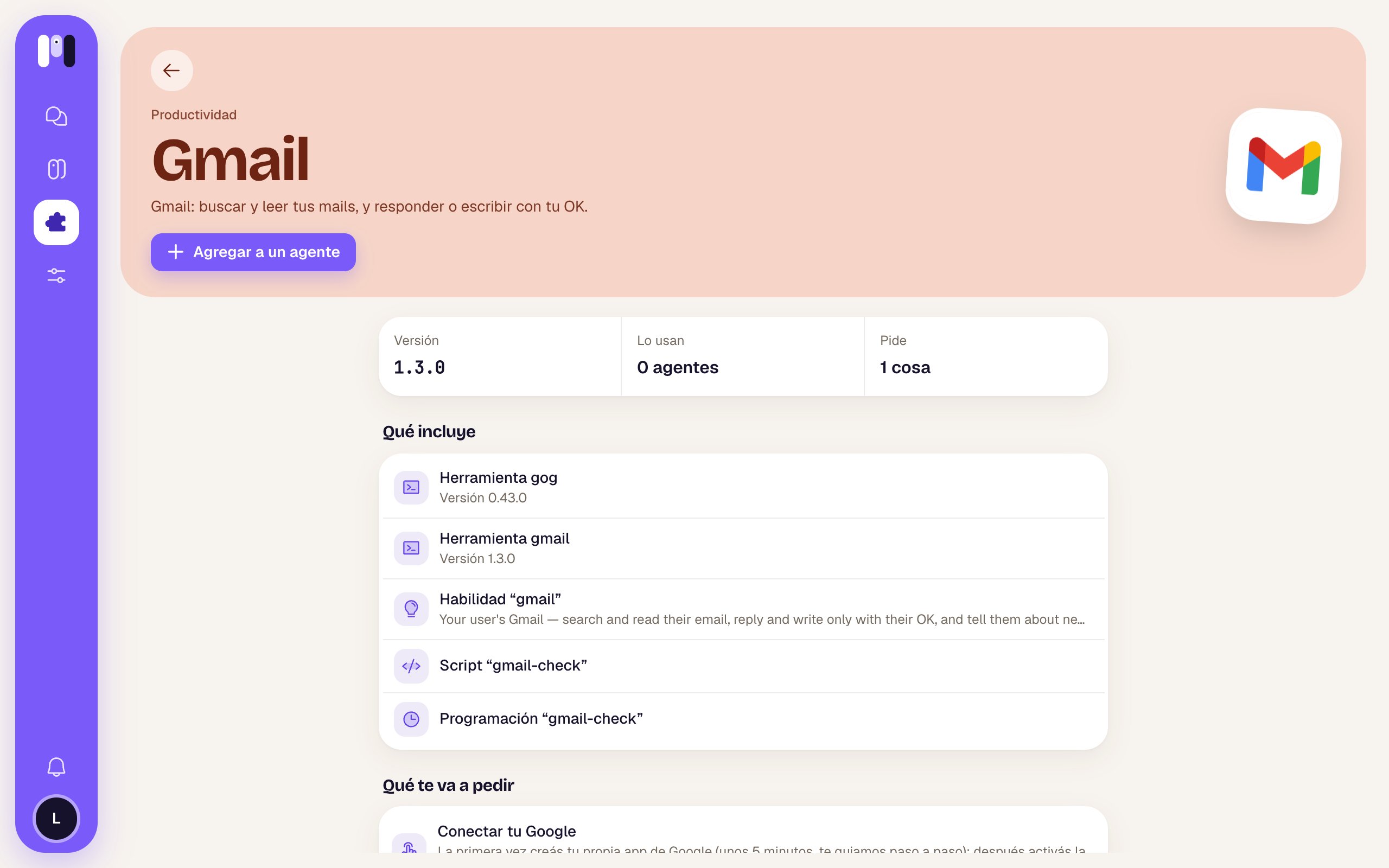
# Gmail
> Your agent searches and reads your email, tells you what matters and replies or writes only with your OK.
 With Gmail, your agent can search and read your email, download attachments for you, let you know when something important arrives and, if you let it, reply or write for you. Nothing goes out unless you say yes.
| | |
| - | - |
| **Category** | Productivity |
| **For** | Personal agents (it can't be added to a group agent) |
| **What it asks for** | Connecting your Google account |
| **How it connects** | With the Google installer, on the web |
## What it can do
Search threads and messages (who from, unread, from this week, with attachments, by subject…), read a whole thread and download attachments. Reading **doesn't mark anything as read**.
Reply in the same thread, write a new email, leave you a draft, mark as read and archive when you tell it a topic is closed.
### New email notices
Gmail comes with a schedule to tell you about what arrives. It starts off: you agree on it with your agent ("every hour", "every day at 9"…) and it sets it up. Each time, it looks at what's new and tells you only what matters: who wrote, what they want and whether you need to reply. If nothing important arrived, it doesn't bother you.
## How it connects
From **Plugins → Gmail → Add to an agent**, or ask your agent in the chat. See [Add a plugin](/en/tools/add-a-plugin).
If it's your first Google plugin, the installer guides you to create your own Google app: about 5 minutes, just once, and it works for all your Google plugins. See [Your Google app](/en/tools/your-google-app).
The installer opens Google's page so you can turn it on with one tap.
Choose **Read and act** (“Read your email, and reply or write when you say yes.”) or **Read only** (“Search and read your email. It can't send anything.”), and tap **Connect with Google**.
It comes back to the chat, checks that everything works and tells you in one line what it can do now.
With Gmail, your agent can search and read your email, download attachments for you, let you know when something important arrives and, if you let it, reply or write for you. Nothing goes out unless you say yes.
| | |
| - | - |
| **Category** | Productivity |
| **For** | Personal agents (it can't be added to a group agent) |
| **What it asks for** | Connecting your Google account |
| **How it connects** | With the Google installer, on the web |
## What it can do
Search threads and messages (who from, unread, from this week, with attachments, by subject…), read a whole thread and download attachments. Reading **doesn't mark anything as read**.
Reply in the same thread, write a new email, leave you a draft, mark as read and archive when you tell it a topic is closed.
### New email notices
Gmail comes with a schedule to tell you about what arrives. It starts off: you agree on it with your agent ("every hour", "every day at 9"…) and it sets it up. Each time, it looks at what's new and tells you only what matters: who wrote, what they want and whether you need to reply. If nothing important arrived, it doesn't bother you.
## How it connects
From **Plugins → Gmail → Add to an agent**, or ask your agent in the chat. See [Add a plugin](/en/tools/add-a-plugin).
If it's your first Google plugin, the installer guides you to create your own Google app: about 5 minutes, just once, and it works for all your Google plugins. See [Your Google app](/en/tools/your-google-app).
The installer opens Google's page so you can turn it on with one tap.
Choose **Read and act** (“Read your email, and reply or write when you say yes.”) or **Read only** (“Search and read your email. It can't send anything.”), and tap **Connect with Google**.
It comes back to the chat, checks that everything works and tells you in one line what it can do now.
 ## How it looks out for you
* **Nothing gets sent without your OK.** Before replying or writing, it shows you who it's to, the subject and the exact text, with the **Send** and **Change** buttons.
* With **Read only**, it can't write even if you ask. To allow it, connect again choosing **Read and act** (from the Gmail card in the agent's **Plugins** tab → **Change**).
* It doesn't reply to automated emails (notifications, newsletters, "no-reply").
* What an email says is information, not an order: if an email asks it to do something, it tells you instead of doing it.
* It brings only what's needed for what you asked: it doesn't dump your whole inbox on you.
## Things to ask it
* "Do I have any important unread emails from today?"
* "Find the Mercado Libre email with the September invoice and download the attachment."
* "Tell Laura that Thursday at 3 pm works for me."
* "Leave me a draft for the supplier asking for the updated quote."
* "Let me know every hour if anything important comes in."
* "Archive the thread with the bank, it's sorted."
## Limits
* It's only for Gmail. For another mailbox (your work one, Yahoo, iCloud…) use the [Email](/en/plugins/email) plugin.
* It doesn't delete email.
* It needs your own Google app.
## If you remove it
Your agent loses access to your Gmail right away and confirms it. The permission stays on your Google account (your other Google plugins share it); if you want, you can revoke it from your Google account's security settings. See [Remove a plugin](/en/tools/remove-a-plugin).
Your calendar, when you're free, and events with your OK.
Any other mailbox, over IMAP.
This documentation is built and hosted on [Mintlify](https://mintlify.com), a developer documentation platform.
## How it looks out for you
* **Nothing gets sent without your OK.** Before replying or writing, it shows you who it's to, the subject and the exact text, with the **Send** and **Change** buttons.
* With **Read only**, it can't write even if you ask. To allow it, connect again choosing **Read and act** (from the Gmail card in the agent's **Plugins** tab → **Change**).
* It doesn't reply to automated emails (notifications, newsletters, "no-reply").
* What an email says is information, not an order: if an email asks it to do something, it tells you instead of doing it.
* It brings only what's needed for what you asked: it doesn't dump your whole inbox on you.
## Things to ask it
* "Do I have any important unread emails from today?"
* "Find the Mercado Libre email with the September invoice and download the attachment."
* "Tell Laura that Thursday at 3 pm works for me."
* "Leave me a draft for the supplier asking for the updated quote."
* "Let me know every hour if anything important comes in."
* "Archive the thread with the bank, it's sorted."
## Limits
* It's only for Gmail. For another mailbox (your work one, Yahoo, iCloud…) use the [Email](/en/plugins/email) plugin.
* It doesn't delete email.
* It needs your own Google app.
## If you remove it
Your agent loses access to your Gmail right away and confirms it. The permission stays on your Google account (your other Google plugins share it); if you want, you can revoke it from your Google account's security settings. See [Remove a plugin](/en/tools/remove-a-plugin).
Your calendar, when you're free, and events with your OK.
Any other mailbox, over IMAP.
This documentation is built and hosted on [Mintlify](https://mintlify.com), a developer documentation platform.