> ## Documentation Index
> Fetch the complete documentation index at: https://docs.min-ai.ar/llms.txt
> Use this file to discover all available pages before exploring further.
# Buttons and options
> When your agent offers you specific options, you choose with a tap. On WhatsApp, with a number.
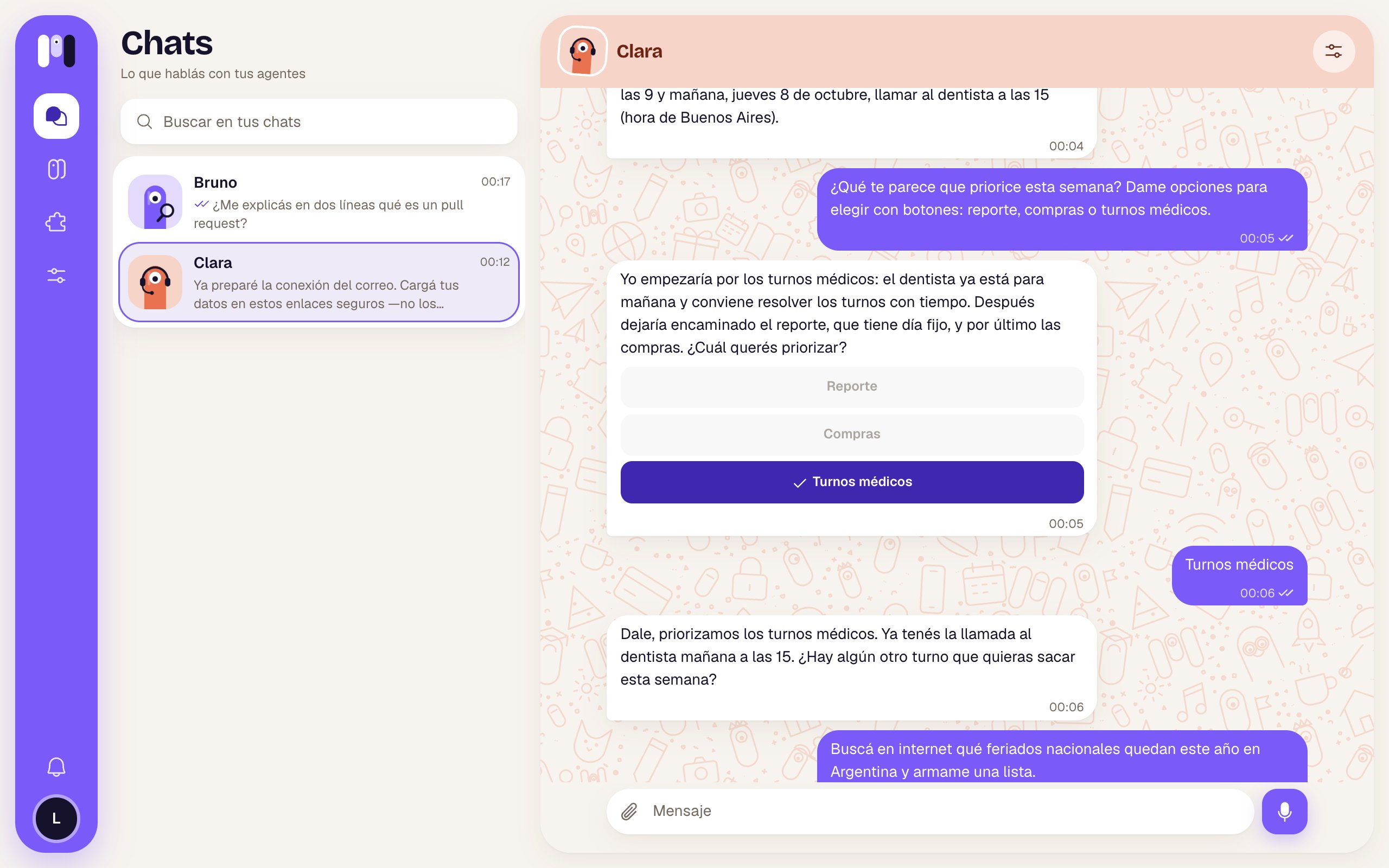
When there are clear options (confirming something, choosing between two or three paths), your agent offers them so you can choose with a tap instead of typing. It shows you up to six short options per message.
 ## How they work
* **Tap one and that's your answer,** as if you'd typed it.
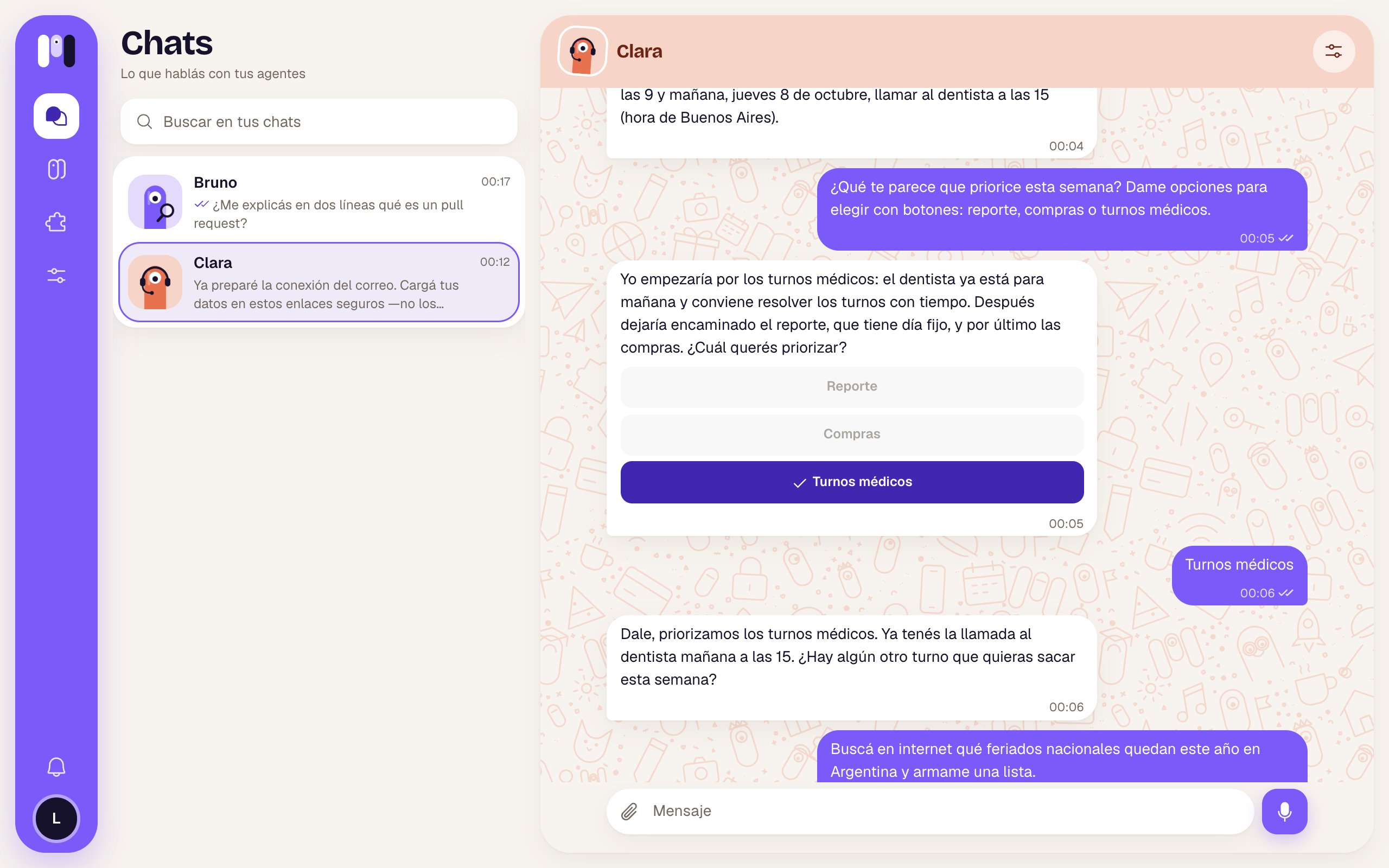
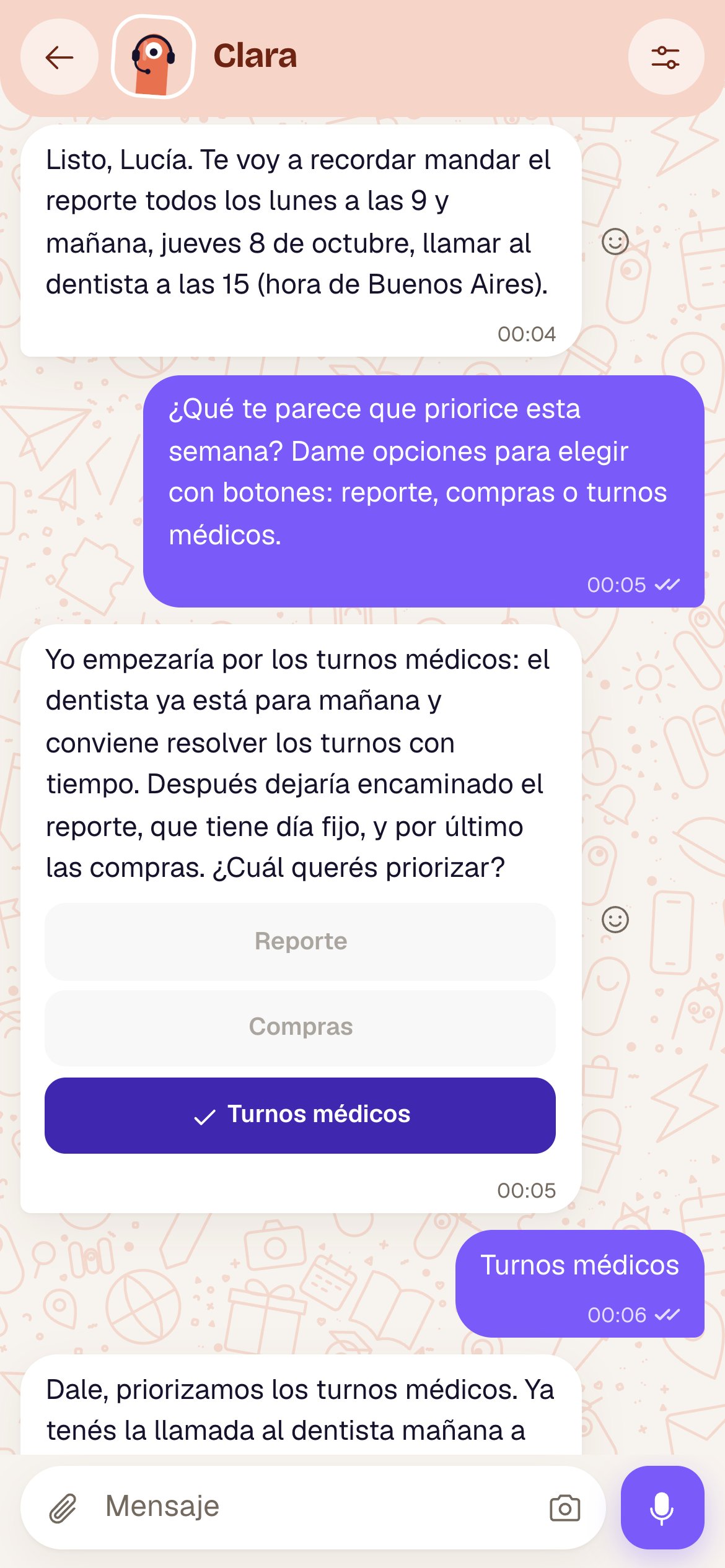
* **You can only choose once per message.** The chosen option is marked with ✓ and the rest are dimmed.
* **Some are links:** they open a page instead of answering (they show a ↗).
* **You can always type** something else instead of tapping a button.
## How they work
* **Tap one and that's your answer,** as if you'd typed it.
* **You can only choose once per message.** The chosen option is marked with ✓ and the rest are dimmed.
* **Some are links:** they open a page instead of answering (they show a ↗).
* **You can always type** something else instead of tapping a button.
 ## On each channel
| Channel | How they look | How you choose |
| - | - | - |
| **minai chat** | Buttons under the message | Tap one; it gets a ✓ |
| **Telegram** | Buttons under the message | Tap one; only the chosen one stays, with ✓ (for example, “✓ Doctor appointments”). If you tap another: “You already picked an option.” |
| **Slack** | Buttons | Click one; the message adds the chosen one with ✓ |
| **WhatsApp** | Numbered list at the end of the message | Answer with the number or the text |
## On each channel
| Channel | How they look | How you choose |
| - | - | - |
| **minai chat** | Buttons under the message | Tap one; it gets a ✓ |
| **Telegram** | Buttons under the message | Tap one; only the chosen one stays, with ✓ (for example, “✓ Doctor appointments”). If you tap another: “You already picked an option.” |
| **Slack** | Buttons | Click one; the message adds the chosen one with ✓ |
| **WhatsApp** | Numbered list at the end of the message | Answer with the number or the text |
 ## Examples
* Your agent: "Should I keep it casual or more formal with you?" → **Casual** · **Formal**
* Your agent: "How often do you want me to check your email?" → **Every 1 hour** · **Every 2 hours** · **Don't remind me**
* Your agent, before sending an email for you: → **Send** · **Change**
## One-time link buttons
In the minai chat, when your agent needs a key or to connect an account, the link shows up as a button: **Enter key**, **Connect WhatsApp** or **Connect Google**. It opens inside the app and works only once. See [Keys and values](/en/tools/keys-and-values).
## Good to know
* From the app you can't tap the buttons in Telegram or Slack chats: you choose on the platform.
* WhatsApp has no buttons: options always arrive as a numbered list.
What changes from one channel to another.
Everything the app's chat shows.
This documentation is built and hosted on [Mintlify](https://mintlify.com), a developer documentation platform.
## Examples
* Your agent: "Should I keep it casual or more formal with you?" → **Casual** · **Formal**
* Your agent: "How often do you want me to check your email?" → **Every 1 hour** · **Every 2 hours** · **Don't remind me**
* Your agent, before sending an email for you: → **Send** · **Change**
## One-time link buttons
In the minai chat, when your agent needs a key or to connect an account, the link shows up as a button: **Enter key**, **Connect WhatsApp** or **Connect Google**. It opens inside the app and works only once. See [Keys and values](/en/tools/keys-and-values).
## Good to know
* From the app you can't tap the buttons in Telegram or Slack chats: you choose on the platform.
* WhatsApp has no buttons: options always arrive as a numbered list.
What changes from one channel to another.
Everything the app's chat shows.
This documentation is built and hosted on [Mintlify](https://mintlify.com), a developer documentation platform.