> ## Documentation Index
> Fetch the complete documentation index at: https://docs.min-ai.ar/llms.txt
> Use this file to discover all available pages before exploring further.
# Schedules
> Reminders and tasks your agent does on its own, on time. You set them up by chatting and see them in the Schedules tab.
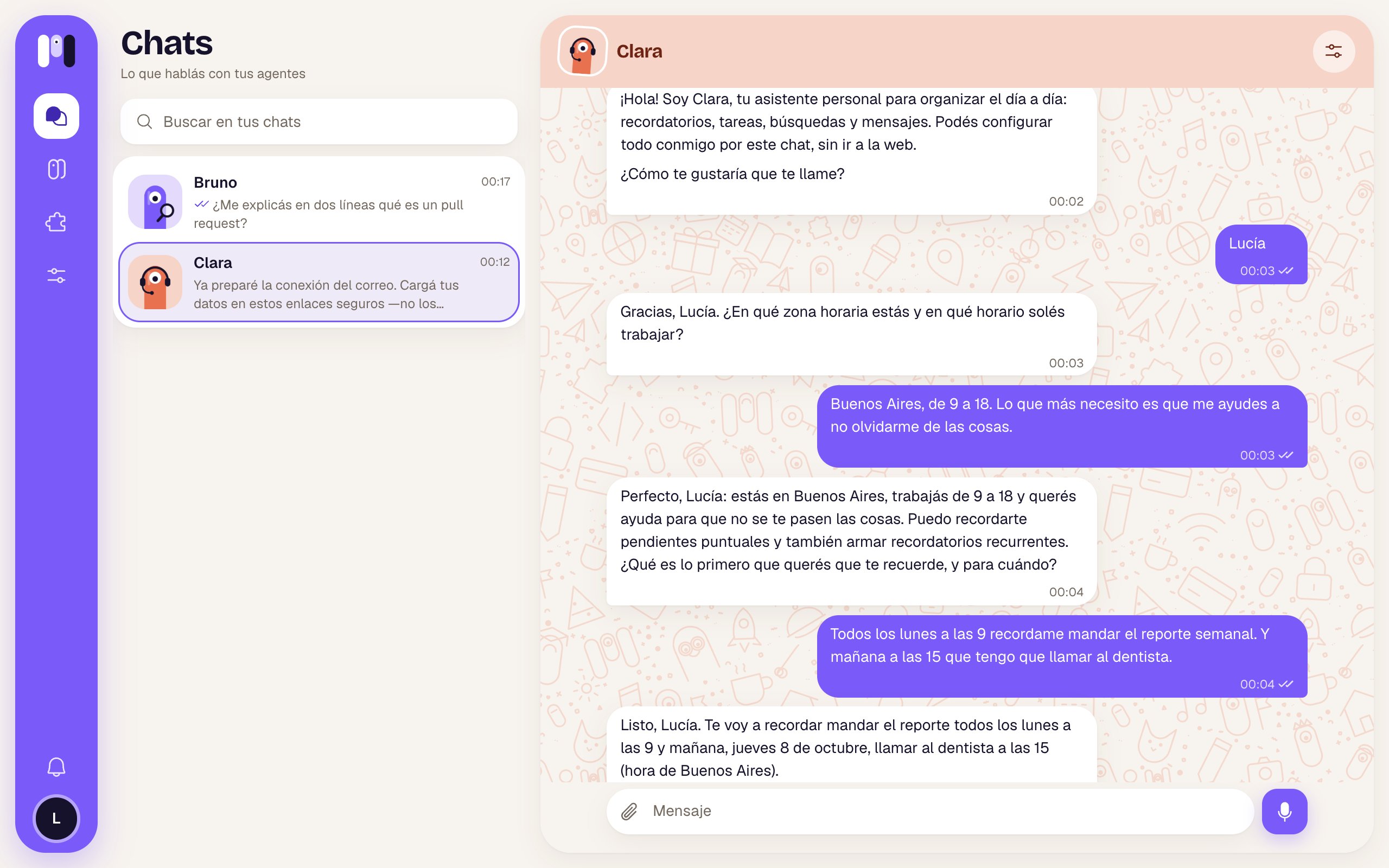
A schedule is something your agent does on its own, at a set time: a reminder for tomorrow, a summary every Monday, a check every two hours. **You set them up by chatting**: you tell it what and when, and it creates it.
## Asking it for a schedule
It can be **one time** (a date and time; once it's passed, it deletes itself) or **repeating** (every day, on Mondays, every two hours…). Times are in your time zone.
* "Remind me tomorrow at 9 to call the accountant."
* "Every Monday at 8, send me a summary of my unread emails."
* "Every 2 hours, from 9 to 17, check if the website is up and only tell me if it goes down."
* "On the last Friday of every month, remind me to pay the rent."
When the time comes, your agent does the work and answers you **in the same chat where you asked**. In a group agent, it posts in the group.
Sometimes it offers you options to choose with a tap, for example “Every 1 hour”, “Every 2 hours” or “Don't remind me”.
 ### Changing or canceling them by chatting
* "Move the gym reminder to 19:00."
* "Cancel the Monday one."
* "What do you have scheduled?"
## The Schedules tab
In the agent, the **Schedules** tab (or the **Scheduled** count in **Overview**), you see everything it has scheduled, with the timing in words (“every 2 hours, from 9:00 to 17:00”). If there's nothing: “Nothing scheduled”.
### Changing or canceling them by chatting
* "Move the gym reminder to 19:00."
* "Cancel the Monday one."
* "What do you have scheduled?"
## The Schedules tab
In the agent, the **Schedules** tab (or the **Scheduled** count in **Overview**), you see everything it has scheduled, with the timing in words (“every 2 hours, from 9:00 to 17:00”). If there's nothing: “Nothing scheduled”.
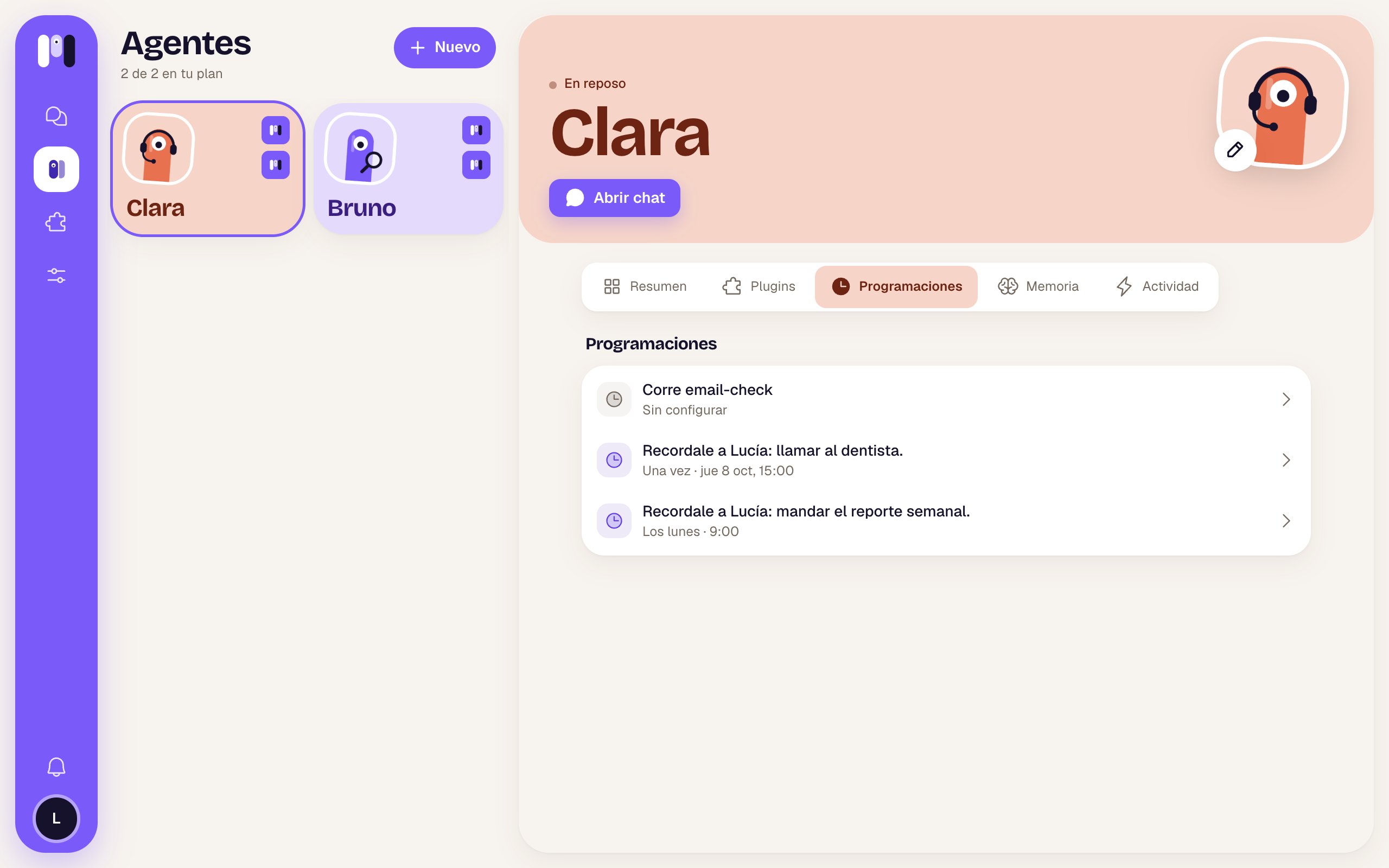 Tap one to see its options:
* **Active:** the switch to pause it (“Paused until you turn it on”) or turn it back on (“It runs on time”). A paused one shows **Paused** in the list.
* **Delete schedule:** it asks “Delete this schedule?”. Your agent stops doing it.
Deleting a schedule can't be undone. If you want it again later, ask your agent for it again.
To create one or change its timing, ask your agent: the tab is for looking, pausing and deleting.
## Plugin schedules
Some plugins come with their own schedule, like the new email notice from [Gmail](/en/plugins/gmail). They work a bit differently:
* They come turned off and say **Not set up**: “Agree with Clara how often: it sets it up and turns it on from the chat.”
* They can be paused, but not deleted: “It belongs to the Gmail plugin: it goes when you remove it.”
* Some have a fixed timing and say “The plugin runs it”.
## Only telling you when something happens
For frequent checks (whether a website is up, whether a price dropped, whether a payment arrived), your agent can make a small program that runs on its own on time and wakes it up **only if there's something to tell you**. That way it doesn't fill your chat with “all good”.
* "Every 10 minutes, check if my website responds. Only tell me if it goes down."
* "Every day at 10, get the official dollar rate and tell me if it goes over 1,500."
## Having another service notify it (webhooks)
Your agent can also create a web address so another service can notify it when something happens: Stripe when a payment comes in, GitHub when there's a change, a form when someone fills it in. When the notice arrives, it wakes up and does what you agreed on.
* "Make a webhook so Stripe tells you about every payment, and let me know."
* "When someone fills in the contact form, send me a summary."
## Good to know
* **If you pause the agent,** it doesn't run its schedules until you resume it.
* **They count toward your plan** as runs per day: each schedule counts the times it runs on its busiest day. If you go over, your agent tells you and you work it out together. See [Plans](/en/reference/plans).
* If your AI subscription ran out of usage, the schedules that fall in that window are skipped.
* Times follow your account's time zone (**Settings** → **Time zone**).
Your agent's conversation and memory.
What happens to its schedules when you pause it.
This documentation is built and hosted on [Mintlify](https://mintlify.com), a developer documentation platform.
Tap one to see its options:
* **Active:** the switch to pause it (“Paused until you turn it on”) or turn it back on (“It runs on time”). A paused one shows **Paused** in the list.
* **Delete schedule:** it asks “Delete this schedule?”. Your agent stops doing it.
Deleting a schedule can't be undone. If you want it again later, ask your agent for it again.
To create one or change its timing, ask your agent: the tab is for looking, pausing and deleting.
## Plugin schedules
Some plugins come with their own schedule, like the new email notice from [Gmail](/en/plugins/gmail). They work a bit differently:
* They come turned off and say **Not set up**: “Agree with Clara how often: it sets it up and turns it on from the chat.”
* They can be paused, but not deleted: “It belongs to the Gmail plugin: it goes when you remove it.”
* Some have a fixed timing and say “The plugin runs it”.
## Only telling you when something happens
For frequent checks (whether a website is up, whether a price dropped, whether a payment arrived), your agent can make a small program that runs on its own on time and wakes it up **only if there's something to tell you**. That way it doesn't fill your chat with “all good”.
* "Every 10 minutes, check if my website responds. Only tell me if it goes down."
* "Every day at 10, get the official dollar rate and tell me if it goes over 1,500."
## Having another service notify it (webhooks)
Your agent can also create a web address so another service can notify it when something happens: Stripe when a payment comes in, GitHub when there's a change, a form when someone fills it in. When the notice arrives, it wakes up and does what you agreed on.
* "Make a webhook so Stripe tells you about every payment, and let me know."
* "When someone fills in the contact form, send me a summary."
## Good to know
* **If you pause the agent,** it doesn't run its schedules until you resume it.
* **They count toward your plan** as runs per day: each schedule counts the times it runs on its busiest day. If you go over, your agent tells you and you work it out together. See [Plans](/en/reference/plans).
* If your AI subscription ran out of usage, the schedules that fall in that window are skipped.
* Times follow your account's time zone (**Settings** → **Time zone**).
Your agent's conversation and memory.
What happens to its schedules when you pause it.
This documentation is built and hosted on [Mintlify](https://mintlify.com), a developer documentation platform.