> ## Documentation Index
> Fetch the complete documentation index at: https://docs.min-ai.ar/llms.txt
> Use this file to discover all available pages before exploring further.
# minai chat
> Talk to your agent right in the minai app: you don't need anything else, and it's where you see the most.
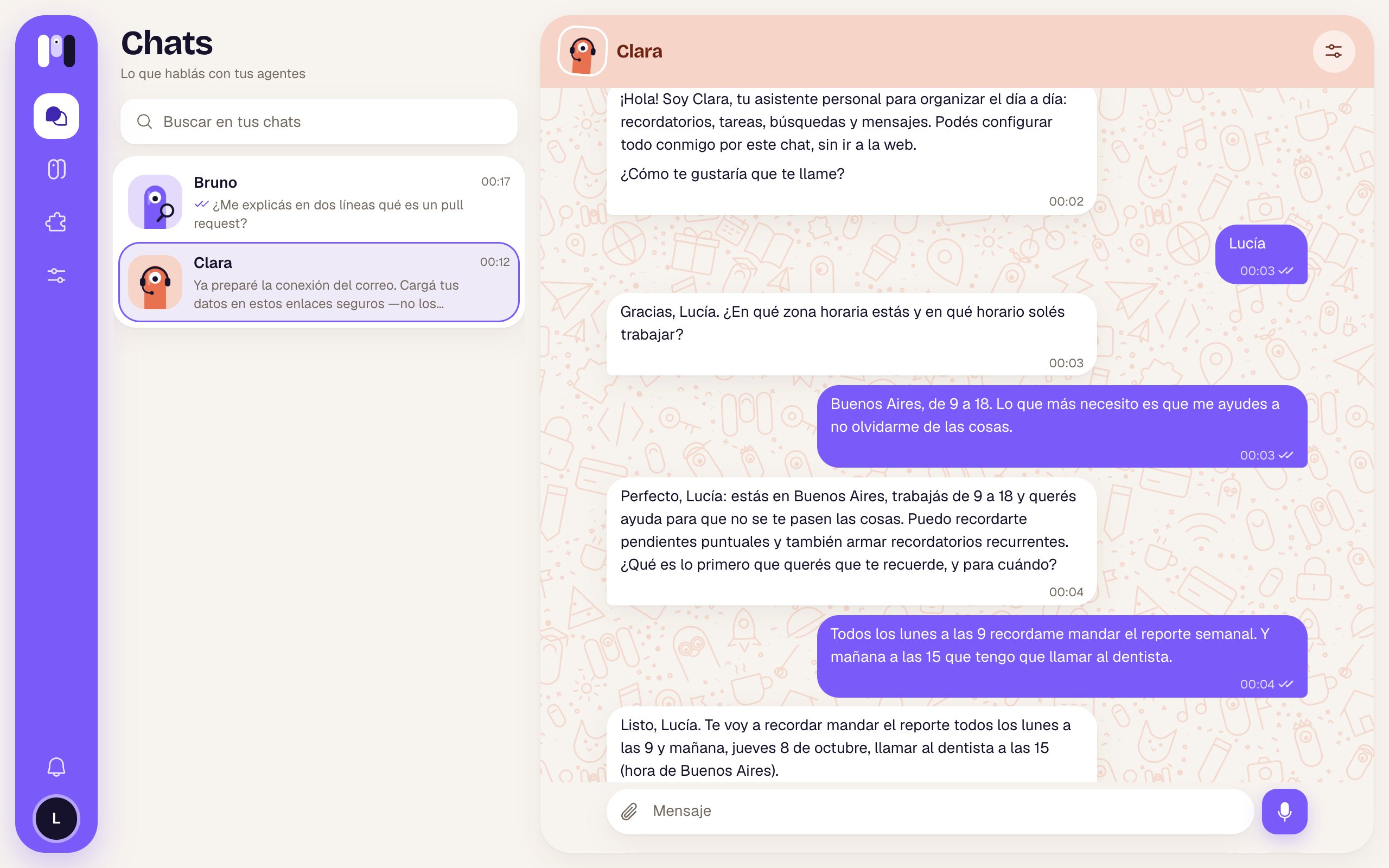
The minai chat is the simplest channel: your agent talks to you inside the app, with nothing to install or connect. It's the **Recommended** one when you create an agent, and the one that shows everything: tables, buttons, images, audio and what it's doing while it works.
| | |
| - | - |
| **For** | Personal agents (a group agent can't use it) |
| **What it needs** | Nothing |
| **Who talks to it** | Only you |
## What you need
Just your minai account. If you'll use it from your phone, it's a good idea to [install the app](/en/setup/install-the-app) so you get notifications.
## How to connect it
When you create the agent, under **Where will you talk with Clara?**, tap **Here, in minai** (“A chat in this app”).
The app shows “Opening Clara's chat…” and “It'll write to you in a moment.”, and takes you to **Chats**, to its conversation.
It introduces itself in two or three lines and asks its first questions, one per message. You answer, and that's it.
 If something goes wrong, you'll see “We couldn't open the chat” and “Try again in a while.”.
## How it behaves
* **Full formatting:** headings, bold, lists, **tables**, code blocks and links.
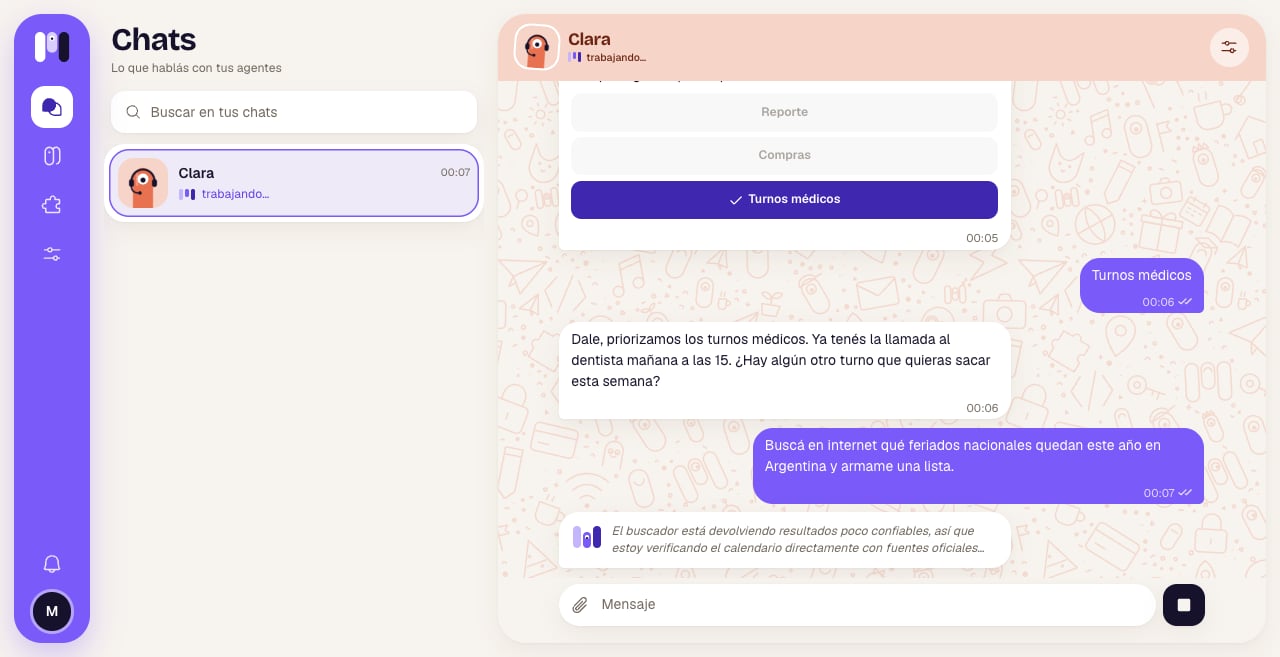
* **Buttons:** when it offers you specific options, they show up as buttons under its message. Tap one and that's your answer. See [Buttons and options](/en/reference/agent/buttons).
* **While it works:** you see a bubble with its animated minis and, next to it, a line with what it says it's doing (“I'm going to look up…”). It's the only channel that shows this.
* **To write to it:** the **Message** field, **Attach** (any file, or paste an image), **Camera** on your phone, and **Record audio** to send it a voice note.
* **Images, audio and files:** photos show in the chat and open full size when you tap them (with arrows between them and **Open the original**). Audio has its own player with x1, x1.5 and x2 speed. Other files download when you tap them.
* **Checkmarks:** ✓ sent, ✓✓ when your agent picked it up. If a message didn't go through, tap **Retry** or **Discard**.
* **Reactions:** hover over one of its messages (or press and hold on your phone) and tap **React**. It can react to yours too.
* **One-time links:** when it needs a key or to connect an account, you get a button like **Enter key**, **Connect WhatsApp** or **Connect Google**, which opens inside the app. See [Keys and values](/en/tools/keys-and-values).
* **History:** the conversation and its files stay saved.
If something goes wrong, you'll see “We couldn't open the chat” and “Try again in a while.”.
## How it behaves
* **Full formatting:** headings, bold, lists, **tables**, code blocks and links.
* **Buttons:** when it offers you specific options, they show up as buttons under its message. Tap one and that's your answer. See [Buttons and options](/en/reference/agent/buttons).
* **While it works:** you see a bubble with its animated minis and, next to it, a line with what it says it's doing (“I'm going to look up…”). It's the only channel that shows this.
* **To write to it:** the **Message** field, **Attach** (any file, or paste an image), **Camera** on your phone, and **Record audio** to send it a voice note.
* **Images, audio and files:** photos show in the chat and open full size when you tap them (with arrows between them and **Open the original**). Audio has its own player with x1, x1.5 and x2 speed. Other files download when you tap them.
* **Checkmarks:** ✓ sent, ✓✓ when your agent picked it up. If a message didn't go through, tap **Retry** or **Discard**.
* **Reactions:** hover over one of its messages (or press and hold on your phone) and tap **React**. It can react to yours too.
* **One-time links:** when it needs a key or to connect an account, you get a button like **Enter key**, **Connect WhatsApp** or **Connect Google**, which opens inside the app. See [Keys and values](/en/tools/keys-and-values).
* **History:** the conversation and its files stay saved.
 ### Notifications on your phone
To know when your agent writes to you, install minai on your phone and turn on notifications (**Know when they write to you.** → **Turn on**). As the app says: “Without installing it, you won't get notified when Clara writes to you.”. On iPhone, notifications only work with the app installed. See [Install the app](/en/setup/install-the-app).
## Reconnect if something fails
There's nothing to reconnect: the chat is part of the app. If it doesn't load (“We couldn't load the chat”), wait a while and come back. If your agent doesn't answer, see [Stop, restart and pause](/en/reference/agent/stop-restart-and-pause).
## Change channels
You can move your agent to Telegram, WhatsApp or Slack whenever you want, and the conversation, memory, plugins and schedules go with it. See [Change an agent](/en/setup/change-an-agent).
## Limits
* Personal agents only: a **For a group** agent can't use the minai chat.
* Only you talk to it there.
* Up to 15 MB per file and 10 files per message.
What changes between the minai chat, Telegram, WhatsApp and Slack.
How it lets you choose.
This documentation is built and hosted on [Mintlify](https://mintlify.com), a developer documentation platform.
### Notifications on your phone
To know when your agent writes to you, install minai on your phone and turn on notifications (**Know when they write to you.** → **Turn on**). As the app says: “Without installing it, you won't get notified when Clara writes to you.”. On iPhone, notifications only work with the app installed. See [Install the app](/en/setup/install-the-app).
## Reconnect if something fails
There's nothing to reconnect: the chat is part of the app. If it doesn't load (“We couldn't load the chat”), wait a while and come back. If your agent doesn't answer, see [Stop, restart and pause](/en/reference/agent/stop-restart-and-pause).
## Change channels
You can move your agent to Telegram, WhatsApp or Slack whenever you want, and the conversation, memory, plugins and schedules go with it. See [Change an agent](/en/setup/change-an-agent).
## Limits
* Personal agents only: a **For a group** agent can't use the minai chat.
* Only you talk to it there.
* Up to 15 MB per file and 10 files per message.
What changes between the minai chat, Telegram, WhatsApp and Slack.
How it lets you choose.
This documentation is built and hosted on [Mintlify](https://mintlify.com), a developer documentation platform.