> ## Documentation Index
> Fetch the complete documentation index at: https://docs.min-ai.ar/llms.txt
> Use this file to discover all available pages before exploring further.
# Slack
> Your agent has its own private channel in your Slack workspace, with its name and picture.
On Slack, each agent has **a private channel** in your workspace, with its name (for example, `#clara`). Its messages carry its name and picture, and you write to it there like in any channel.
| | |
| - | - |
| **For** | Personal and group agents |
| **What it needs** | A Slack workspace where you can add apps |
| **Who talks to it** | Only you (or everyone in the channel, if it's a group agent) |
## What you need
A Slack workspace where you can add the minai app. If your workspace requires an admin's approval to add apps, you may need to ask for it.
## How to connect it
When you create the agent, under **Where will you talk with Clara?**, tap **Slack** (“A channel in your workspace”).
Tap **Add to Slack**. Slack opens: choose your workspace and tap **Allow**. When it's done, that tab says “Slack is connected. You can close this tab.”.
minai creates the agent's private channel with you in it (“Creating Clara's channel…”). If you'd already added minai to that workspace, it skips the previous step and goes straight to this one.
You see “Clara writes to you in #clara”. Tap **Open Slack** or **Done**. Your agent writes first.
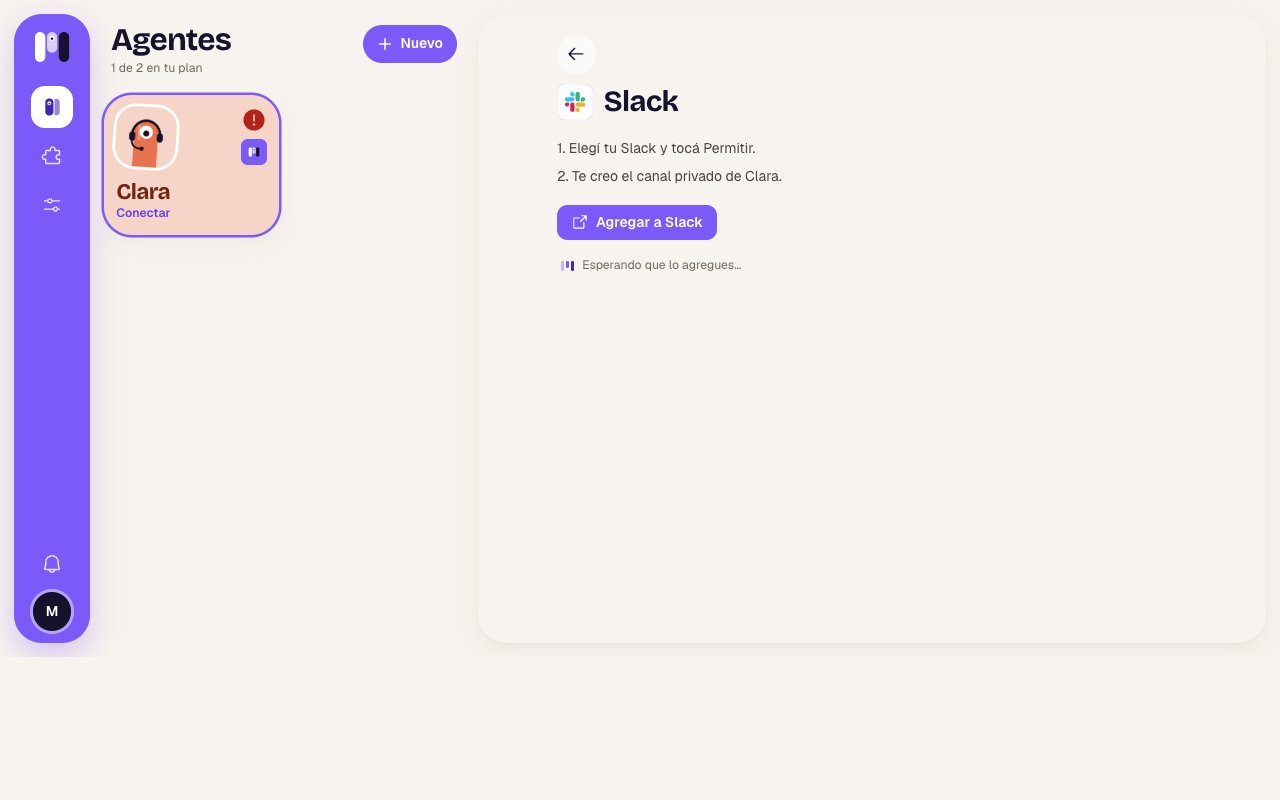 If the Slack link expired, you'll see “The link expired. Tap «Add to Slack» again.”.
## How it behaves
* **Formatting:** bold, italics, code, lists and links. **No tables or headings.** Very long messages arrive split into several.
* **Buttons:** options show up as buttons. Tap one and the message adds the chosen one with ✓. You can only choose once. See [Buttons and options](/en/reference/agent/buttons).
* **While it works:** Slack doesn't let bots show “typing…”, so it puts 👀 on your message and removes it when it's done.
* **Files, photos and audio:** they go both ways. Audio is turned into text automatically.
* **Reactions:** they work both ways.
* **Only you:** in a personal agent's channel, only the person who installed it can talk to it.
* **To stop it:** send `/stop` on its own, with nothing else.
Several minai accounts can use the same workspace (for example, people at the same company): each channel talks to its owner's agent.
## Reconnect if something fails
Slack has no separate reconnection: as long as the minai app stays in your workspace, the channel works. If your agent stops answering there, check **Overview** → **Where it talks**.
The most common cause is that someone removed the minai app from the workspace. In that case you have to start over: connect your agent again from **Where it talks** and, when you choose Slack, tap **Add to Slack** like the first time.
## Change channels
A personal agent can move from Slack to another channel and take everything with it. In the old channel it leaves one last message (“This channel isn't used anymore: you can archive it.”) and the bot leaves the channel. See [Change an agent](/en/setup/change-an-agent).
## Limits
* If the minai app is removed from the workspace, it's removed for every account that uses it there.
* If you rename a personal agent, its channel gets renamed. A group agent's channel keeps its own name.
* Up to 15 MB per file.
* Notifications that it wrote to you come from Slack, not minai.
An agent in a Slack channel, for the whole team.
What changes from one channel to another.
This documentation is built and hosted on [Mintlify](https://mintlify.com), a developer documentation platform.
If the Slack link expired, you'll see “The link expired. Tap «Add to Slack» again.”.
## How it behaves
* **Formatting:** bold, italics, code, lists and links. **No tables or headings.** Very long messages arrive split into several.
* **Buttons:** options show up as buttons. Tap one and the message adds the chosen one with ✓. You can only choose once. See [Buttons and options](/en/reference/agent/buttons).
* **While it works:** Slack doesn't let bots show “typing…”, so it puts 👀 on your message and removes it when it's done.
* **Files, photos and audio:** they go both ways. Audio is turned into text automatically.
* **Reactions:** they work both ways.
* **Only you:** in a personal agent's channel, only the person who installed it can talk to it.
* **To stop it:** send `/stop` on its own, with nothing else.
Several minai accounts can use the same workspace (for example, people at the same company): each channel talks to its owner's agent.
## Reconnect if something fails
Slack has no separate reconnection: as long as the minai app stays in your workspace, the channel works. If your agent stops answering there, check **Overview** → **Where it talks**.
The most common cause is that someone removed the minai app from the workspace. In that case you have to start over: connect your agent again from **Where it talks** and, when you choose Slack, tap **Add to Slack** like the first time.
## Change channels
A personal agent can move from Slack to another channel and take everything with it. In the old channel it leaves one last message (“This channel isn't used anymore: you can archive it.”) and the bot leaves the channel. See [Change an agent](/en/setup/change-an-agent).
## Limits
* If the minai app is removed from the workspace, it's removed for every account that uses it there.
* If you rename a personal agent, its channel gets renamed. A group agent's channel keeps its own name.
* Up to 15 MB per file.
* Notifications that it wrote to you come from Slack, not minai.
An agent in a Slack channel, for the whole team.
What changes from one channel to another.
This documentation is built and hosted on [Mintlify](https://mintlify.com), a developer documentation platform.