> ## Documentation Index
> Fetch the complete documentation index at: https://docs.min-ai.ar/llms.txt
> Use this file to discover all available pages before exploring further.
# Agent: Where it talks
> An agent's channel, whether it's working, how to reconnect it and how to switch it for another.
Where you write to an agent, whether that channel works, and how to fix it or change it.
**How to get there:** the agent's [Overview](/en/reference/screens/agent-overview) → **Where it talks** section.
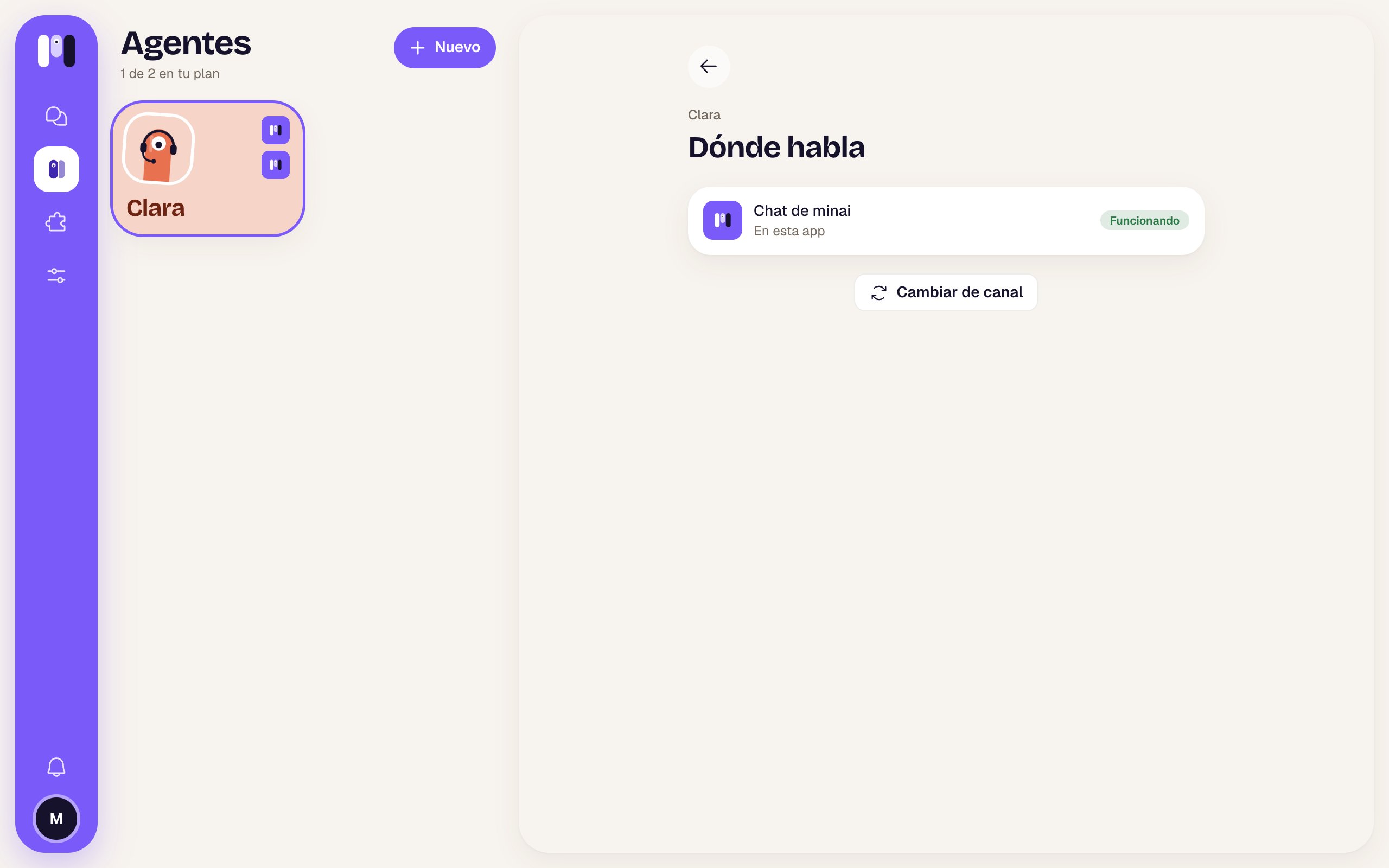 At the top: the arrow to go back, the agent's name and the title **Where it talks**.
## No channel
“No channel yet” — “Choose where you'll talk with Clara.” and **Connect a channel**, which opens the channel choice. See [Create an agent](/en/setup/create-an-agent).
## The channel row
It shows the channel's logo, its name and where it is:
| Channel | Where |
| - | - |
| minai chat | “In this app” |
| Telegram | The bot's @, or “«…» group, with @…” |
| WhatsApp | “A group on a minai line” or “A group on your line +54…” |
| Slack | The channel, like #clara |
And a status on the right:
| Status | Means |
| - | - |
| **Working** (green) | All good. |
| **Disconnected** (red) | Telegram: the bot stopped answering. **Reconnect** fixes it. |
| **No line** (red) | WhatsApp: the line its group is on got unlinked or has problems. The agent doesn't read or answer. |
## When it isn't working
| Case | What you see | What to do |
| - | - | - |
| Telegram bot | “The bot stopped answering” — “Its token changed in Telegram. We'll ask for it again and it works again.” | **Reconnect**: minai asks Telegram for the bot's new details. If it doesn't work (“We couldn't reconnect it”): if you deleted the bot in Telegram, change channel to make another one. |
| Your own WhatsApp line | “Your WhatsApp line was unlinked, so Clara doesn't read or answer. It's the line of all your WhatsApp agents: link it again and they all come back.” | **Link the line again**: scan the QR or get a code, like the first time. |
| minai line | “The line has problems” — “It's a minai line and we're already reconnecting it…” | Nothing: it comes back by itself. |
See [WhatsApp](/en/reference/channels/whatsapp) and [Telegram](/en/reference/channels/telegram).
## Group agents
They show “The whole group talks to it” and how to add people:
* Telegram: with the group's invite link.
* WhatsApp: “You're the group's admin: add and remove people from WhatsApp.”
* Slack: “Add people to the channel from Slack, with /invite.”
A group agent **doesn't change channels**: “A group agent stays in its group. For another group, make another agent.” See [Groups](/en/reference/channels/groups).
## Change channel
Personal agents only. **Change channel** asks you to confirm: “Change Clara's channel?” — “The current channel keeps working until the new one is ready. What's left there (the group, the bot, the channel) is yours to delete.” → **Choose another channel**.
Then you see **“Where will Clara talk now?”** with every channel except the current one. If one says **Soon**, it isn't available yet. Pick one and follow the same steps as when you created the agent. When the new one is ready, the agent leaves a last message on the old one and goes.
At the top: the arrow to go back, the agent's name and the title **Where it talks**.
## No channel
“No channel yet” — “Choose where you'll talk with Clara.” and **Connect a channel**, which opens the channel choice. See [Create an agent](/en/setup/create-an-agent).
## The channel row
It shows the channel's logo, its name and where it is:
| Channel | Where |
| - | - |
| minai chat | “In this app” |
| Telegram | The bot's @, or “«…» group, with @…” |
| WhatsApp | “A group on a minai line” or “A group on your line +54…” |
| Slack | The channel, like #clara |
And a status on the right:
| Status | Means |
| - | - |
| **Working** (green) | All good. |
| **Disconnected** (red) | Telegram: the bot stopped answering. **Reconnect** fixes it. |
| **No line** (red) | WhatsApp: the line its group is on got unlinked or has problems. The agent doesn't read or answer. |
## When it isn't working
| Case | What you see | What to do |
| - | - | - |
| Telegram bot | “The bot stopped answering” — “Its token changed in Telegram. We'll ask for it again and it works again.” | **Reconnect**: minai asks Telegram for the bot's new details. If it doesn't work (“We couldn't reconnect it”): if you deleted the bot in Telegram, change channel to make another one. |
| Your own WhatsApp line | “Your WhatsApp line was unlinked, so Clara doesn't read or answer. It's the line of all your WhatsApp agents: link it again and they all come back.” | **Link the line again**: scan the QR or get a code, like the first time. |
| minai line | “The line has problems” — “It's a minai line and we're already reconnecting it…” | Nothing: it comes back by itself. |
See [WhatsApp](/en/reference/channels/whatsapp) and [Telegram](/en/reference/channels/telegram).
## Group agents
They show “The whole group talks to it” and how to add people:
* Telegram: with the group's invite link.
* WhatsApp: “You're the group's admin: add and remove people from WhatsApp.”
* Slack: “Add people to the channel from Slack, with /invite.”
A group agent **doesn't change channels**: “A group agent stays in its group. For another group, make another agent.” See [Groups](/en/reference/channels/groups).
## Change channel
Personal agents only. **Change channel** asks you to confirm: “Change Clara's channel?” — “The current channel keeps working until the new one is ready. What's left there (the group, the bot, the channel) is yours to delete.” → **Choose another channel**.
Then you see **“Where will Clara talk now?”** with every channel except the current one. If one says **Soon**, it isn't available yet. Pick one and follow the same steps as when you created the agent. When the new one is ready, the agent leaves a last message on the old one and goes.
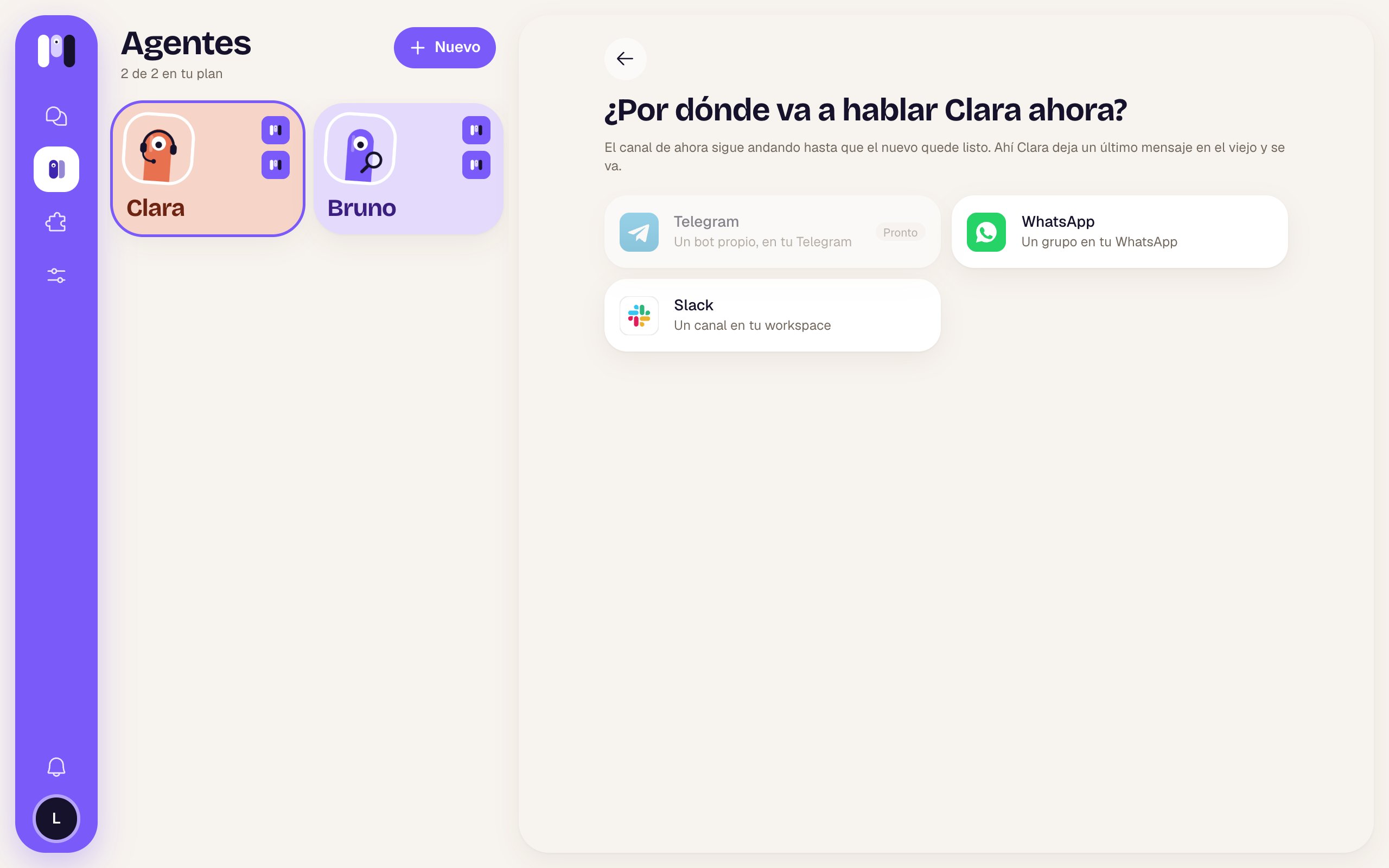 What's left on the old channel (the WhatsApp group, the Telegram bot, the Slack channel) isn't deleted by itself: delete it yourself if you want.
Which channel suits you.
What you can do on each one.
This documentation is built and hosted on [Mintlify](https://mintlify.com), a developer documentation platform.
What's left on the old channel (the WhatsApp group, the Telegram bot, the Slack channel) isn't deleted by itself: delete it yourself if you want.
Which channel suits you.
What you can do on each one.
This documentation is built and hosted on [Mintlify](https://mintlify.com), a developer documentation platform.