> ## Documentation Index
> Fetch the complete documentation index at: https://docs.min-ai.ar/llms.txt
> Use this file to discover all available pages before exploring further.
# Agents
> The list of your agents: the cards, what each mark means and what happens when your plan is full.
All your agents in a grid, with their channel, their AI and their status at a glance.
**How to get there:** **Agents** in the bar. On a computer, the first agent opens next to it.
## At the top
| Item | What it is |
| - | - |
| **Agents** | The title. |
| “2 of 5 in your plan” | How many agents you have and how many your plan allows. Paused ones count too. |
| **New** (+) | On a computer, at the top right: creates an agent. On a phone it's the last card, **New agent**, with a dotted border. |
| Bell | Phone only: your [Notices](/en/reference/screens/notices). |
These can also show up:
* A red **“Your agents are stopped”** card with the reason, if your account is suspended. Tap it to go to [Plan and usage](/en/reference/screens/settings-plan-and-usage).
* The **“Install minai on your phone”** card, on a phone, if you haven't installed it yet. See [Install the app](/en/setup/install-the-app).
* The result of adding to Slack, when you come back from Slack (“Slack is connected. You can close this tab.”, “The link expired…”).
## No agents
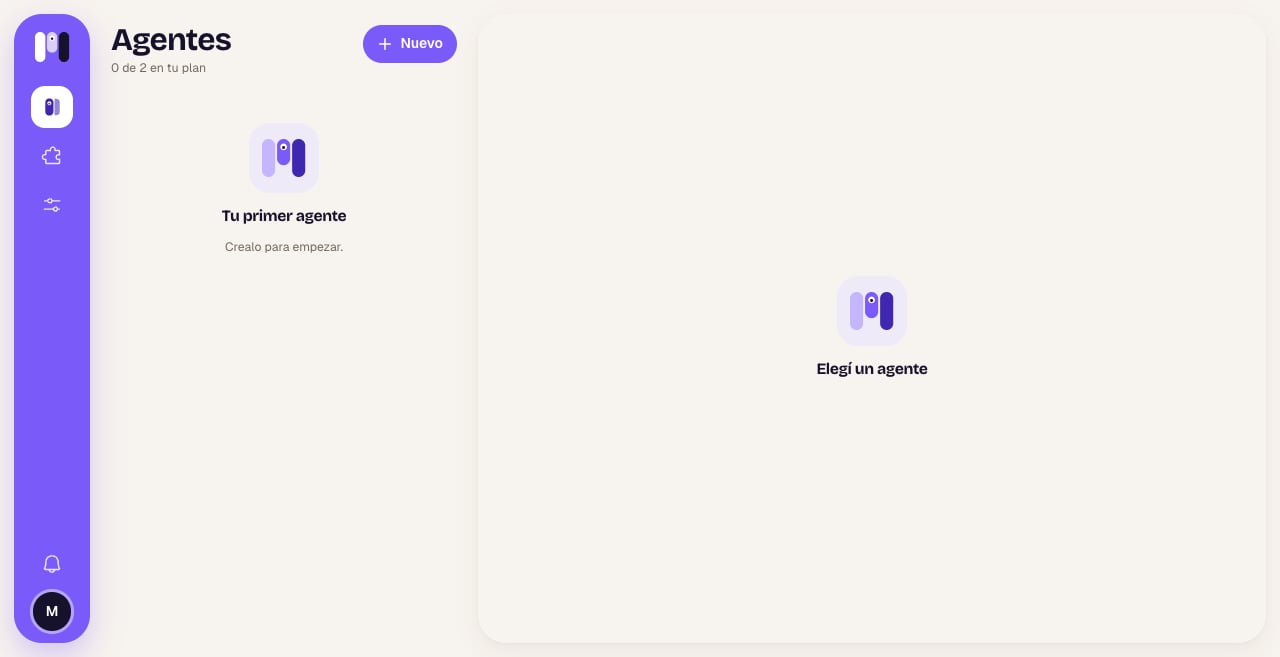
If you haven't created any yet, you see “Your first agent” — “Make it to get started.”. Tap **New** and follow [Create an agent](/en/setup/create-an-agent).
 ## The cards
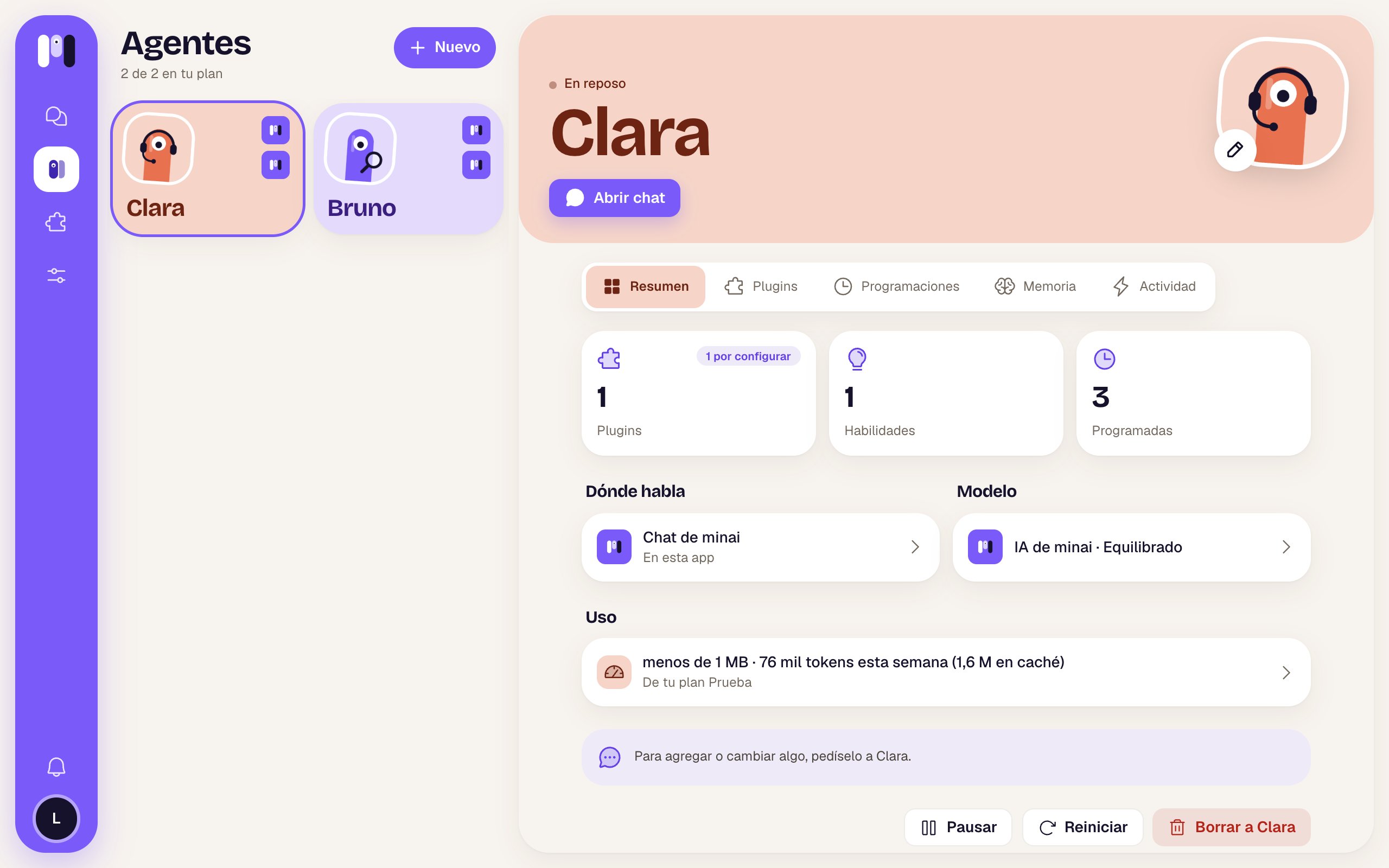
Each agent is a card in its color:
| Part | What it shows |
| - | - |
| Face | The one you picked for it, tilted a little. |
| First icon, top right | Where it talks: minai, Telegram, WhatsApp or Slack. A red ⚠ if it has no channel (“No channel”) or if its channel isn't working. |
| Second icon | Which AI it thinks with: Claude, ChatGPT, your own API or minai's AI. |
| Name | Big, at the bottom. |
| Under the name | “Paused” (⏸) if you paused it, or **Connect** in violet if it doesn't have a channel yet. |
Tap the card to open its [Overview](/en/reference/screens/agent-overview). If it has no channel, it takes you to pick one.
## The cards
Each agent is a card in its color:
| Part | What it shows |
| - | - |
| Face | The one you picked for it, tilted a little. |
| First icon, top right | Where it talks: minai, Telegram, WhatsApp or Slack. A red ⚠ if it has no channel (“No channel”) or if its channel isn't working. |
| Second icon | Which AI it thinks with: Claude, ChatGPT, your own API or minai's AI. |
| Name | Big, at the bottom. |
| Under the name | “Paused” (⏸) if you paused it, or **Connect** in violet if it doesn't have a channel yet. |
Tap the card to open its [Overview](/en/reference/screens/agent-overview). If it has no channel, it takes you to pick one.
 ## When your plan is full
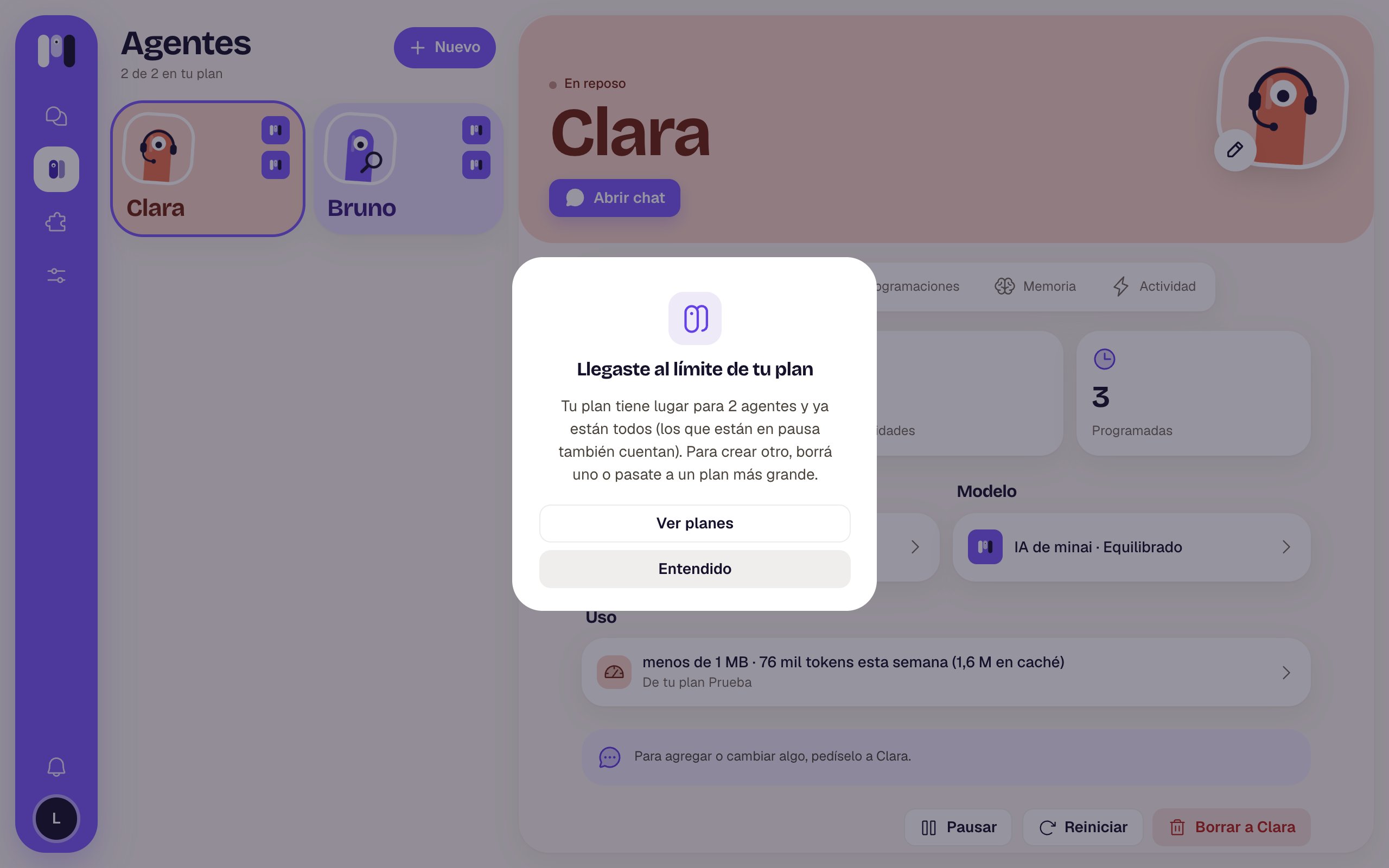
If you already have all the agents your plan allows, **New** doesn't create one: it opens **“You've reached your plan's limit”** — “Your plan has room for 2 agents and they're all taken (paused ones count too). To make another, delete one or move to a bigger plan.”
* **See plans** takes you to [Plan and usage](/en/reference/screens/settings-plan-and-usage).
* **Got it** closes it.
## When your plan is full
If you already have all the agents your plan allows, **New** doesn't create one: it opens **“You've reached your plan's limit”** — “Your plan has room for 2 agents and they're all taken (paused ones count too). To make another, delete one or move to a bigger plan.”
* **See plans** takes you to [Plan and usage](/en/reference/screens/settings-plan-and-usage).
* **Got it** closes it.
 Pausing doesn't free up room. To make room, delete an agent or change plans. See [Plans](/en/reference/plans).
Name, AI, what it's for and where it talks.
What you see when you open one.
This documentation is built and hosted on [Mintlify](https://mintlify.com), a developer documentation platform.
Pausing doesn't free up room. To make room, delete an agent or change plans. See [Plans](/en/reference/plans).
Name, AI, what it's for and where it talks.
What you see when you open one.
This documentation is built and hosted on [Mintlify](https://mintlify.com), a developer documentation platform.