> ## Documentation Index
> Fetch the complete documentation index at: https://docs.min-ai.ar/llms.txt
> Use this file to discover all available pages before exploring further.
# Chats
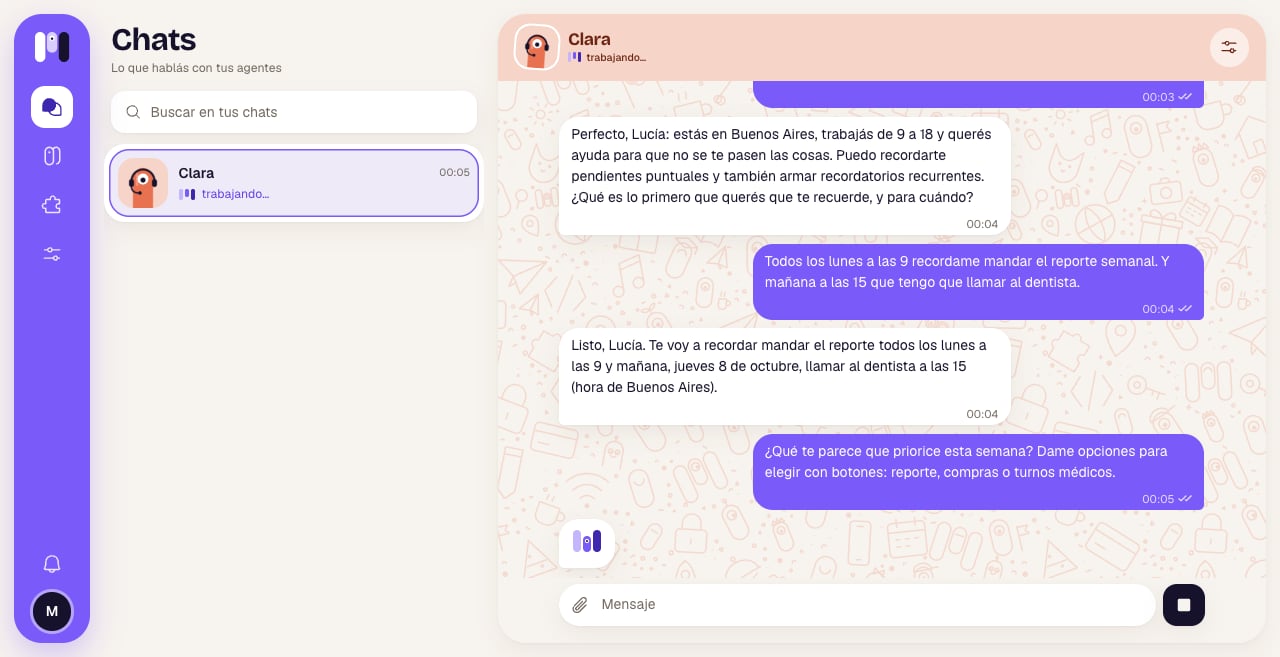
> The chat list and each conversation: bubbles, marks, buttons, photos, voice notes and the bar for typing.
Where you talk with your agents in minai chat, and where you read what they say on Telegram, WhatsApp or Slack.
**How to get there:** **Chats** in the bar (it shows up once an agent has a channel). You can also reach a conversation with **Open chat** on the agent's page.
## The chat list
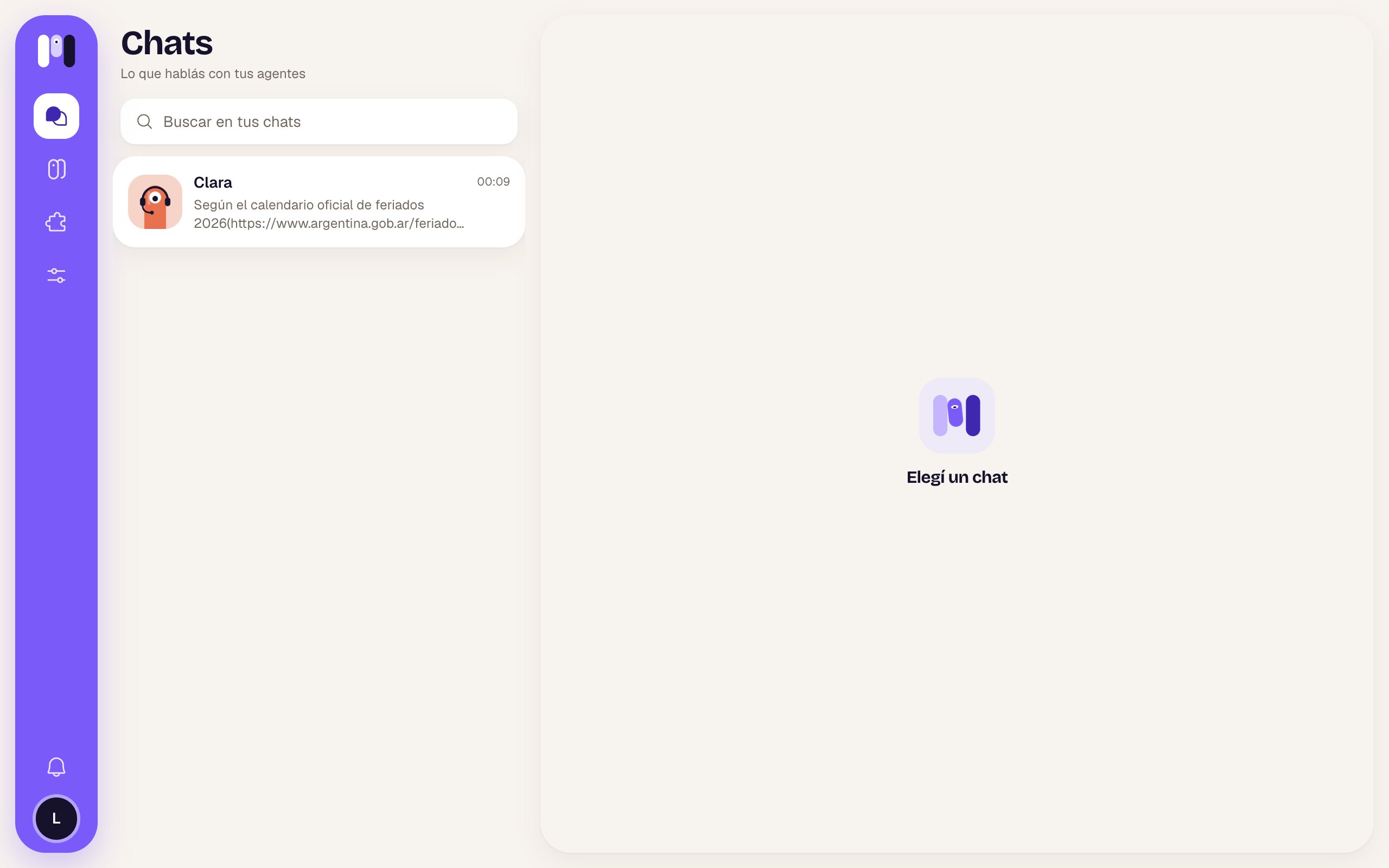 | Item | What it is |
| - | - |
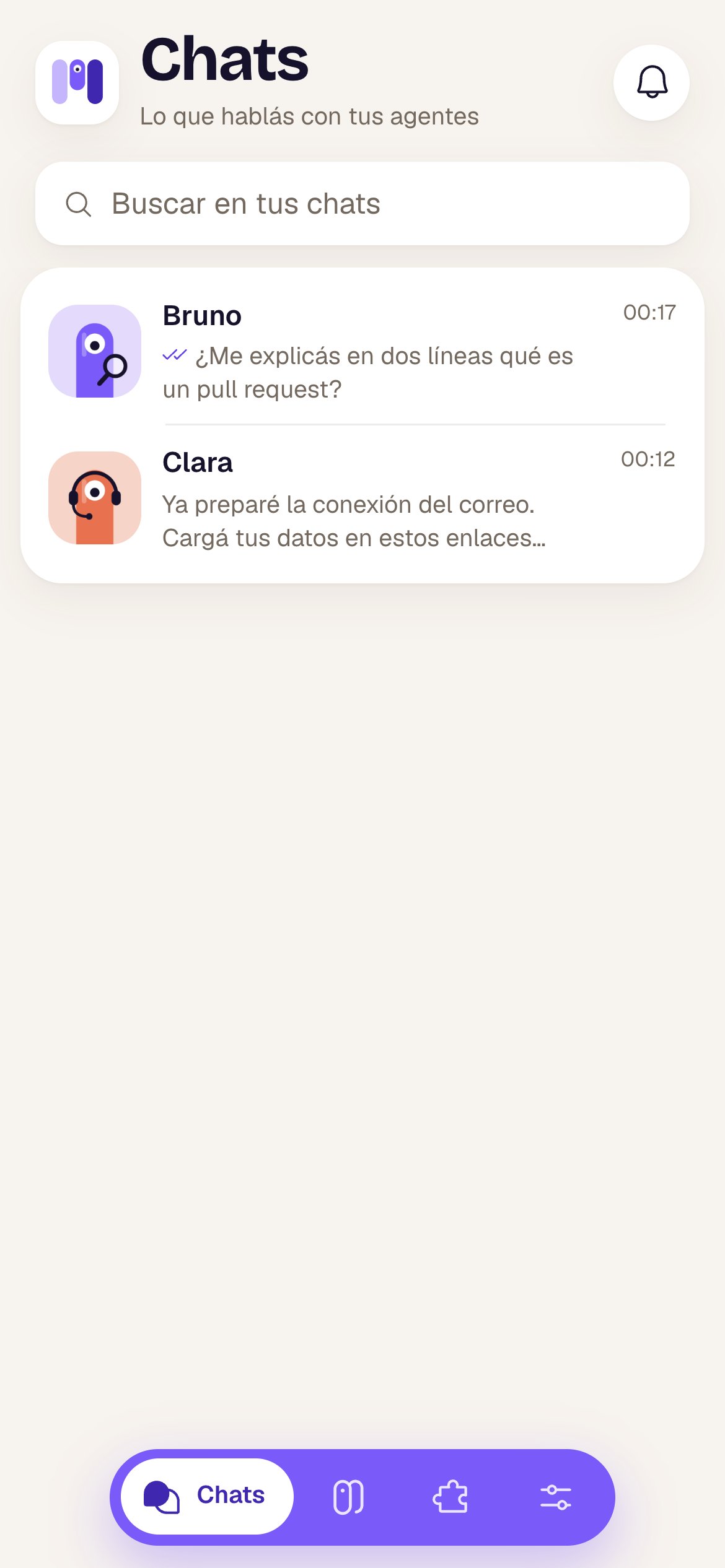
| **Chats** — “What you talk about with your agents” | The title. On a phone, the Notices bell is on the right. |
| **Search your chats** | Filters the list by the agent's name. |
| “Know when they write to you.” banner | Shows up if notifications are off in this browser. **Turn on** asks for them (the browser asks at the top: choose **Allow**); **Not now** hides it for good in this browser. |
| One row per agent | Its face, its name, the last message and the time. Newest on top. |
In each row:
* **Last message:** with ✓✓ in front if you wrote it; “📷 Photo”, “🎤 Audio” or “📎” and the file name if it was an attachment; in a group, the name of whoever wrote it.
* **“working…”** with the animated minis while the agent is doing something.
* **Time:** “10:42”, “yesterday” or the date.
* **Number** of unread messages; the row is tinted while there are unread ones.
* **Telegram, WhatsApp or Slack** chats carry that app's logo in the corner of the face.
| Item | What it is |
| - | - |
| **Chats** — “What you talk about with your agents” | The title. On a phone, the Notices bell is on the right. |
| **Search your chats** | Filters the list by the agent's name. |
| “Know when they write to you.” banner | Shows up if notifications are off in this browser. **Turn on** asks for them (the browser asks at the top: choose **Allow**); **Not now** hides it for good in this browser. |
| One row per agent | Its face, its name, the last message and the time. Newest on top. |
In each row:
* **Last message:** with ✓✓ in front if you wrote it; “📷 Photo”, “🎤 Audio” or “📎” and the file name if it was an attachment; in a group, the name of whoever wrote it.
* **“working…”** with the animated minis while the agent is doing something.
* **Time:** “10:42”, “yesterday” or the date.
* **Number** of unread messages; the row is tinted while there are unread ones.
* **Telegram, WhatsApp or Slack** chats carry that app's logo in the corner of the face.
 ## The conversation
 ### At the top
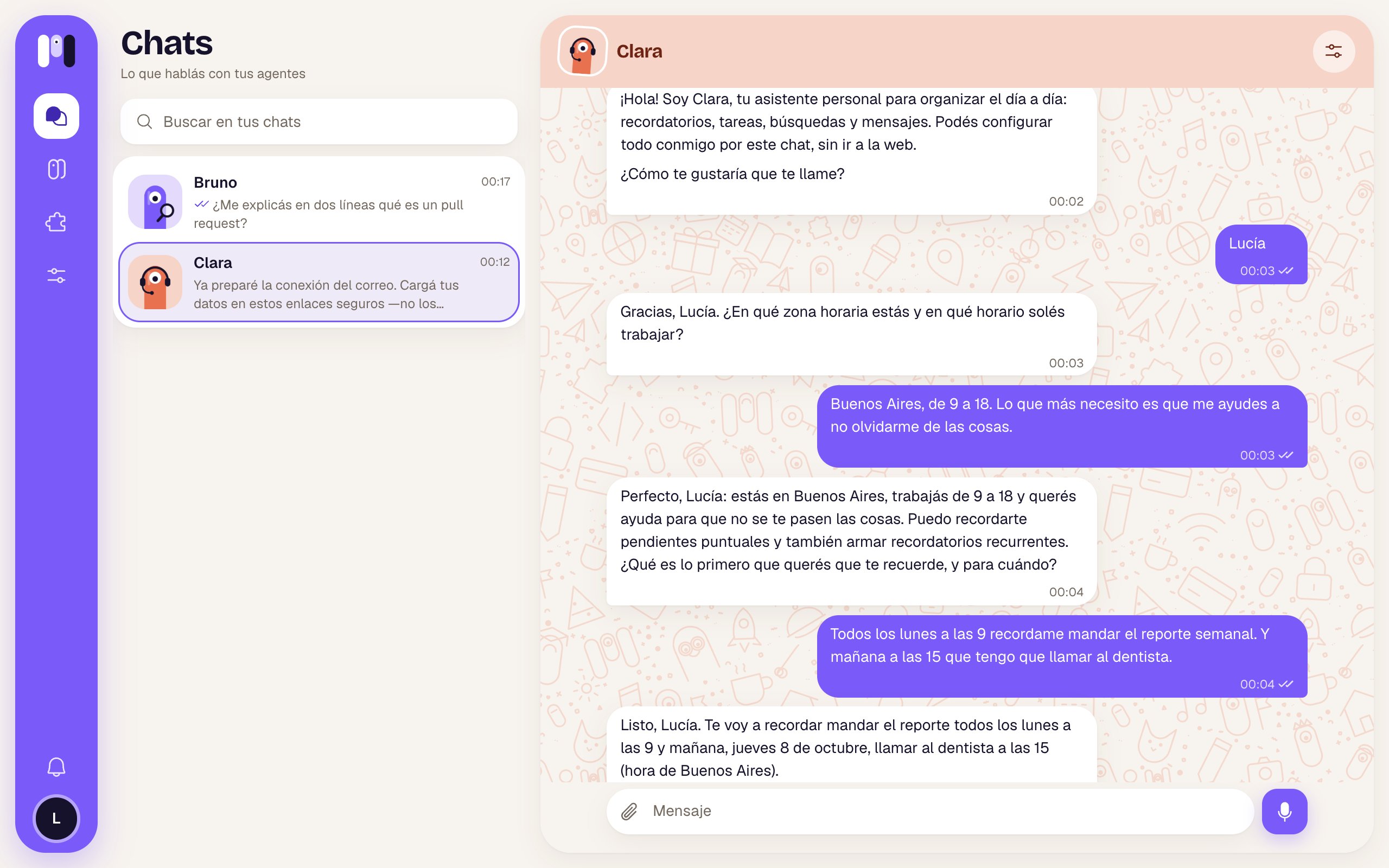
* **Arrow** (phone only): goes back to the agent's page if you came from there, otherwise to the list.
* The agent's **face and name**: tap them to go to its page.
* Under the name: “working…” while it's doing something, or “on Telegram”, “on WhatsApp”, “on Slack” if it's an outside chat.
* **See agent** (sliders, on the right): opens the agent's page.
The background takes the agent's color. Messages are split by day (“Today”, “Yesterday”, the date); older ones load as you scroll up.
### The bubbles
* **Yours**, on the right, in violet. **The agent's**, on the left, in white, with bold, lists, tables, code and links.
* On yours (in minai chat only), next to the time:
| Mark | Means |
| - | - |
| 🕑 | It's being sent. |
| ✓ | It arrived. |
| ✓✓ | The agent picked it up or already answered you. |
| ⚠ | It didn't go out. Tap **Retry**, or the trash can (**Discard**) to delete it. |
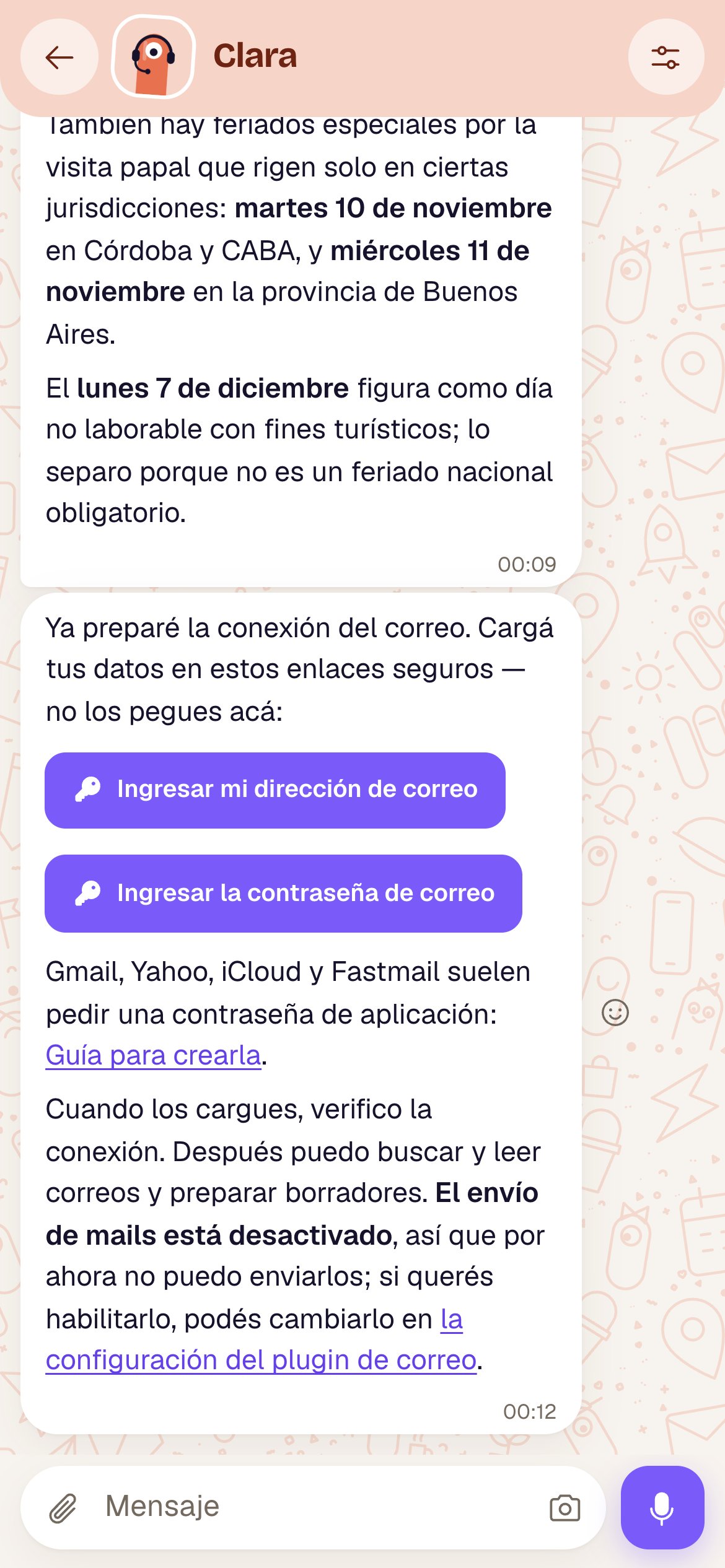
* **Reactions:** the agent's messages have a smiley face (**React**; on a computer it shows up when you hover). Pick 👍 ❤️ 😂 😮 😢 🙏; tap the same one again to remove it. The agent can react to yours too: you see it under your bubble.
* **New messages ↓:** if you're reading further up and something comes in, this pill shows up to take you down.
### Option buttons
When the agent gives you options, they show up as buttons under its message. Tap one and it's as if you'd answered that. You choose **only once**: the chosen one gets a ✓ and the rest turn off. If an option is a link, it opens in another tab (↗). See [Buttons](/en/reference/agent/buttons).
### One-time link buttons
When the agent sends you a link to enter something safely, in minai chat you don't see the link: you see a button.
| Button | What it opens |
| - | - |
| **Enter key** 🔑 (or the text the agent wrote, like “Enter my email address”) | A sheet to enter a key or a value. It's kept encrypted; it never goes through the chat. |
| **Connect WhatsApp** | A sheet to link your WhatsApp (WhatsApp plugin). |
| **Connect Google** | The Google installer, to connect your account. |
Links to a plugin's instructions or to an agent's page open inside the app. All of this is in [One-time links](/en/reference/screens/one-time-links).
### At the top
* **Arrow** (phone only): goes back to the agent's page if you came from there, otherwise to the list.
* The agent's **face and name**: tap them to go to its page.
* Under the name: “working…” while it's doing something, or “on Telegram”, “on WhatsApp”, “on Slack” if it's an outside chat.
* **See agent** (sliders, on the right): opens the agent's page.
The background takes the agent's color. Messages are split by day (“Today”, “Yesterday”, the date); older ones load as you scroll up.
### The bubbles
* **Yours**, on the right, in violet. **The agent's**, on the left, in white, with bold, lists, tables, code and links.
* On yours (in minai chat only), next to the time:
| Mark | Means |
| - | - |
| 🕑 | It's being sent. |
| ✓ | It arrived. |
| ✓✓ | The agent picked it up or already answered you. |
| ⚠ | It didn't go out. Tap **Retry**, or the trash can (**Discard**) to delete it. |
* **Reactions:** the agent's messages have a smiley face (**React**; on a computer it shows up when you hover). Pick 👍 ❤️ 😂 😮 😢 🙏; tap the same one again to remove it. The agent can react to yours too: you see it under your bubble.
* **New messages ↓:** if you're reading further up and something comes in, this pill shows up to take you down.
### Option buttons
When the agent gives you options, they show up as buttons under its message. Tap one and it's as if you'd answered that. You choose **only once**: the chosen one gets a ✓ and the rest turn off. If an option is a link, it opens in another tab (↗). See [Buttons](/en/reference/agent/buttons).
### One-time link buttons
When the agent sends you a link to enter something safely, in minai chat you don't see the link: you see a button.
| Button | What it opens |
| - | - |
| **Enter key** 🔑 (or the text the agent wrote, like “Enter my email address”) | A sheet to enter a key or a value. It's kept encrypted; it never goes through the chat. |
| **Connect WhatsApp** | A sheet to link your WhatsApp (WhatsApp plugin). |
| **Connect Google** | The Google installer, to connect your account. |
Links to a plugin's instructions or to an agent's page open inside the app. All of this is in [One-time links](/en/reference/screens/one-time-links).
 ### Photos, voice notes and files
* **Photos:** shown as thumbnails (the top part of the image). Tap one and the **viewer** opens full screen, in dark: at the top it says “number/total · file name”; **Open the original** (↗) opens it in another tab and **Close** (✕) exits. If there are several, use **Previous** and **Next** or the keyboard arrows; **Esc** or tapping outside closes it. A very tall screenshot shows at the screen's width and scrolls.
* **Voice notes:** **Play** / **Pause**, a bar to jump to any point, the time, and a speed button that goes through x1, x1.5 and x2 (this browser remembers it). Only one plays at a time.
* **Videos:** play right there.
* **Other files:** a card with the name and size. Tap it to download it.
See [Files, images and audio](/en/reference/agent/files-images-and-audio).
### While the agent is working
A bubble shows up with the animated minis and, next to it, a line in italics with what it says it's doing (up to two lines, each replacing the last).
### Photos, voice notes and files
* **Photos:** shown as thumbnails (the top part of the image). Tap one and the **viewer** opens full screen, in dark: at the top it says “number/total · file name”; **Open the original** (↗) opens it in another tab and **Close** (✕) exits. If there are several, use **Previous** and **Next** or the keyboard arrows; **Esc** or tapping outside closes it. A very tall screenshot shows at the screen's width and scrolls.
* **Voice notes:** **Play** / **Pause**, a bar to jump to any point, the time, and a speed button that goes through x1, x1.5 and x2 (this browser remembers it). Only one plays at a time.
* **Videos:** play right there.
* **Other files:** a card with the name and size. Tap it to download it.
See [Files, images and audio](/en/reference/agent/files-images-and-audio).
### While the agent is working
A bubble shows up with the animated minis and, next to it, a line in italics with what it says it's doing (up to two lines, each replacing the last).
 ### When the agent can't take your message
Instead of an answer, a card shows up:
| Card | Why | What to do |
| - | - | - |
| “Clara is paused” | You paused it. | **Go to Clara** and tap **Resume**. |
| “Your agents are stopped” | Your account is suspended or went over the plan's limits. | **See Plan and usage** and sort out what it says there. |
| “No usage left” | Your AI subscription hit its limit. It says when it renews. | Wait for it to renew, or use another AI. See [Plan and usage](/en/reference/screens/settings-plan-and-usage). |
### While it's open
Opening a chat marks it as read. While you have it on screen, its messages don't send you notifications.
## The bar for typing
Only in minai chat.
| Button | What it does |
| - | - |
| 📎 **Attach** | Adds files (up to 10 at a time). You can also paste them. They show up as tags above; **Remove** (✕) takes one out; “Not uploaded” if it failed. |
| **Message** | The text field. On a computer, Enter sends and Shift+Enter starts a new line; on a phone, Enter starts a new line. |
| 📷 **Camera** | Phone only: takes a photo and attaches it. |
The round button on the right changes with what's going on:
| When | Button | What it does |
| - | - | - |
| Empty field | 🎤 **Record audio** | Starts recording. A bar shows up with 🗑 **Cancel**, a red dot and the time; ■ **Stop** finishes and sends it, same as ➤ **Send audio**. If it doesn't work: “We couldn't use the microphone.” |
| There's text or files | ➤ **Send** | Sends the message. It spins while the files upload. |
| Empty field and the agent working | ■ **Stop** | Cuts short what the agent is doing (“Stopping…”). Typing `/stop` and sending it does the same. |
Voice notes are transcribed so the agent understands them, and they count toward your plan's **Transcribed audio** minutes.
**Stop** only cuts short what it's doing right now; the conversation goes on. For a stuck agent there's **Restart**. See [Stop, restart and pause](/en/reference/agent/stop-restart-and-pause).
## Telegram, WhatsApp or Slack chats
You see them in minai **read-only**: you write in that app.
* Instead of the bar for typing there's a **Send on Telegram** button (or **WhatsApp**, or **Slack**) that opens the app, or the text “This chat is written in…”.
* Reactions and option buttons can't be tapped from here.
* In a group, each message shows the name of whoever wrote it.
* Unread messages clear when you read them here or when you answer there.
What's special about talking here.
Keys, WhatsApp and Google.
This documentation is built and hosted on [Mintlify](https://mintlify.com), a developer documentation platform.
### When the agent can't take your message
Instead of an answer, a card shows up:
| Card | Why | What to do |
| - | - | - |
| “Clara is paused” | You paused it. | **Go to Clara** and tap **Resume**. |
| “Your agents are stopped” | Your account is suspended or went over the plan's limits. | **See Plan and usage** and sort out what it says there. |
| “No usage left” | Your AI subscription hit its limit. It says when it renews. | Wait for it to renew, or use another AI. See [Plan and usage](/en/reference/screens/settings-plan-and-usage). |
### While it's open
Opening a chat marks it as read. While you have it on screen, its messages don't send you notifications.
## The bar for typing
Only in minai chat.
| Button | What it does |
| - | - |
| 📎 **Attach** | Adds files (up to 10 at a time). You can also paste them. They show up as tags above; **Remove** (✕) takes one out; “Not uploaded” if it failed. |
| **Message** | The text field. On a computer, Enter sends and Shift+Enter starts a new line; on a phone, Enter starts a new line. |
| 📷 **Camera** | Phone only: takes a photo and attaches it. |
The round button on the right changes with what's going on:
| When | Button | What it does |
| - | - | - |
| Empty field | 🎤 **Record audio** | Starts recording. A bar shows up with 🗑 **Cancel**, a red dot and the time; ■ **Stop** finishes and sends it, same as ➤ **Send audio**. If it doesn't work: “We couldn't use the microphone.” |
| There's text or files | ➤ **Send** | Sends the message. It spins while the files upload. |
| Empty field and the agent working | ■ **Stop** | Cuts short what the agent is doing (“Stopping…”). Typing `/stop` and sending it does the same. |
Voice notes are transcribed so the agent understands them, and they count toward your plan's **Transcribed audio** minutes.
**Stop** only cuts short what it's doing right now; the conversation goes on. For a stuck agent there's **Restart**. See [Stop, restart and pause](/en/reference/agent/stop-restart-and-pause).
## Telegram, WhatsApp or Slack chats
You see them in minai **read-only**: you write in that app.
* Instead of the bar for typing there's a **Send on Telegram** button (or **WhatsApp**, or **Slack**) that opens the app, or the text “This chat is written in…”.
* Reactions and option buttons can't be tapped from here.
* In a group, each message shows the name of whoever wrote it.
* Unread messages clear when you read them here or when you answer there.
What's special about talking here.
Keys, WhatsApp and Google.
This documentation is built and hosted on [Mintlify](https://mintlify.com), a developer documentation platform.