> ## Documentation Index
> Fetch the complete documentation index at: https://docs.min-ai.ar/llms.txt
> Use this file to discover all available pages before exploring further.
# One-time links
> The pages the agent's links open: entering a key, linking your WhatsApp and connecting Google or Atlassian.
When an agent needs something sensitive (a password, your WhatsApp, your Google account), it doesn't ask you in the chat: it sends you a link that works only once.
**How to get there:** from a message from the agent. In minai chat the link shows up as a button; on Telegram, WhatsApp or Slack, as a link. You don't need to be signed in to minai.
## Enter a key
In minai chat: the **Enter key** 🔑 button (or the text the agent wrote, like “Enter the email password”) opens a window over the chat. From outside, the link opens the same page in the browser.
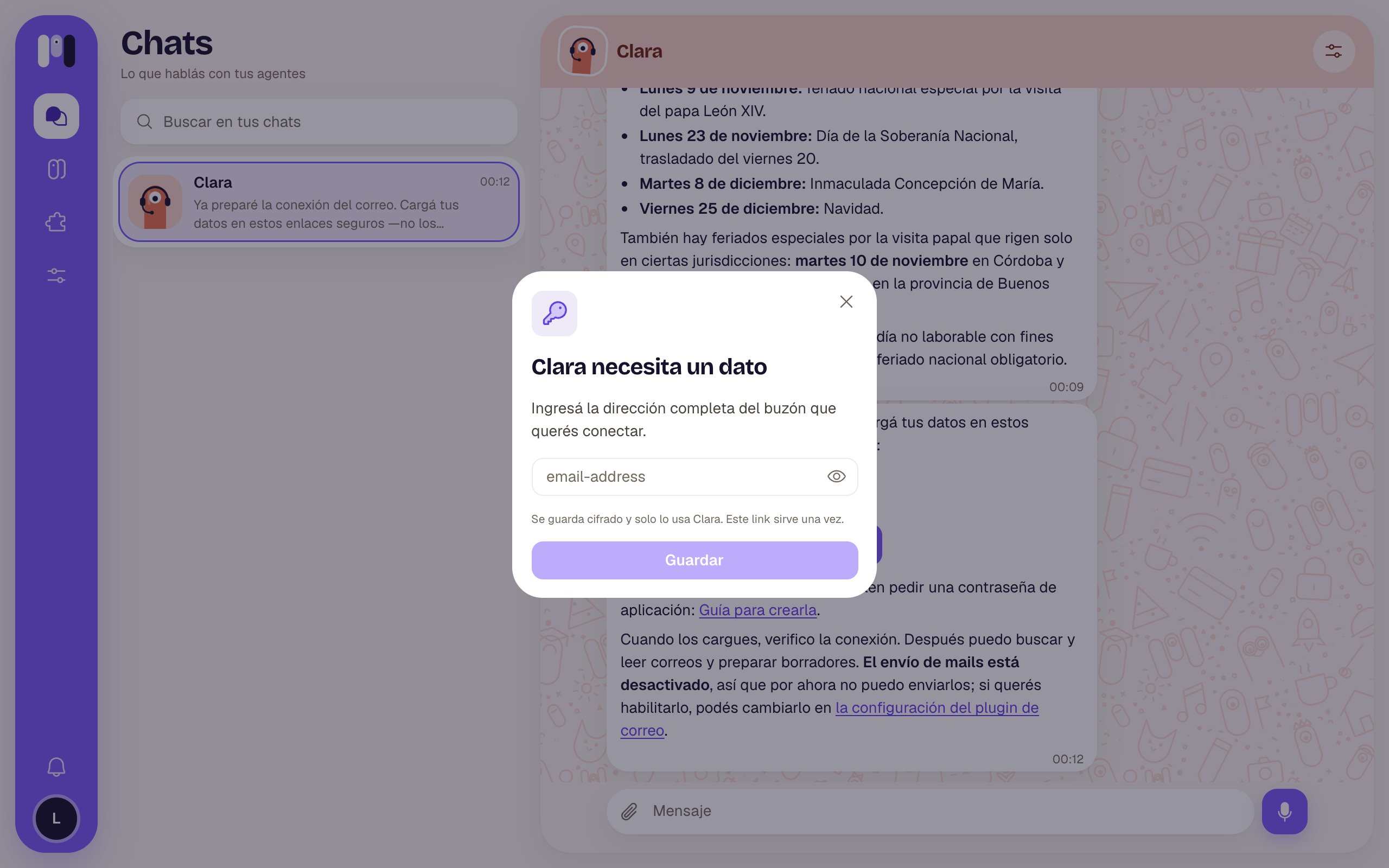 | Part | What it is |
| - | - |
| **Clara needs something from you** | The title, with the agent's name. |
| Explanation | What you have to enter, written by the agent. |
| Field | Hidden, like a password. The eye (**Show** / **Hide**) lets you see it. |
| “It's kept encrypted and only Clara uses it. This link works once.” | What happens to the value. |
| **Save** | Saves it. |
When you save: “Saved”. Inside the chat, “Clara can use it now.” and the window closes by itself; in the browser, “Go back to the chat with Clara.”.
Never paste a password into the chat. If it needs one, the agent sends you this link. See [Keys and values](/en/tools/keys-and-values).
## Link your WhatsApp
For the WhatsApp plugin. In minai chat: the **Connect WhatsApp** button opens a window; from outside, a page.
* At the top: “Clara will be able to read your chats and send the messages you approve.”
* **Link your WhatsApp**, two ways: **Scan QR** (“On your phone: WhatsApp → Linked devices → Link a device.”) or **With a code** (you enter your number, tap **Get a code** and enter it in WhatsApp).
* When it's done: “Clara now has your WhatsApp” and your number.
See [WhatsApp](/en/plugins/whatsapp).
## Connect Google
In minai chat: the **Connect Google** button opens the installer. You also get there by adding a Google plugin or with **Change** / **Finish installing** on the agent's Plugins tab.
* At the top: the plugin's icon, **Connect Gmail** (or whichever it is) and “for Clara”. On a computer, **Ask Clara** opens its chat on the side, knowing which step you're on.
* If you don't have your Google app yet, it first walks you through creating it. Then you turn on what that plugin needs.
* The last step, **What Clara can do**: **Read and act** or **Read only**, with what that means for that plugin, and **Connect with Google**. If it was already connected: “It's connected as… now. If you go on, that's replaced.”
* Back from Google: “Clara now has your Gmail” — “Connected as… It'll write to you in the chat.”, and it takes you to the chat in a few seconds (**Back to the chat**).
* If it fails: “It didn't connect” with the reason, **Turn it on at Google** if something needs turning on, and **Try again**.
See [Your Google app](/en/tools/your-google-app) and [Permissions](/en/tools/permissions).
## Connect Atlassian
Same as Google, but with no app to create:
* **Connect Atlassian** “for Clara” — “Clara gets into your Atlassian with your account, only with what you choose here. You accept it at Atlassian: no keys to copy.”
* **Read and act** or **Read only**, and **Connect with Atlassian** (or **Reconnect with Atlassian**). If your organization doesn't allow it, an Atlassian admin has to allow the “minai” app.
* When you come back: “Clara now has your Atlassian” and it takes you to the chat.
See [Atlassian](/en/plugins/atlassian).
## When the link no longer works
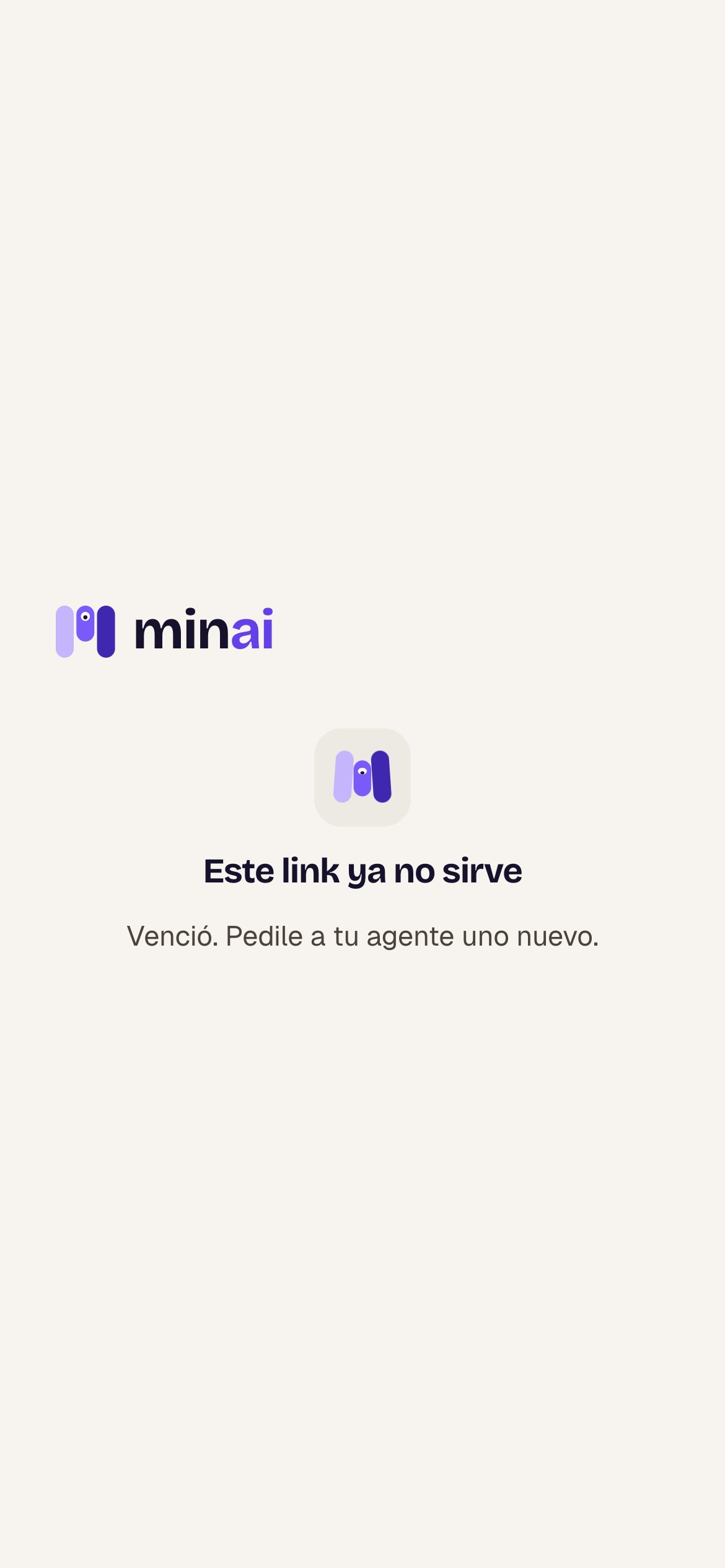
Each link works **once** and expires after a while. If you open it late or twice, you see “This link no longer works” with the reason:
| Message | What to do |
| - | - |
| “It expired. Ask your agent for a new one.” | Ask for another: "Send me the link for the key again." |
| “Already used: it's saved.” | Nothing: it's done. |
| “Already used: the connection is done.” | Nothing: it's done. |
| Part | What it is |
| - | - |
| **Clara needs something from you** | The title, with the agent's name. |
| Explanation | What you have to enter, written by the agent. |
| Field | Hidden, like a password. The eye (**Show** / **Hide**) lets you see it. |
| “It's kept encrypted and only Clara uses it. This link works once.” | What happens to the value. |
| **Save** | Saves it. |
When you save: “Saved”. Inside the chat, “Clara can use it now.” and the window closes by itself; in the browser, “Go back to the chat with Clara.”.
Never paste a password into the chat. If it needs one, the agent sends you this link. See [Keys and values](/en/tools/keys-and-values).
## Link your WhatsApp
For the WhatsApp plugin. In minai chat: the **Connect WhatsApp** button opens a window; from outside, a page.
* At the top: “Clara will be able to read your chats and send the messages you approve.”
* **Link your WhatsApp**, two ways: **Scan QR** (“On your phone: WhatsApp → Linked devices → Link a device.”) or **With a code** (you enter your number, tap **Get a code** and enter it in WhatsApp).
* When it's done: “Clara now has your WhatsApp” and your number.
See [WhatsApp](/en/plugins/whatsapp).
## Connect Google
In minai chat: the **Connect Google** button opens the installer. You also get there by adding a Google plugin or with **Change** / **Finish installing** on the agent's Plugins tab.
* At the top: the plugin's icon, **Connect Gmail** (or whichever it is) and “for Clara”. On a computer, **Ask Clara** opens its chat on the side, knowing which step you're on.
* If you don't have your Google app yet, it first walks you through creating it. Then you turn on what that plugin needs.
* The last step, **What Clara can do**: **Read and act** or **Read only**, with what that means for that plugin, and **Connect with Google**. If it was already connected: “It's connected as… now. If you go on, that's replaced.”
* Back from Google: “Clara now has your Gmail” — “Connected as… It'll write to you in the chat.”, and it takes you to the chat in a few seconds (**Back to the chat**).
* If it fails: “It didn't connect” with the reason, **Turn it on at Google** if something needs turning on, and **Try again**.
See [Your Google app](/en/tools/your-google-app) and [Permissions](/en/tools/permissions).
## Connect Atlassian
Same as Google, but with no app to create:
* **Connect Atlassian** “for Clara” — “Clara gets into your Atlassian with your account, only with what you choose here. You accept it at Atlassian: no keys to copy.”
* **Read and act** or **Read only**, and **Connect with Atlassian** (or **Reconnect with Atlassian**). If your organization doesn't allow it, an Atlassian admin has to allow the “minai” app.
* When you come back: “Clara now has your Atlassian” and it takes you to the chat.
See [Atlassian](/en/plugins/atlassian).
## When the link no longer works
Each link works **once** and expires after a while. If you open it late or twice, you see “This link no longer works” with the reason:
| Message | What to do |
| - | - |
| “It expired. Ask your agent for a new one.” | Ask for another: "Send me the link for the key again." |
| “Already used: it's saved.” | Nothing: it's done. |
| “Already used: the connection is done.” | Nothing: it's done. |
 How they're kept and how to delete them.
What minai sees and what it doesn't.
This documentation is built and hosted on [Mintlify](https://mintlify.com), a developer documentation platform.
How they're kept and how to delete them.
What minai sees and what it doesn't.
This documentation is built and hosted on [Mintlify](https://mintlify.com), a developer documentation platform.