> ## Documentation Index
> Fetch the complete documentation index at: https://docs.min-ai.ar/llms.txt
> Use this file to discover all available pages before exploring further.
# Plugin library
> The library, each plugin's page and how to add one to an agent.
All the plugins you can add to your agents, and each one's page with what it brings and what it will ask you for.
**How to get there:** **Plugins** in the bar. For a particular agent: its Plugins tab → **Add plugins**.
## The library
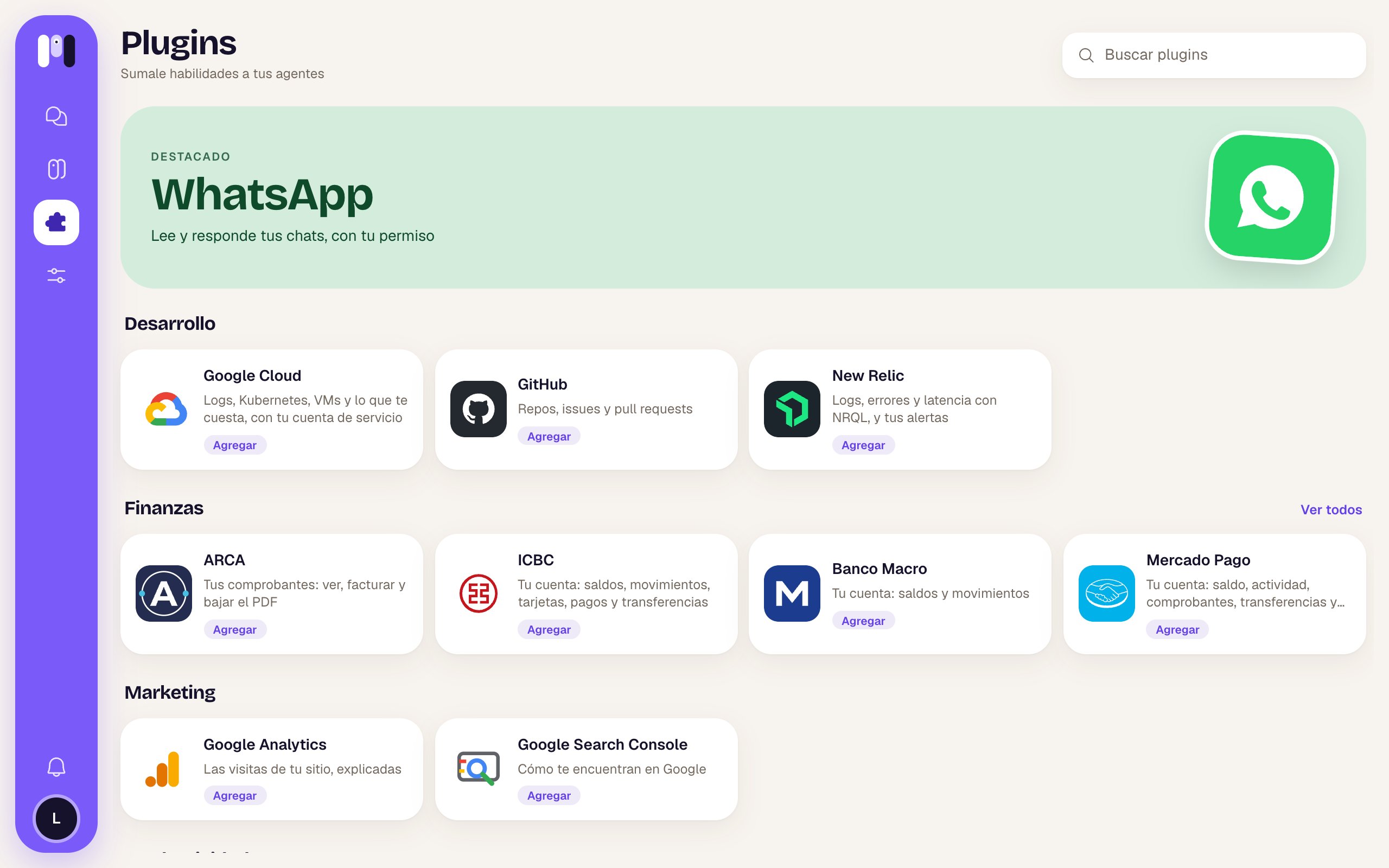 | Item | What it is |
| - | - |
| **Plugins** — “Give your agents new skills” | The title. |
| **Search plugins** | Searches by name, description or topic (accents don't matter). If nothing matches: “No plugins found”. |
| “Pick a plugin for Clara” | Only if you came from an agent. **Back to Clara** takes you back. |
| **Featured** | One plugin, shown big. Right now, WhatsApp: “Reads and answers your chats, with your permission”. |
| Sections | **Development**, **Finance**, **Marketing** and **Productivity**. Each one shows 4; **See all** / **See less** opens or closes the rest. |
Each card has the icon, the name, a line about what it does and a pill: **Installed** (green, if some agent already has it) or **Add**.
## A plugin's page
| Item | What it is |
| - | - |
| **Plugins** — “Give your agents new skills” | The title. |
| **Search plugins** | Searches by name, description or topic (accents don't matter). If nothing matches: “No plugins found”. |
| “Pick a plugin for Clara” | Only if you came from an agent. **Back to Clara** takes you back. |
| **Featured** | One plugin, shown big. Right now, WhatsApp: “Reads and answers your chats, with your permission”. |
| Sections | **Development**, **Finance**, **Marketing** and **Productivity**. Each one shows 4; **See all** / **See less** opens or closes the rest. |
Each card has the icon, the name, a line about what it does and a pill: **Installed** (green, if some agent already has it) or **Add**.
## A plugin's page
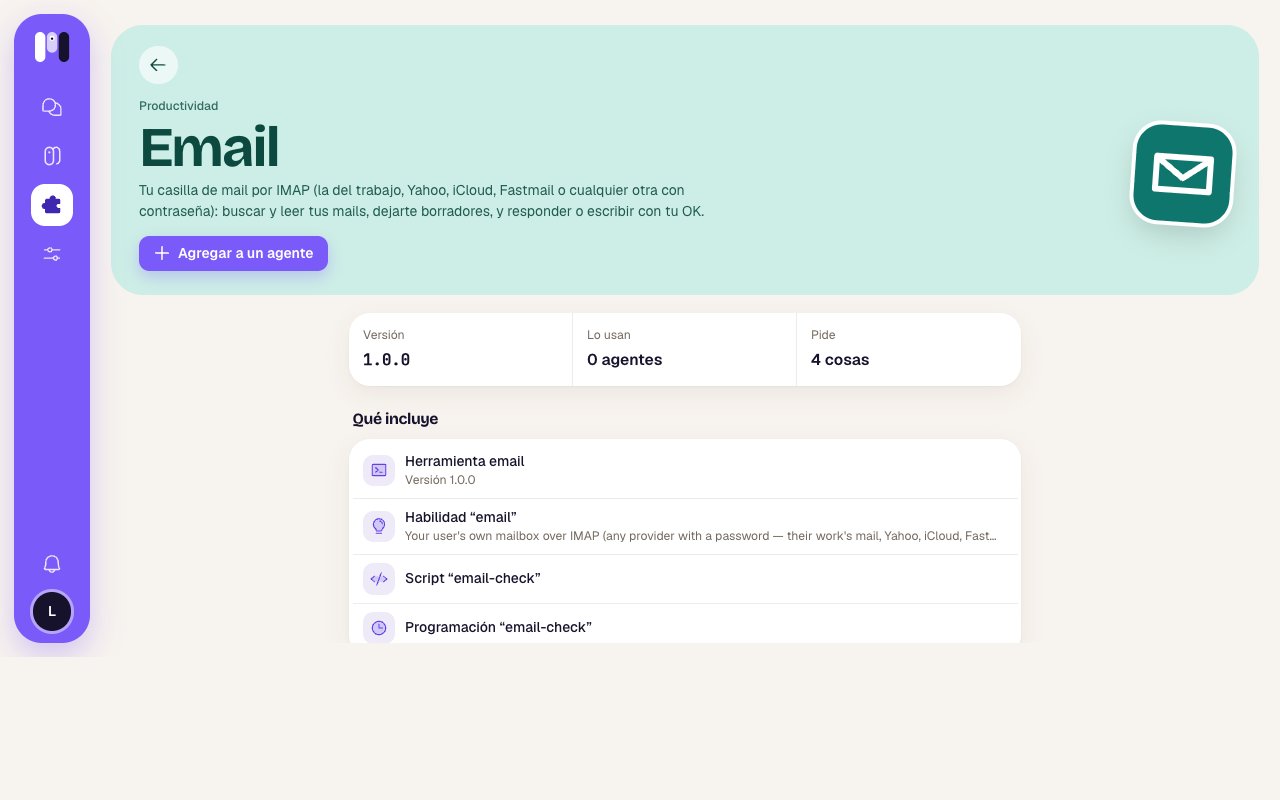 | Part | What it is |
| - | - |
| Header | Arrow (**Back to Plugins**), the category, the name, the description and the icon. |
| **Add to an agent** | The main button. From an agent it says **Add to Clara**, or “Clara already has it”, turned off. It's also off if you have no agents, if the agent is paused, or if the plugin is personal and the agent is a group's. |
| **Version** · **Used by** · **Asks for** | The version, how many agents have it and how many things it asks you for (“Nothing” if none). |
| **What it includes** | What it brings: tools, skills, connections, scripts, schedules and webhooks (“Gets notified from outside”). |
| **What it will ask you for** | What you'll have to do or enter, and how: “it sends you the link in the chat” or “in its installer, when you add it”. If it doesn't ask for anything: “Nothing: it works as soon as you add it. The agent lets you know when it's ready.” Values say whether they're required or optional; keys, in amber, say “kept encrypted”. |
| **See the instructions** | “Step by step, with screenshots, to read before adding it”. |
| **Installed on** | The agents that already have it, with “Needs setup” or “Failed” when that applies. Tap one to go to its plugins; the ✕ (**Remove it from Clara**) takes it away. |
## Add a plugin
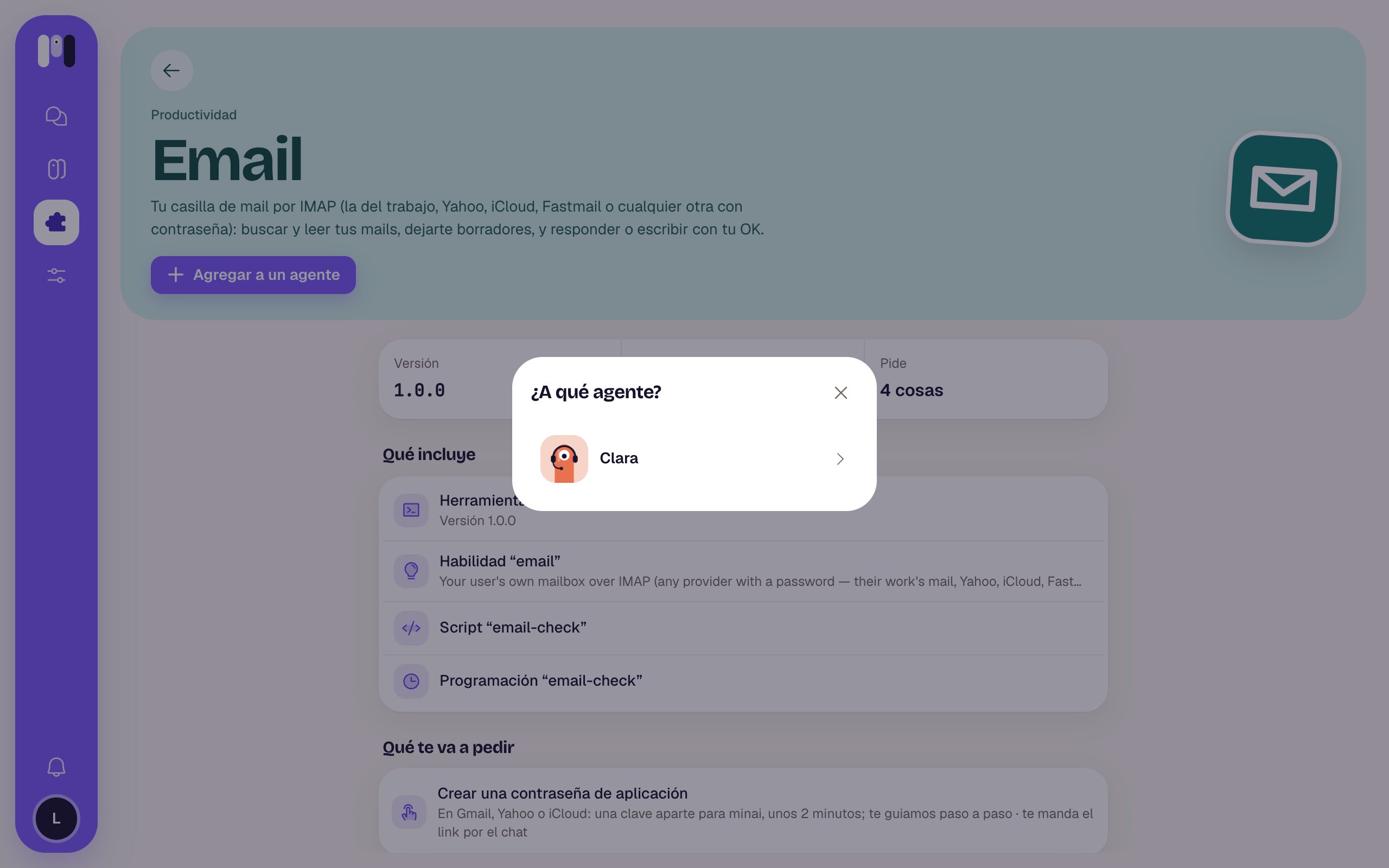
**Add to an agent** opens **“Which agent?”** with your agents. Some show up turned off with the reason: “Already has it”, “It's a group's” or “Paused”.
| Part | What it is |
| - | - |
| Header | Arrow (**Back to Plugins**), the category, the name, the description and the icon. |
| **Add to an agent** | The main button. From an agent it says **Add to Clara**, or “Clara already has it”, turned off. It's also off if you have no agents, if the agent is paused, or if the plugin is personal and the agent is a group's. |
| **Version** · **Used by** · **Asks for** | The version, how many agents have it and how many things it asks you for (“Nothing” if none). |
| **What it includes** | What it brings: tools, skills, connections, scripts, schedules and webhooks (“Gets notified from outside”). |
| **What it will ask you for** | What you'll have to do or enter, and how: “it sends you the link in the chat” or “in its installer, when you add it”. If it doesn't ask for anything: “Nothing: it works as soon as you add it. The agent lets you know when it's ready.” Values say whether they're required or optional; keys, in amber, say “kept encrypted”. |
| **See the instructions** | “Step by step, with screenshots, to read before adding it”. |
| **Installed on** | The agents that already have it, with “Needs setup” or “Failed” when that applies. Tap one to go to its plugins; the ✕ (**Remove it from Clara**) takes it away. |
## Add a plugin
**Add to an agent** opens **“Which agent?”** with your agents. Some show up turned off with the reason: “Already has it”, “It's a group's” or “Paused”.
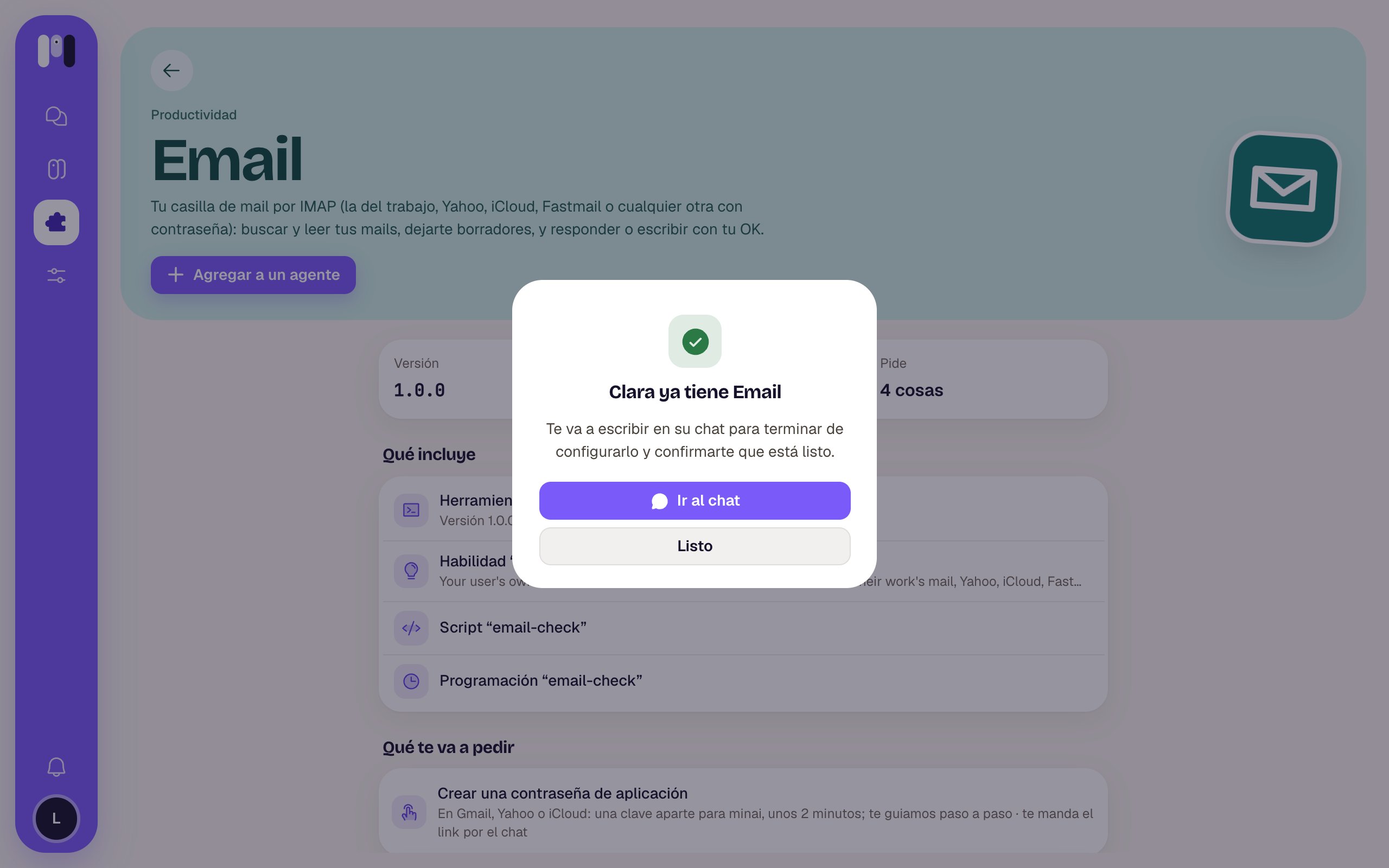
 Pick one: “Adding Email to Clara…” and then **“Clara now has Email”** — “It'll write to you in its chat to finish setting it up and let you know when it's ready.”
* **Go to the chat** (or **Open Telegram**, etc.) takes you to the conversation.
* **Done** closes it.
Pick one: “Adding Email to Clara…” and then **“Clara now has Email”** — “It'll write to you in its chat to finish setting it up and let you know when it's ready.”
* **Go to the chat** (or **Open Telegram**, etc.) takes you to the conversation.
* **Done** closes it.
 If it fails: “We couldn't add it” with **Try again**. If you came from an agent, it's added straight away without asking which one.
The Google plugins (Gmail, Calendar, Drive, Docs, Analytics, Search Console) and Atlassian **open their installer** instead of this window: that's where you connect your account. See [Your Google app](/en/tools/your-google-app).
You can also ask the agent: "Add the Gmail plugin." See [Add a plugin](/en/tools/add-a-plugin).
## The instructions
**See the instructions** opens a step-by-step guide: a progress bar (“Step 1 of 5”), each step with its explanation, links that open the service's page (↗), boxes to **Copy**, screenshots that get bigger, and in green “You're done when: …”. At the bottom, **Back**, **Next** and at the end **Done**. On a phone it suggests you continue on a computer.
What each one does.
Set up, remove and delete keys.
This documentation is built and hosted on [Mintlify](https://mintlify.com), a developer documentation platform.
If it fails: “We couldn't add it” with **Try again**. If you came from an agent, it's added straight away without asking which one.
The Google plugins (Gmail, Calendar, Drive, Docs, Analytics, Search Console) and Atlassian **open their installer** instead of this window: that's where you connect your account. See [Your Google app](/en/tools/your-google-app).
You can also ask the agent: "Add the Gmail plugin." See [Add a plugin](/en/tools/add-a-plugin).
## The instructions
**See the instructions** opens a step-by-step guide: a progress bar (“Step 1 of 5”), each step with its explanation, links that open the service's page (↗), boxes to **Copy**, screenshots that get bigger, and in green “You're done when: …”. At the bottom, **Back**, **Next** and at the end **Done**. On a phone it suggests you continue on a computer.
What each one does.
Set up, remove and delete keys.
This documentation is built and hosted on [Mintlify](https://mintlify.com), a developer documentation platform.