> ## Documentation Index
> Fetch the complete documentation index at: https://docs.min-ai.ar/llms.txt
> Use this file to discover all available pages before exploring further.
# Settings: Your account
> The Settings list and the Your account section: plan, instances, theme, language and signing out.
Your stuff: the account you signed in with, your plan, your instances, how the app looks and what language it's in.
**How to get there:** **Settings** in the bar (on a computer, Your account opens next to it), or your face at the very bottom of the bar.
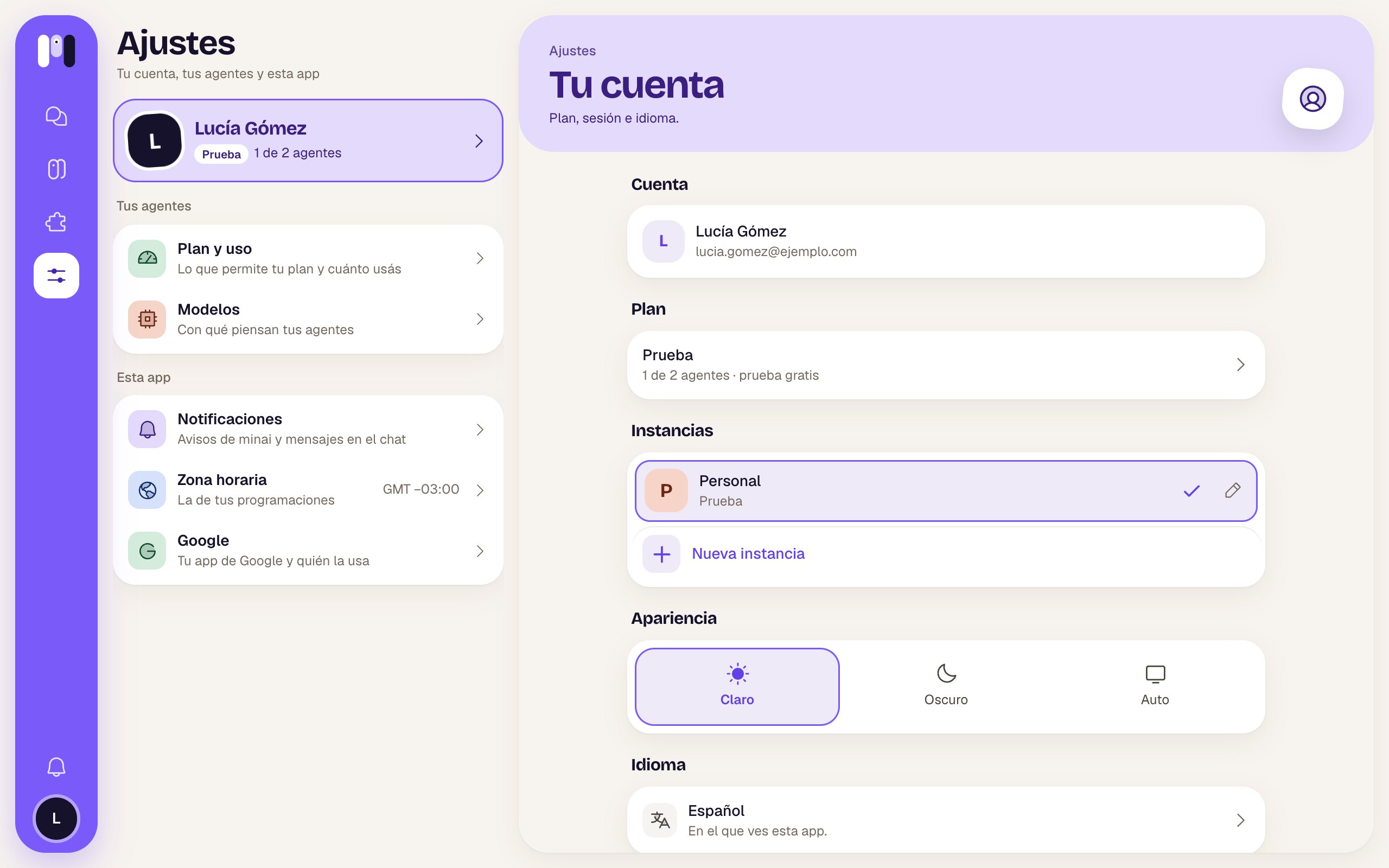 ## The Settings list
| Item | What it is |
| - | - |
| **Settings** — “Your account, your agents and this app” | The title. |
| Violet card | Your face, your name, your plan (“Trial”, “Pro plan”, “No plan”) and “1 of 2 agents”. Opens Your account. |
| **Your agents** | [Plan and usage](/en/reference/screens/settings-plan-and-usage) (with “Stopped” in red if your account is suspended) and [Models](/en/reference/screens/settings-models). |
| **This app** | [Notifications](/en/reference/screens/settings-notifications), [Time zone](/en/reference/screens/settings-time-zone) (with your GMT next to it) and [Google](/en/reference/screens/settings-google). |
Each section opens with a colored header, its title and an icon. On a phone, **Back to Settings** takes you back to the list.
## Your account
### Account
Your face, your name and your email. It's the account you sign in with (Google or email).
### Plan
Your plan's name and, below it, “1 of 2 agents” and how you have it: **free trial**, **with your card**, **managed by your provider**, **given by minai** or **no plan**. Tap it to go to [Plan and usage](/en/reference/screens/settings-plan-and-usage).
### Instances
All your instances: each one with its letters and its color, its name and its plan (or “No plan”, “Stopped”). The others show their unread notices.
* The current one has a ✓ and a pencil (**Edit**): you change the **Name**, the icon's **Letters** (up to two) and the color (Violet, Coral, Blue, Green, Amber, Pink or Turquoise). **Save**.
* Tap another one to switch the whole app to it.
* **New instance** (+) opens a window: “It starts empty, with its own plan: you connect the model and create its agents.” Enter a name (for example Work, Family, my project) and **Next**. Then you choose its plan and pay; once you pay, it's created and the app switches to it.
## The Settings list
| Item | What it is |
| - | - |
| **Settings** — “Your account, your agents and this app” | The title. |
| Violet card | Your face, your name, your plan (“Trial”, “Pro plan”, “No plan”) and “1 of 2 agents”. Opens Your account. |
| **Your agents** | [Plan and usage](/en/reference/screens/settings-plan-and-usage) (with “Stopped” in red if your account is suspended) and [Models](/en/reference/screens/settings-models). |
| **This app** | [Notifications](/en/reference/screens/settings-notifications), [Time zone](/en/reference/screens/settings-time-zone) (with your GMT next to it) and [Google](/en/reference/screens/settings-google). |
Each section opens with a colored header, its title and an icon. On a phone, **Back to Settings** takes you back to the list.
## Your account
### Account
Your face, your name and your email. It's the account you sign in with (Google or email).
### Plan
Your plan's name and, below it, “1 of 2 agents” and how you have it: **free trial**, **with your card**, **managed by your provider**, **given by minai** or **no plan**. Tap it to go to [Plan and usage](/en/reference/screens/settings-plan-and-usage).
### Instances
All your instances: each one with its letters and its color, its name and its plan (or “No plan”, “Stopped”). The others show their unread notices.
* The current one has a ✓ and a pencil (**Edit**): you change the **Name**, the icon's **Letters** (up to two) and the color (Violet, Coral, Blue, Green, Amber, Pink or Turquoise). **Save**.
* Tap another one to switch the whole app to it.
* **New instance** (+) opens a window: “It starts empty, with its own plan: you connect the model and create its agents.” Enter a name (for example Work, Family, my project) and **Next**. Then you choose its plan and pay; once you pay, it's created and the app switches to it.
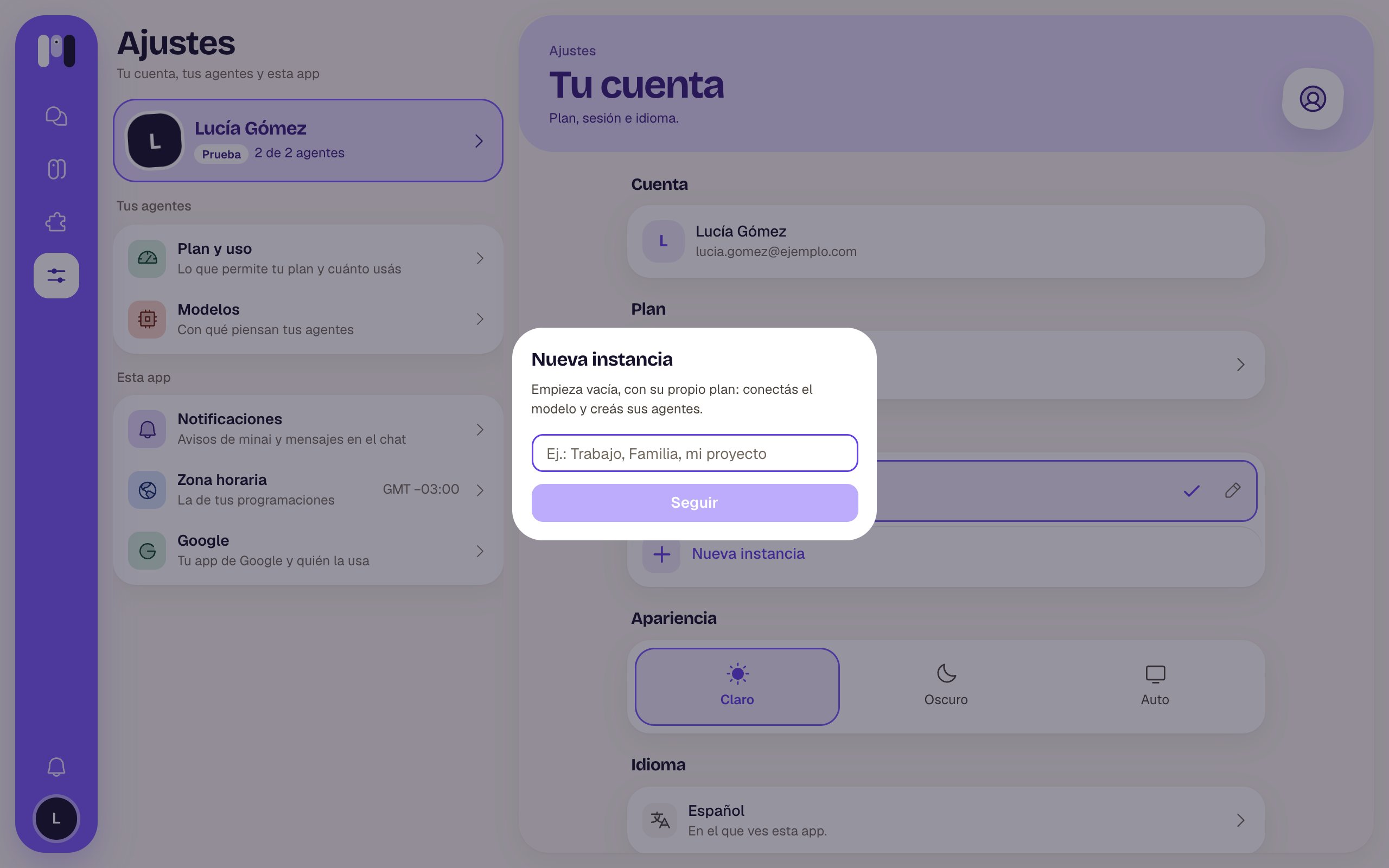 The free trial is once per person: a new instance starts out paid. See [Instances](/en/setup/instances) and [Plans](/en/reference/plans).
### Appearance
The theme: **Light**, **Dark** or **Auto** (whatever your phone or computer uses). It only applies to this device.
### Language
“Español” or “English” — “The one you see this app in.” A list opens for you to choose. It's saved to your account: it changes on all your devices, and so does the language your agents talk to you in and your notices come in. See [Language, theme and time zone](/en/setup/language-theme-and-time-zone).
### Sign out
In red, at the end. It turns off notifications on this device and signs you out.
Keep work, family and personal apart.
The idea behind it.
This documentation is built and hosted on [Mintlify](https://mintlify.com), a developer documentation platform.
The free trial is once per person: a new instance starts out paid. See [Instances](/en/setup/instances) and [Plans](/en/reference/plans).
### Appearance
The theme: **Light**, **Dark** or **Auto** (whatever your phone or computer uses). It only applies to this device.
### Language
“Español” or “English” — “The one you see this app in.” A list opens for you to choose. It's saved to your account: it changes on all your devices, and so does the language your agents talk to you in and your notices come in. See [Language, theme and time zone](/en/setup/language-theme-and-time-zone).
### Sign out
In red, at the end. It turns off notifications on this device and signs you out.
Keep work, family and personal apart.
The idea behind it.
This documentation is built and hosted on [Mintlify](https://mintlify.com), a developer documentation platform.