> ## Documentation Index
> Fetch the complete documentation index at: https://docs.min-ai.ar/llms.txt
> Use this file to discover all available pages before exploring further.
# Settings: Google
> Your Google app, which all your Google plugins use, and which agents get into your Google.
Your Google app and who uses it. The app is created once and works for Gmail, Calendar, Drive, Docs, Analytics and Search Console.
**How to get there:** **Settings** → **Google**.
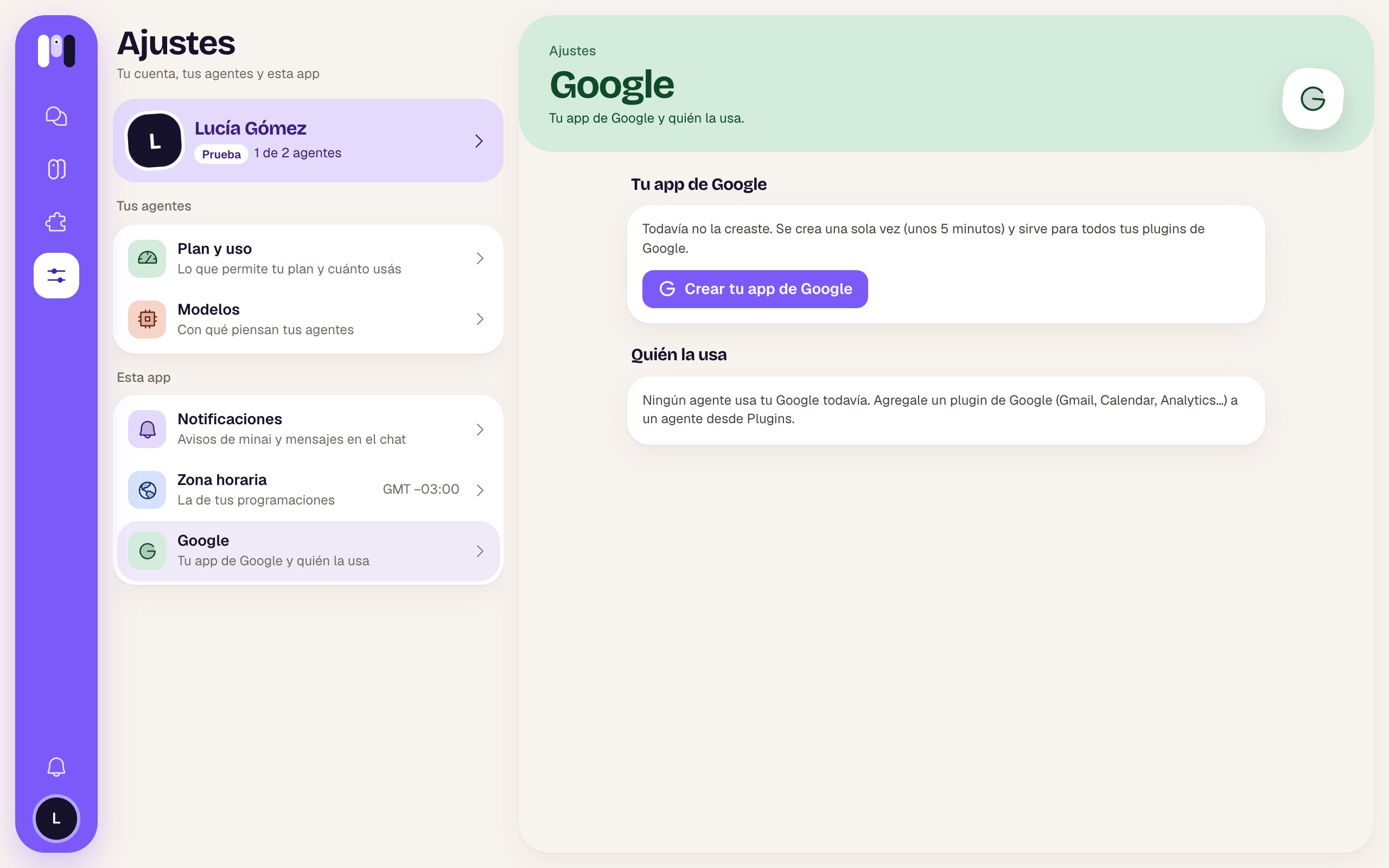 ## Your Google app
| Status | What you see | What you can do |
| - | - | - |
| Not created | “You haven't created it yet. It's made just once (about 5 minutes) and works for all your Google plugins.” | **Create your Google app**. |
| Created | “Project …” and “Created on …”. | **Replace** (create or upload another one) and **Open in Google Cloud** (↗). |
| Created without a project | “No project on record: replace the client by uploading its JSON so each plugin opens your project straight away.” | **Replace**. |
## Who uses it
One row for each Google plugin on each agent: “Gmail · Clara”, with the connected email and whether it's **read only** or **read and act**. Tap it to go to that agent's plugins.
If none uses it: “No agent uses your Google yet. Add a Google plugin (Gmail, Calendar, Analytics…) to an agent from Plugins.”
## Create your Google app
**Create your Google app** opens a step-by-step guide, “Your Google app” — “For all your Google plugins”, with its progress bar (“Step 1 of 7”). You go back and forth between this screen and Google: each step opens the Google page for you, tells you what to do and shows you what it looks like when you're done.
## Your Google app
| Status | What you see | What you can do |
| - | - | - |
| Not created | “You haven't created it yet. It's made just once (about 5 minutes) and works for all your Google plugins.” | **Create your Google app**. |
| Created | “Project …” and “Created on …”. | **Replace** (create or upload another one) and **Open in Google Cloud** (↗). |
| Created without a project | “No project on record: replace the client by uploading its JSON so each plugin opens your project straight away.” | **Replace**. |
## Who uses it
One row for each Google plugin on each agent: “Gmail · Clara”, with the connected email and whether it's **read only** or **read and act**. Tap it to go to that agent's plugins.
If none uses it: “No agent uses your Google yet. Add a Google plugin (Gmail, Calendar, Analytics…) to an agent from Plugins.”
## Create your Google app
**Create your Google app** opens a step-by-step guide, “Your Google app” — “For all your Google plugins”, with its progress bar (“Step 1 of 7”). You go back and forth between this screen and Google: each step opens the Google page for you, tells you what to do and shows you what it looks like when you're done.
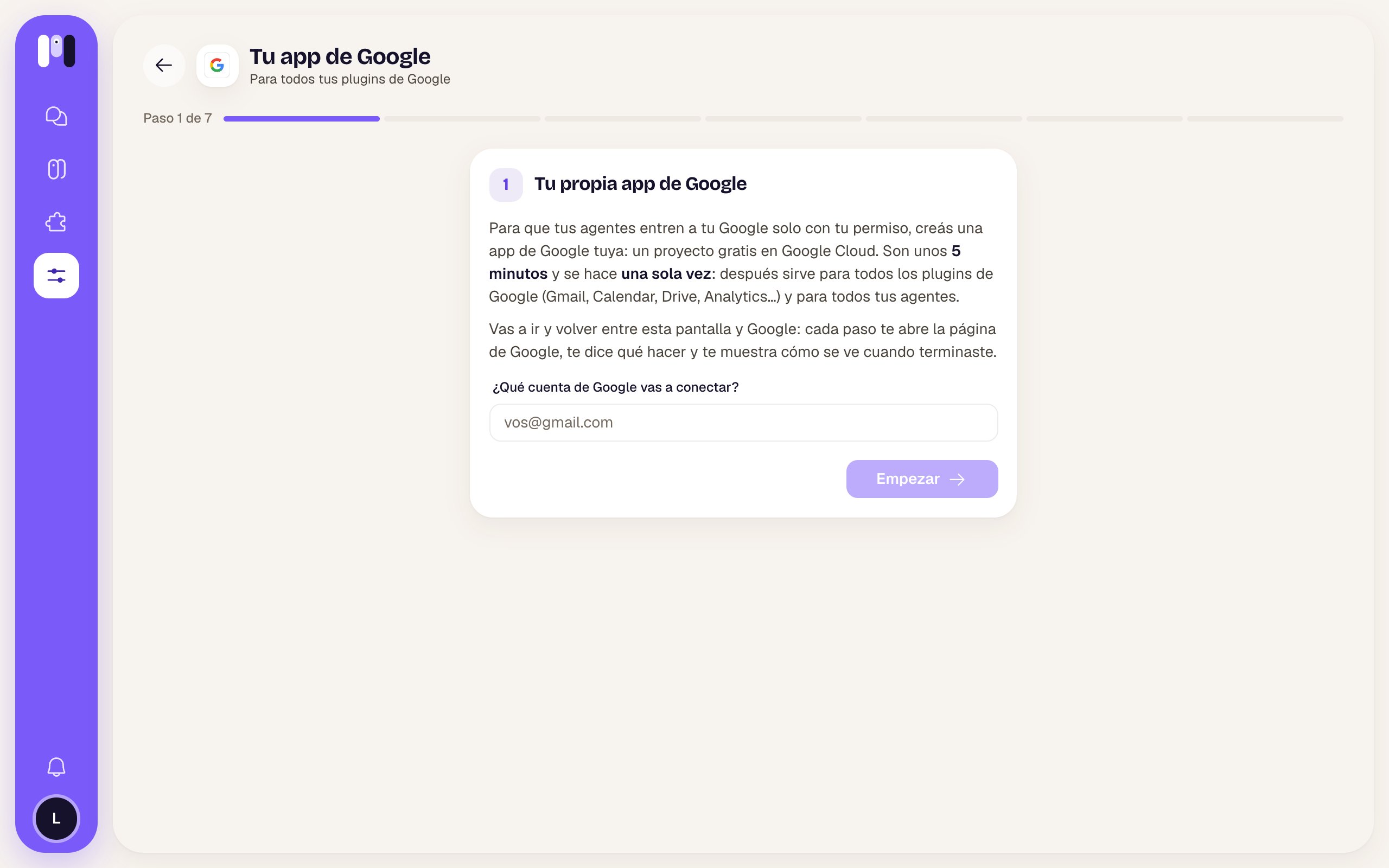 * First you enter your Google account and tap **Start**. If it's a Google Workspace account (your company's or your domain's), check that box: some steps change.
* Along the way it asks for the Project ID (optional).
* At the end, **Upload the JSON** you downloaded from Google, or paste the ID and the secret by hand.
* It ends with “Your Google app is ready. You can now add Google plugins to your agents.” and **Back to Settings**.
On a phone it suggests doing it on a computer: Google's console is awkward on small screens. Step by step with screenshots: [Your Google app](/en/tools/your-google-app).
The full guide.
One of the plugins that use it.
This documentation is built and hosted on [Mintlify](https://mintlify.com), a developer documentation platform.
* First you enter your Google account and tap **Start**. If it's a Google Workspace account (your company's or your domain's), check that box: some steps change.
* Along the way it asks for the Project ID (optional).
* At the end, **Upload the JSON** you downloaded from Google, or paste the ID and the secret by hand.
* It ends with “Your Google app is ready. You can now add Google plugins to your agents.” and **Back to Settings**.
On a phone it suggests doing it on a computer: Google's console is awkward on small screens. Step by step with screenshots: [Your Google app](/en/tools/your-google-app).
The full guide.
One of the plugins that use it.
This documentation is built and hosted on [Mintlify](https://mintlify.com), a developer documentation platform.