> ## Documentation Index
> Fetch the complete documentation index at: https://docs.min-ai.ar/llms.txt
> Use this file to discover all available pages before exploring further.
# Connect your AI
> How to connect Claude, ChatGPT, your own API or minai's AI, and how to disconnect them.
Your agents need an AI to think. You connect it the first time you sign in (“Step 1 of 2 — Connect your AI”) and afterwards you manage it from **Settings → Models**. If you're not sure which one to choose, see [Your AI and the models](/en/concepts/your-ai-and-models).
 You need a **Claude Pro or Max** subscription.
Tap **Claude** and then **Open Claude**. Sign in with your account and authorize minai.
Claude shows you a code. Copy it.
Paste it in **Paste the code** and tap **Connect**. You'll see “Claude connected”.
You need a **Claude Pro or Max** subscription.
Tap **Claude** and then **Open Claude**. Sign in with your account and authorize minai.
Claude shows you a code. Copy it.
Paste it in **Paste the code** and tap **Connect**. You'll see “Claude connected”.
 You need a **ChatGPT Plus or Pro** subscription.
Tap **ChatGPT**. minai shows you a code: tap it to copy it.
Tap **Open ChatGPT**, sign in with your account and paste the code where it asks for it.
Once you confirm it in ChatGPT, it connects by itself.
You pay for what you use, directly to the provider.
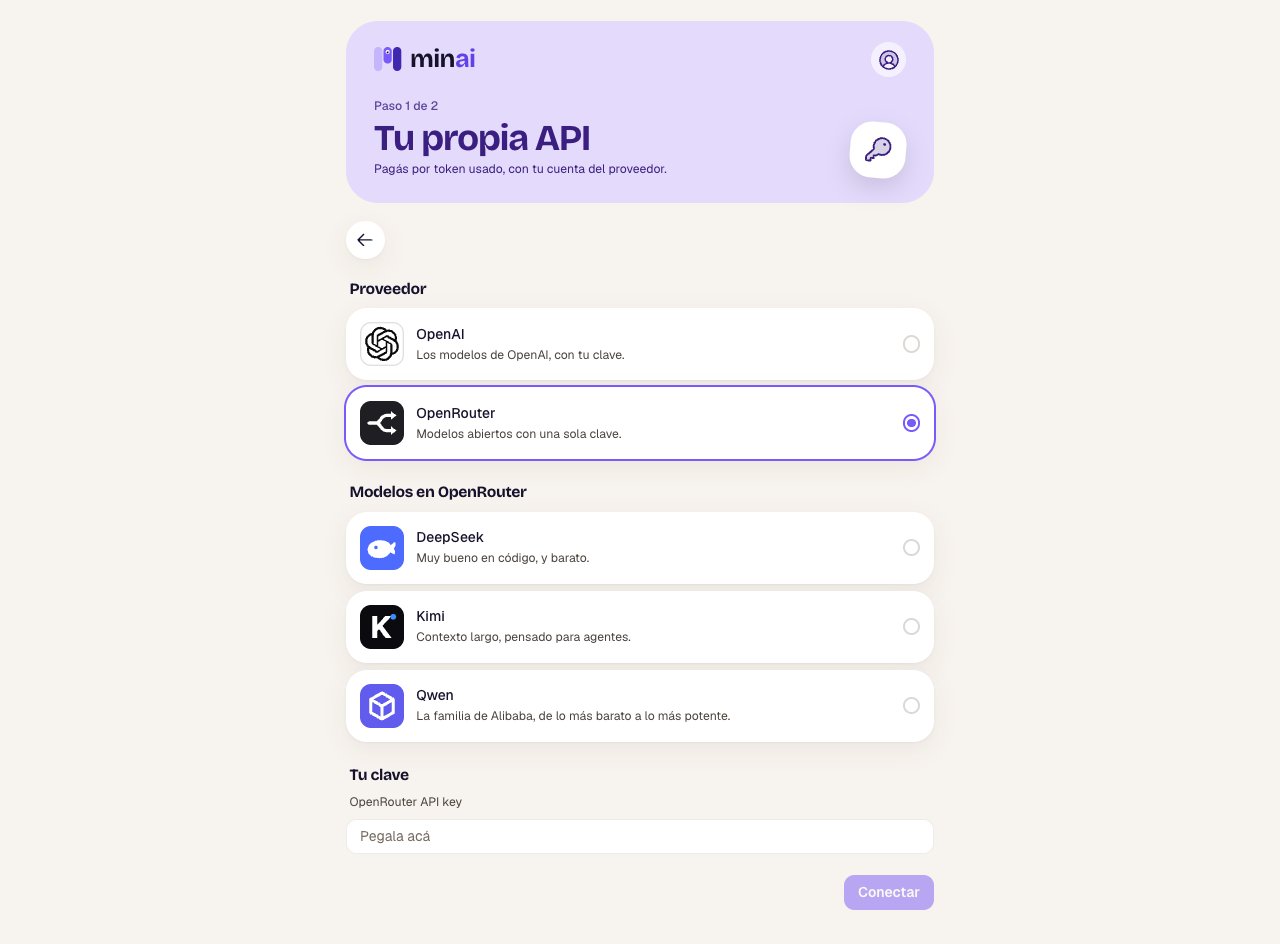
Tap **Use your own API** and choose **OpenAI** or **OpenRouter**. With OpenRouter, also choose the model family: **DeepSeek**, **Kimi** or **Qwen**.
Create an API key in your account at the provider and paste it in **Your key**.
Tap **Connect**. minai tests the key with the provider (“Testing the key with…”) and, if it works, stores it encrypted.
You need a **ChatGPT Plus or Pro** subscription.
Tap **ChatGPT**. minai shows you a code: tap it to copy it.
Tap **Open ChatGPT**, sign in with your account and paste the code where it asks for it.
Once you confirm it in ChatGPT, it connects by itself.
You pay for what you use, directly to the provider.
Tap **Use your own API** and choose **OpenAI** or **OpenRouter**. With OpenRouter, also choose the model family: **DeepSeek**, **Kimi** or **Qwen**.
Create an API key in your account at the provider and paste it in **Your key**.
Tap **Connect**. minai tests the key with the provider (“Testing the key with…”) and, if it works, stores it encrypted.
 If the provider doesn't accept the key, minai tells you why: that it isn't valid, that it has no credit, or that the model isn't available with that key. To change just the family, you don't need to paste the key again.
Only during the free trial. You don't need anything.
Tap **minai's AI** and then **Use minai's AI**. Your agents will be able to think with it while your trial lasts.
With minai's AI there's a usage cap per day and per trial, and you can't move to a paid plan while it's connected: first connect your subscription or your API and disconnect it. What you talk about with your agents goes through minai's account at the AI provider.
## Then: each agent chooses
With more than one AI connected, each agent chooses its own: when you create it, or later on its **Model** screen. See [Change an agent](/en/setup/change-an-agent#model).
## Disconnecting
In **Settings → Models**, tap **Disconnect** on the one you want to remove.
The agents that think with that AI **stop answering** until you connect one again or choose another one for them. If you disconnect your own API, the stored key is deleted.
**Your own API** and **minai's AI** can't be connected at the same time. If you connect one while you have the other, minai asks whether you want to replace it, and the agents that used the old one start thinking with the new one.
This documentation is built and hosted on [Mintlify](https://mintlify.com), a developer documentation platform.
If the provider doesn't accept the key, minai tells you why: that it isn't valid, that it has no credit, or that the model isn't available with that key. To change just the family, you don't need to paste the key again.
Only during the free trial. You don't need anything.
Tap **minai's AI** and then **Use minai's AI**. Your agents will be able to think with it while your trial lasts.
With minai's AI there's a usage cap per day and per trial, and you can't move to a paid plan while it's connected: first connect your subscription or your API and disconnect it. What you talk about with your agents goes through minai's account at the AI provider.
## Then: each agent chooses
With more than one AI connected, each agent chooses its own: when you create it, or later on its **Model** screen. See [Change an agent](/en/setup/change-an-agent#model).
## Disconnecting
In **Settings → Models**, tap **Disconnect** on the one you want to remove.
The agents that think with that AI **stop answering** until you connect one again or choose another one for them. If you disconnect your own API, the stored key is deleted.
**Your own API** and **minai's AI** can't be connected at the same time. If you connect one while you have the other, minai asks whether you want to replace it, and the agents that used the old one start thinking with the new one.
This documentation is built and hosted on [Mintlify](https://mintlify.com), a developer documentation platform.