> ## Documentation Index
> Fetch the complete documentation index at: https://docs.min-ai.ar/llms.txt
> Use this file to discover all available pages before exploring further.
# Create an agent
> The four steps to create an agent: name and face, model, who it's for and what it does, and where you talk to it.
In **Agents**, tap **New** (on your phone, the **New agent** card). There are four steps; you can go back at any of them.
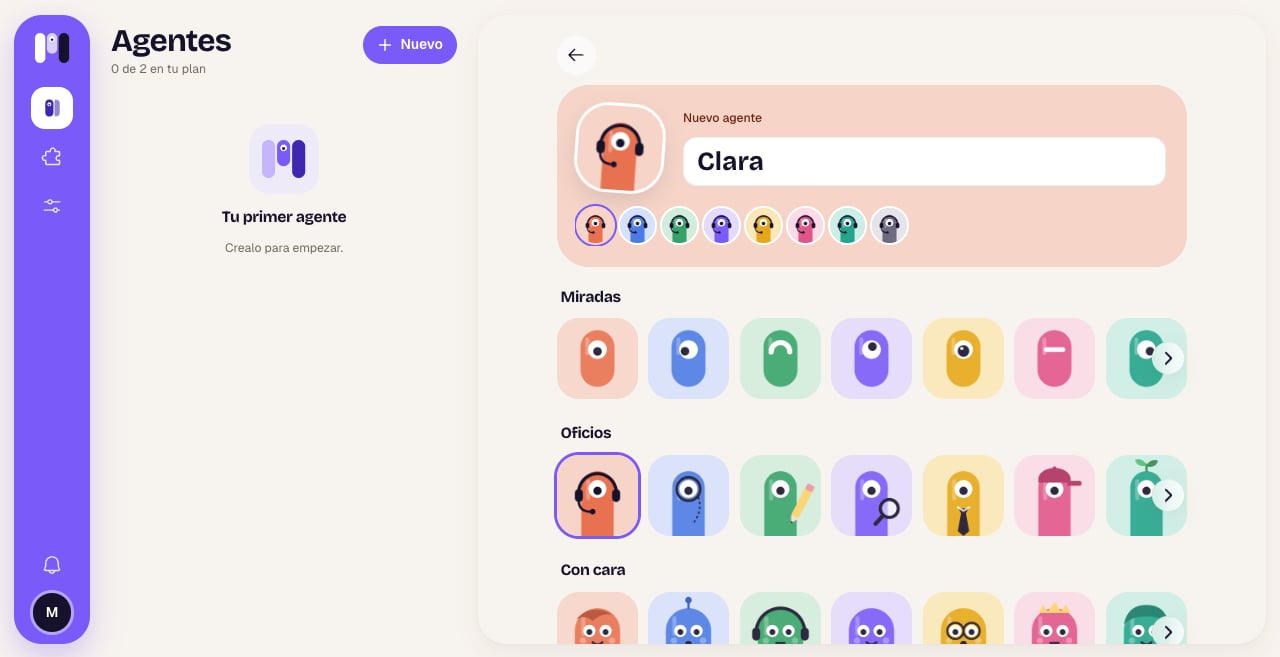
Type its **Name** and pick a face from the **Looks**, **Trades** or **With a face** collections, in the color you like. You can also upload an image of your own in **One of yours → Upload** (PNG or JPG up to 2 MB). Tap **Next**.
 If you have more than one AI connected, choose which one it uses. Then choose the **level**: **Balanced** is recommended for everyday use. Tap **Next**.
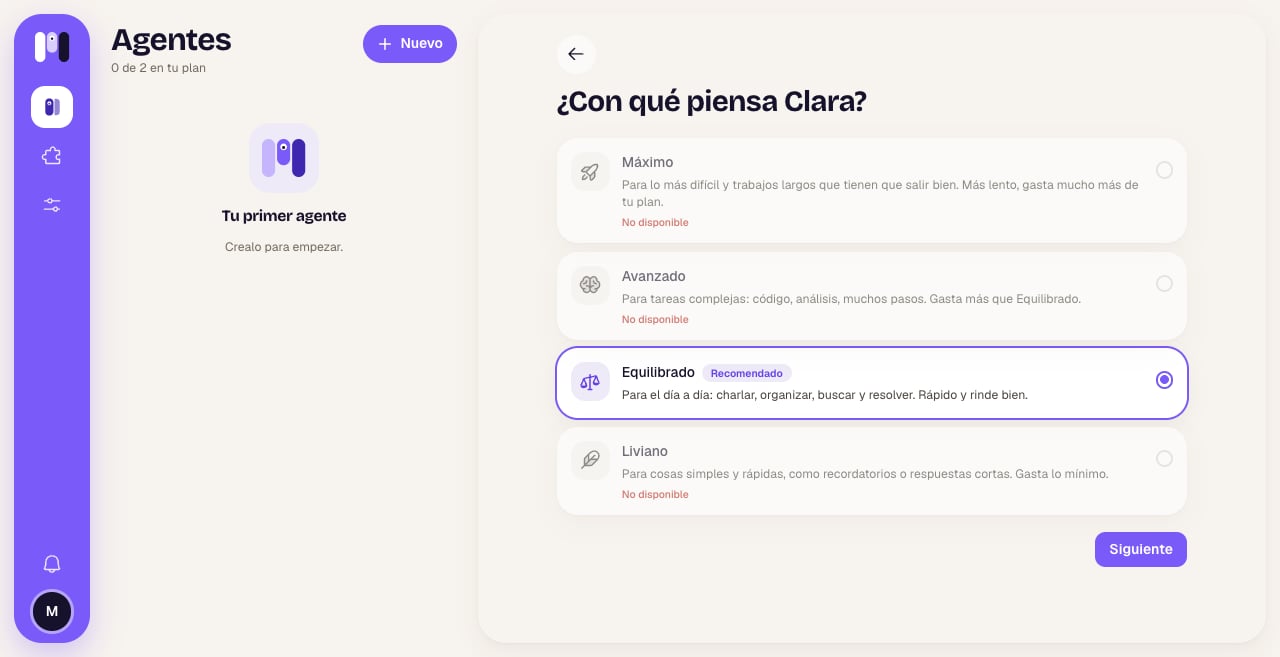 What each level means: [Your AI and the models](/en/concepts/your-ai-and-models#the-four-levels).
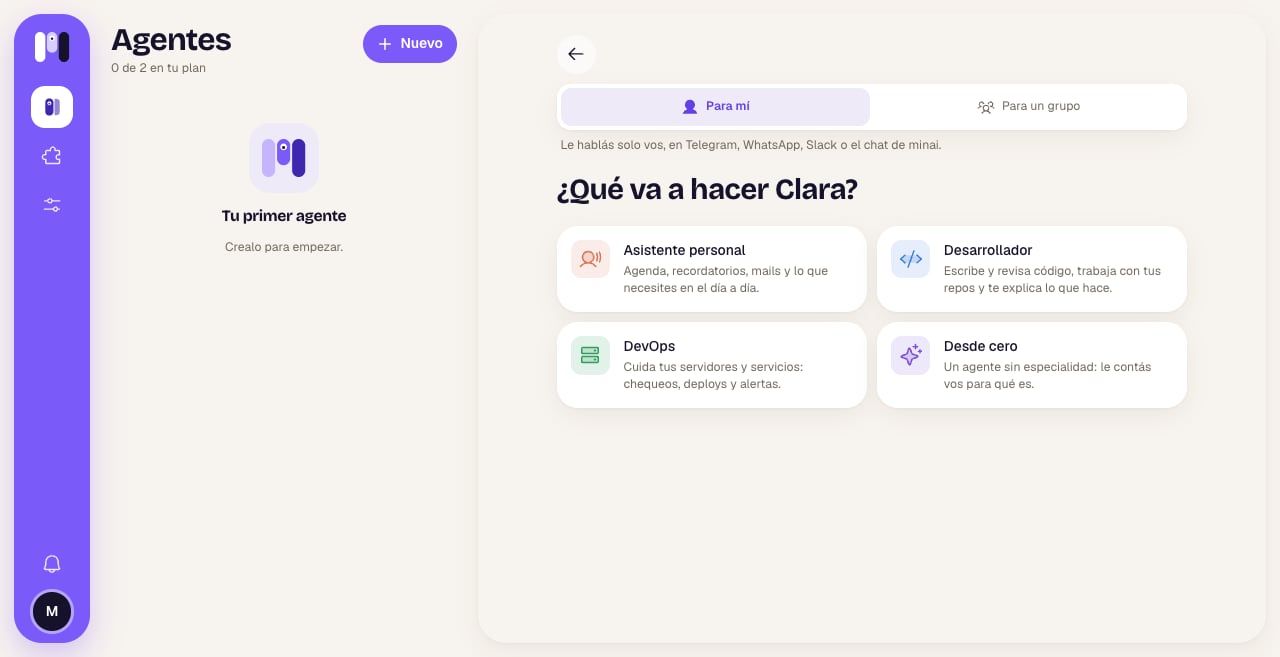
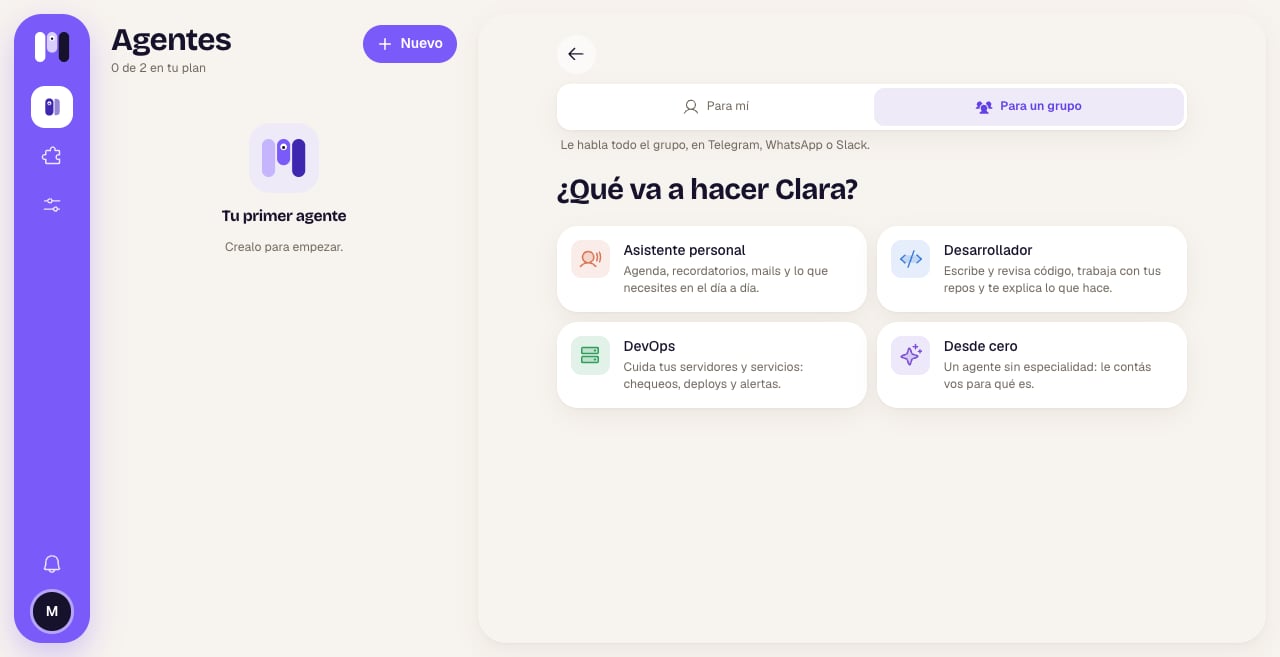
At the top, choose **For me** or **For a group** (this can't be changed later). Below, tap what it's going to do: **Personal assistant**, **Developer**, **DevOps** or **From scratch**. When you tap it, the agent is created.
What each level means: [Your AI and the models](/en/concepts/your-ai-and-models#the-four-levels).
At the top, choose **For me** or **For a group** (this can't be changed later). Below, tap what it's going to do: **Personal assistant**, **Developer**, **DevOps** or **From scratch**. When you tap it, the agent is created.
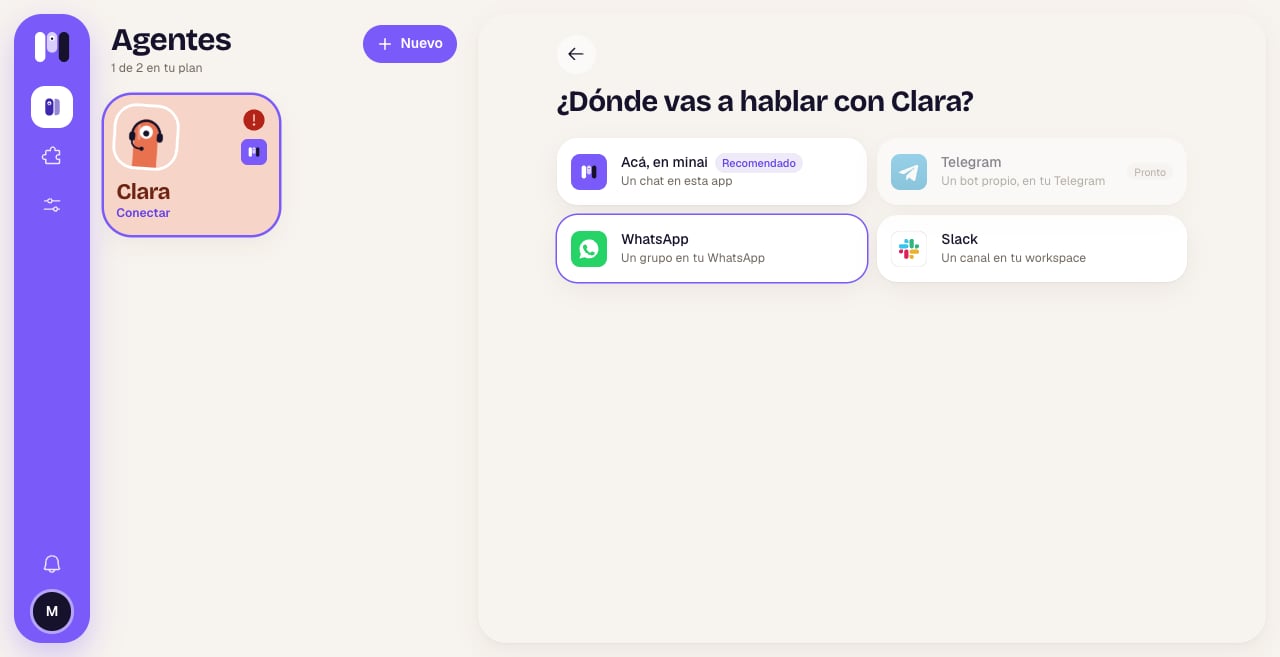
 Choose the channel: **Here, in minai**, **Telegram**, **WhatsApp** or **Slack**. Each one has its own steps, which the app walks you through.
 Once the channel is ready, **the agent writes to you first**: it introduces itself and asks you a few questions to get to know you. If you'd rather skip them, just tell it.
## Each channel's steps
There's nothing to do: its chat opens and it writes to you in a moment. See [minai's chat](/en/reference/channels/minai-chat).
Tap **Open Telegram**: minai's bot opens. Tap **Start**, then **Create** with your agent's name (for example, **Create Clara**) and confirm. minai creates a bot of its own for your agent; open it and tap **Start**. You don't need to create anything in BotFather. See [Telegram](/en/reference/channels/telegram).
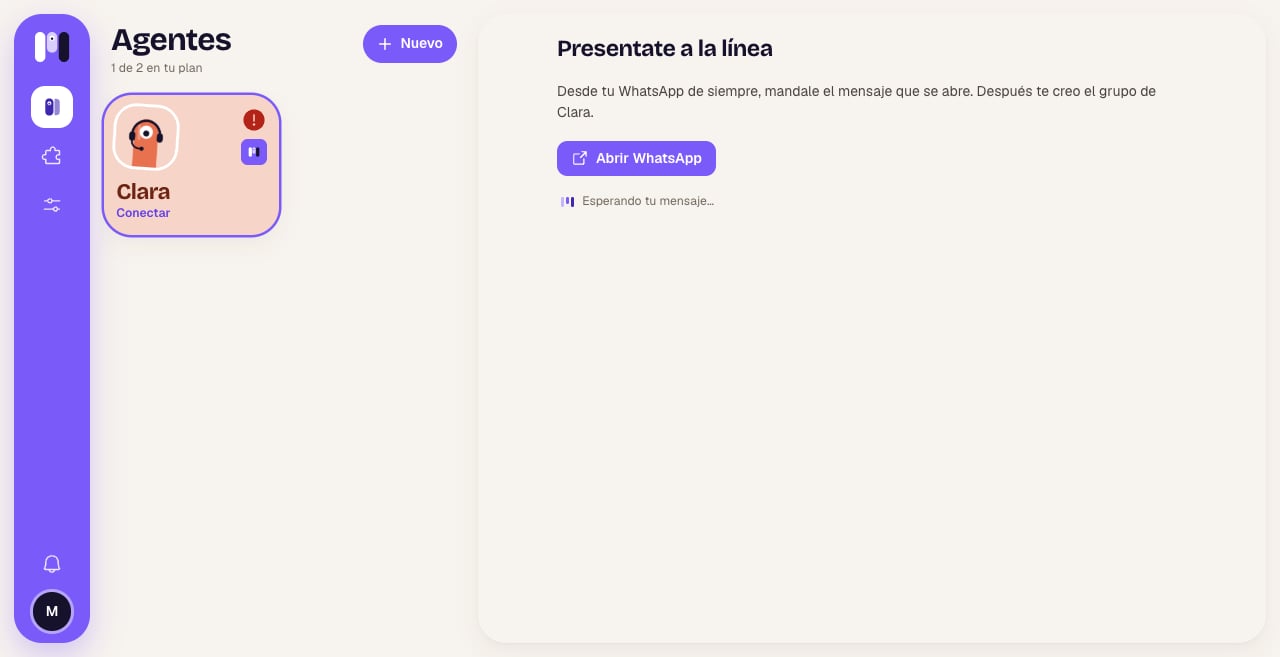
The first time, you choose the line: **A minai line** (no number of your own) or **Another line of mine** (a separate number that you link). Then, from your usual WhatsApp, you send the message with the code that opens, and minai creates a group with you and your agent. See [WhatsApp](/en/reference/channels/whatsapp).
Once the channel is ready, **the agent writes to you first**: it introduces itself and asks you a few questions to get to know you. If you'd rather skip them, just tell it.
## Each channel's steps
There's nothing to do: its chat opens and it writes to you in a moment. See [minai's chat](/en/reference/channels/minai-chat).
Tap **Open Telegram**: minai's bot opens. Tap **Start**, then **Create** with your agent's name (for example, **Create Clara**) and confirm. minai creates a bot of its own for your agent; open it and tap **Start**. You don't need to create anything in BotFather. See [Telegram](/en/reference/channels/telegram).
The first time, you choose the line: **A minai line** (no number of your own) or **Another line of mine** (a separate number that you link). Then, from your usual WhatsApp, you send the message with the code that opens, and minai creates a group with you and your agent. See [WhatsApp](/en/reference/channels/whatsapp).
 Tap **Add to Slack**, choose your workspace and tap **Allow**. minai creates a private channel for your agent. See [Slack](/en/reference/channels/slack).
## An agent for a group
If you choose **For a group**, the channel is a Telegram or WhatsApp group, or a Slack channel, where everyone can talk to it. minai's chat isn't available for groups. See [Group agents](/en/reference/channels/groups).
Tap **Add to Slack**, choose your workspace and tap **Allow**. minai creates a private channel for your agent. See [Slack](/en/reference/channels/slack).
## An agent for a group
If you choose **For a group**, the channel is a Telegram or WhatsApp group, or a Slack channel, where everyone can talk to it. minai's chat isn't available for groups. See [Group agents](/en/reference/channels/groups).
 ## If your plan is full
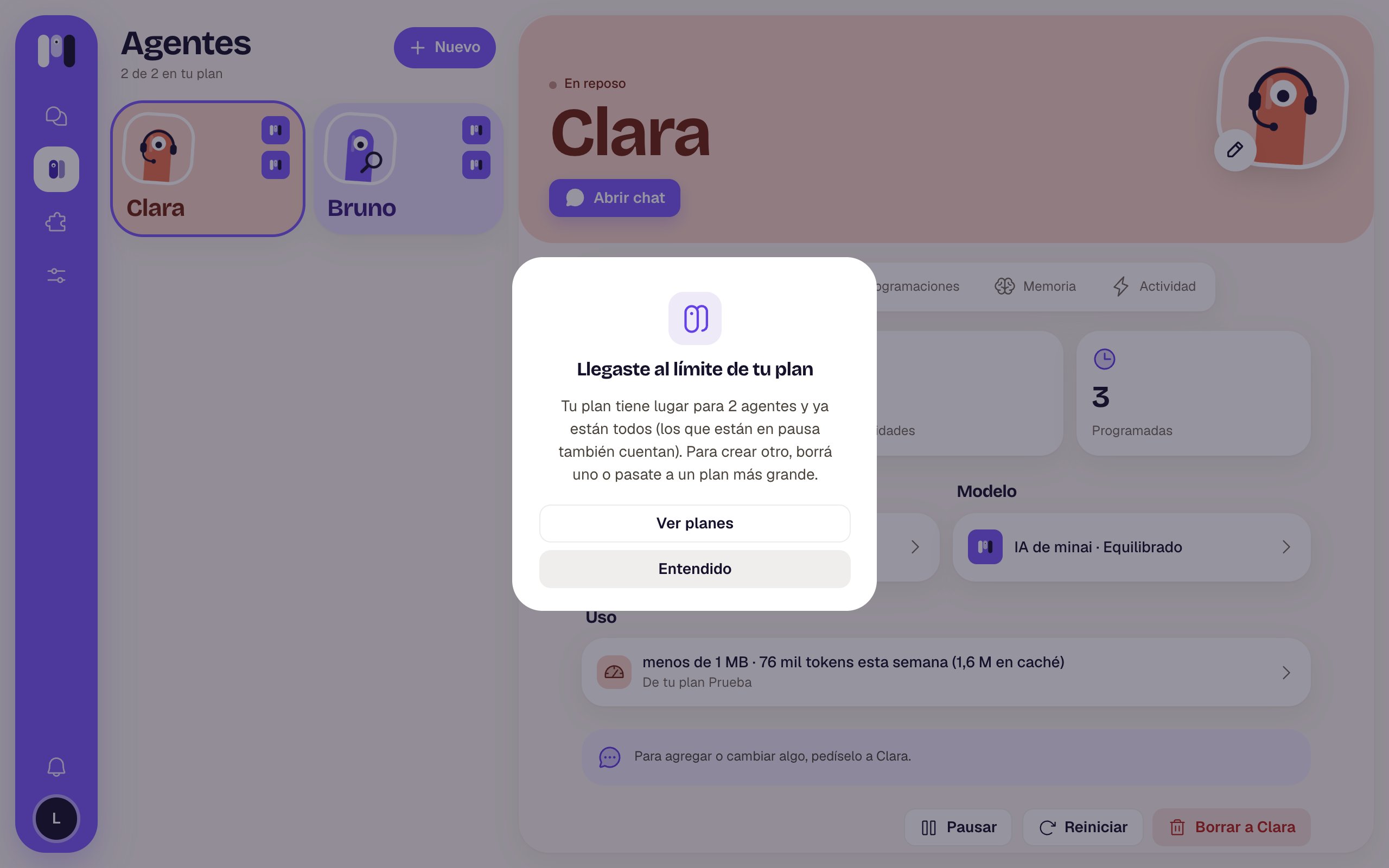
If you already have all the agents your plan allows, tapping **New** lets you know. Paused agents count too: to create another one, delete one or move to a bigger plan.
## If your plan is full
If you already have all the agents your plan allows, tapping **New** lets you know. Paused agents count too: to create another one, delete one or move to a bigger plan.
 If you close the app halfway through, the agent already exists but has no channel: its card says **Connect**. Tap it to finish.
This documentation is built and hosted on [Mintlify](https://mintlify.com), a developer documentation platform.
If you close the app halfway through, the agent already exists but has no channel: its card says **Connect**. Tap it to finish.
This documentation is built and hosted on [Mintlify](https://mintlify.com), a developer documentation platform.