> ## Documentation Index
> Fetch the complete documentation index at: https://docs.min-ai.ar/llms.txt
> Use this file to discover all available pages before exploring further.
# Plan and billing
> Choose a plan, change it, pay, see your invoices and cancel.
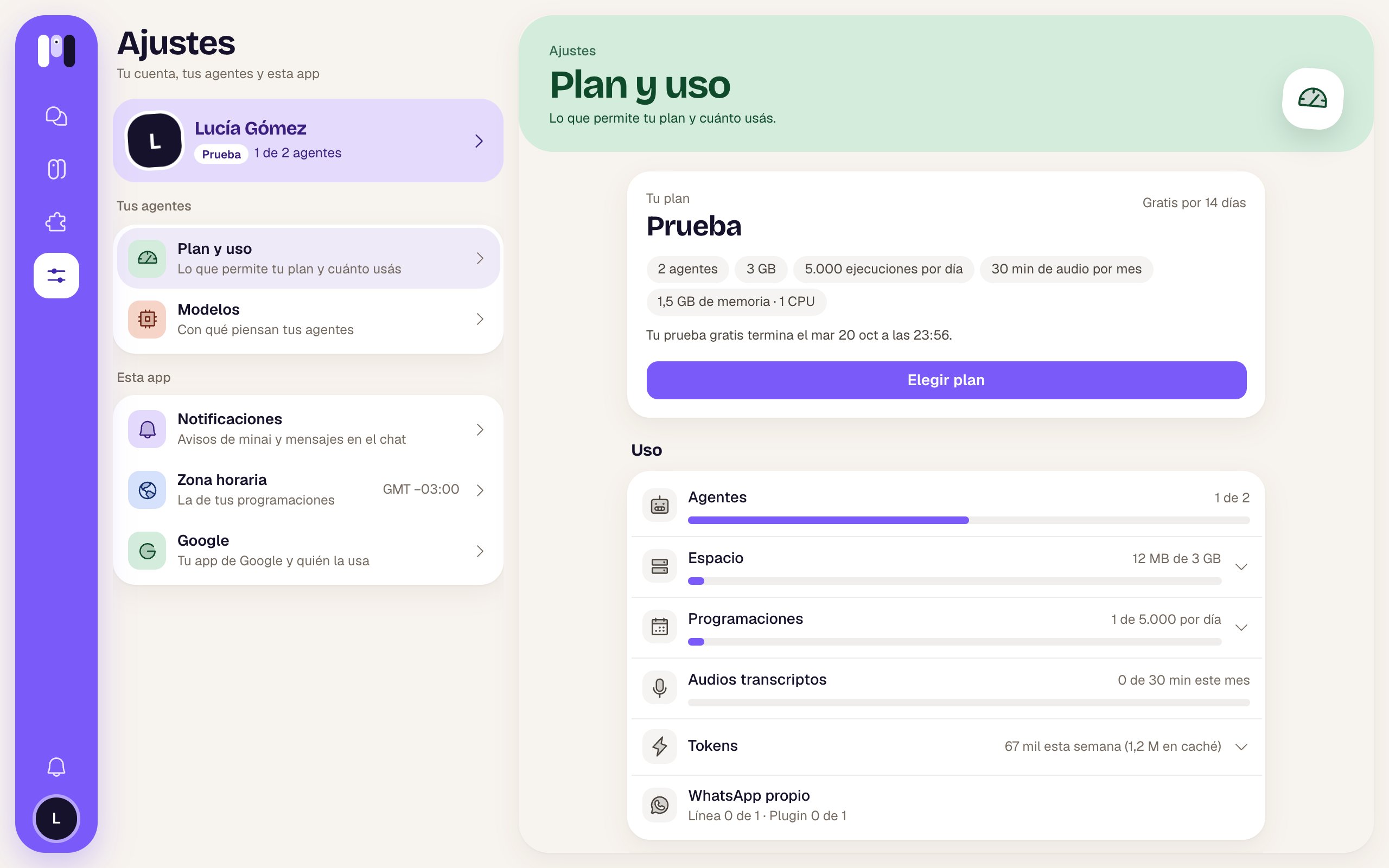
Everything about your plan is in **Settings → Plan and usage**: which plan you have, what it includes and how much you use of each thing. Payments are in US dollars, by card, through Stripe.
 ## Choosing a plan
In **Plan and usage**. During the trial, you'll also find it in the notices saying it's about to end.
**Monthly** or **Yearly** (the yearly one comes with a free month). Then **Lite**, **Pro** or **Max**.
## Choosing a plan
In **Plan and usage**. During the trial, you'll also find it in the notices saying it's about to end.
**Monthly** or **Yearly** (the yearly one comes with a free month). Then **Lite**, **Pro** or **Max**.
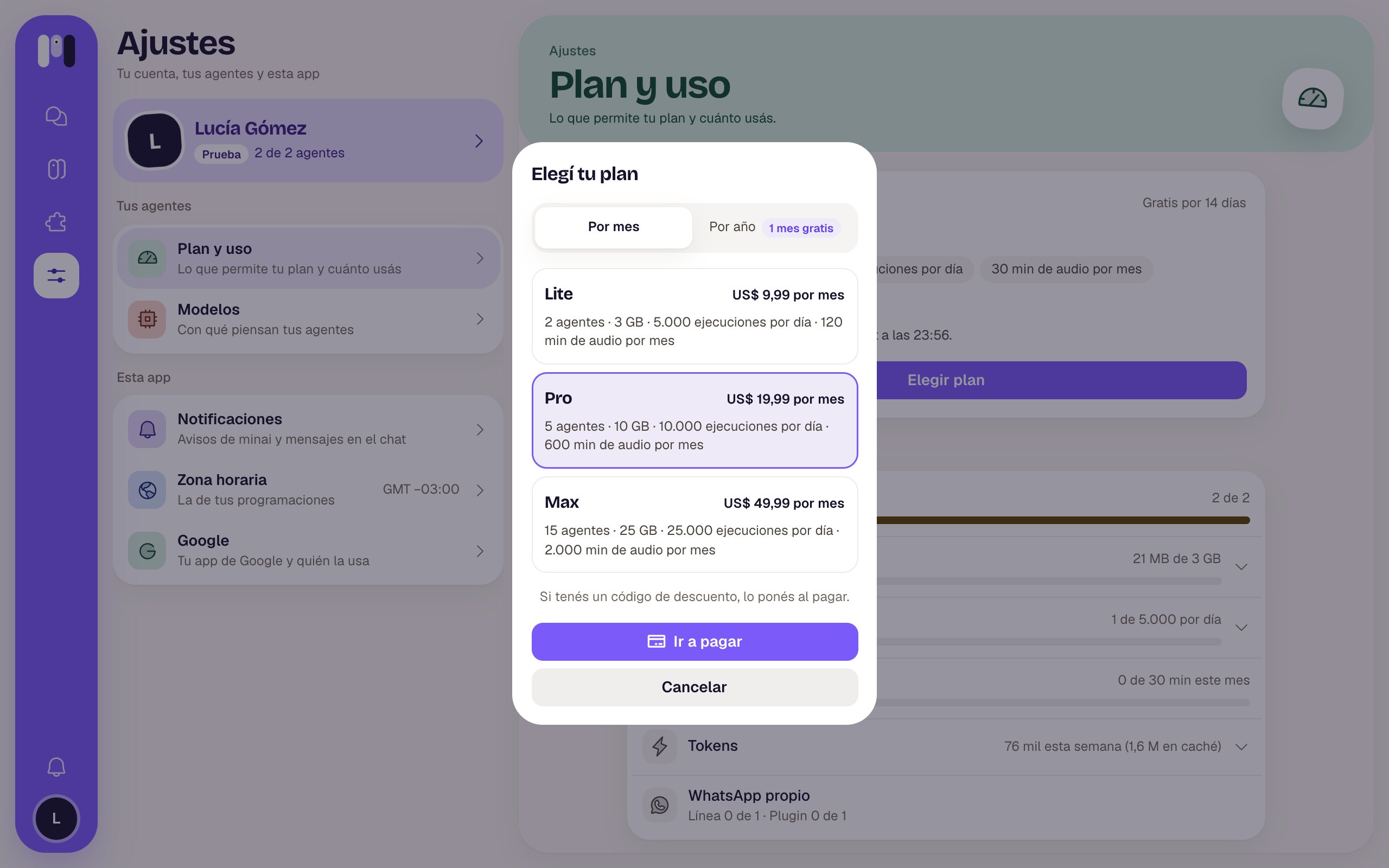 Tap **Go to payment**: Stripe's checkout opens. If you have a discount code, you enter it there. When you come back, minai confirms the payment and you're done.
What each plan includes: [Plans](/en/reference/plans).
## Changing plans
With a paid plan, tap **Change plan**, choose the new one and tap **Next**. minai shows you what's going to happen before you confirm:
* **To a bigger one**: it applies **right away**. Today you're charged the difference until the end of your period, and the limits go up instantly.
* **To a smaller one**: it applies **at the end of the period** you already paid for. Until then you keep your current plan. By that date you need to be within the new plan's limits (for example, have fewer agents); if not, your agents are stopped until you sort it out. In the meantime you can tap **Undo**.
## Invoices, card and cancelling
Tap **Payments and invoices**: Stripe's portal opens, where you change your card, download your invoices and cancel.
If you cancel, your plan goes on until the end of the paid period (“You cancelled it: it ends on…”).
## If a payment fails
If your card declines the renewal, minai lets you know and Stripe tries again in a few days; in the meantime, everything keeps working. Check your card in **Payments and invoices**. If in the end it can't be charged, your agents are stopped.
## When your agents are stopped
This happens if the trial ended without you choosing a plan, if a payment couldn't be charged, if your plan ended or if you went over the limits. You see it in **Agents** and in **Plan and usage**, with the reason.
* **Because of the limits**: get back within them (delete an agent, free up space, cut down schedules) and they carry on by themselves.
* **Because of the payment or the trial**: choose a plan and everything goes back to how it was.
If they're stopped because of the payment or because the trial ended, you have **5 days** to choose a plan. After that, your agents and their data are deleted. We let you know beforehand.
If your plan comes from a reseller or was given to you by minai, you'll see that in **Plan and usage**, and payments don't go through you.
This documentation is built and hosted on [Mintlify](https://mintlify.com), a developer documentation platform.
Tap **Go to payment**: Stripe's checkout opens. If you have a discount code, you enter it there. When you come back, minai confirms the payment and you're done.
What each plan includes: [Plans](/en/reference/plans).
## Changing plans
With a paid plan, tap **Change plan**, choose the new one and tap **Next**. minai shows you what's going to happen before you confirm:
* **To a bigger one**: it applies **right away**. Today you're charged the difference until the end of your period, and the limits go up instantly.
* **To a smaller one**: it applies **at the end of the period** you already paid for. Until then you keep your current plan. By that date you need to be within the new plan's limits (for example, have fewer agents); if not, your agents are stopped until you sort it out. In the meantime you can tap **Undo**.
## Invoices, card and cancelling
Tap **Payments and invoices**: Stripe's portal opens, where you change your card, download your invoices and cancel.
If you cancel, your plan goes on until the end of the paid period (“You cancelled it: it ends on…”).
## If a payment fails
If your card declines the renewal, minai lets you know and Stripe tries again in a few days; in the meantime, everything keeps working. Check your card in **Payments and invoices**. If in the end it can't be charged, your agents are stopped.
## When your agents are stopped
This happens if the trial ended without you choosing a plan, if a payment couldn't be charged, if your plan ended or if you went over the limits. You see it in **Agents** and in **Plan and usage**, with the reason.
* **Because of the limits**: get back within them (delete an agent, free up space, cut down schedules) and they carry on by themselves.
* **Because of the payment or the trial**: choose a plan and everything goes back to how it was.
If they're stopped because of the payment or because the trial ended, you have **5 days** to choose a plan. After that, your agents and their data are deleted. We let you know beforehand.
If your plan comes from a reseller or was given to you by minai, you'll see that in **Plan and usage**, and payments don't go through you.
This documentation is built and hosted on [Mintlify](https://mintlify.com), a developer documentation platform.