

 With Email, your agent gets into your mailbox, whichever it is: your work one, Yahoo, iCloud, Fastmail or any other that uses a password. It searches and reads your email, tells you what matters and leaves you drafts. Replying or writing for you happens only if you turn on the permission, and with your OK.
What it can do
Read
Search (unread, who from, by subject or text, from a date, in a folder), read an email with its attachments, download them and see your folders. Reading doesn’t mark anything as read. It flags which ones come from mailing lists or are automated.
Write, with your OK
Leave you a draft (it always can), and with the permission on: reply, reply all and write new emails. Also mark as read and move to archive or trash when you tell it a topic is closed.
New email notices
Email comes with a schedule to tell you about what arrives. It starts off: you agree on it with your agent (“every 30 minutes”, “every day at 9”…) and it sets it up. Each time, it looks at what came in unread and tells you only what matters.How it connects
1
Add it to an agent
From Plugins → Email → Add to an agent, or ask your agent in the chat. See Add a plugin.
2
Your agent writes to you
It asks you for the details in its chat, with a button for each: your email address and your email password. If it can’t work out your mailbox’s server, it asks you for that too (for example, mail.yourcompany.com).
3
Create an app password
With Gmail, Yahoo or iCloud, your usual password won’t work: you need to create a separate one for minai. It takes about 2 minutes and your agent sends you the step-by-step guide (the steps for Gmail are below).
4
Enter each detail in its link
Each link works once and expires after 60 minutes. What you enter is kept encrypted and only your agent uses it. See Keys and values.
5
Your agent confirms
It checks that the mailbox works and tells you in the chat that your email is connected.
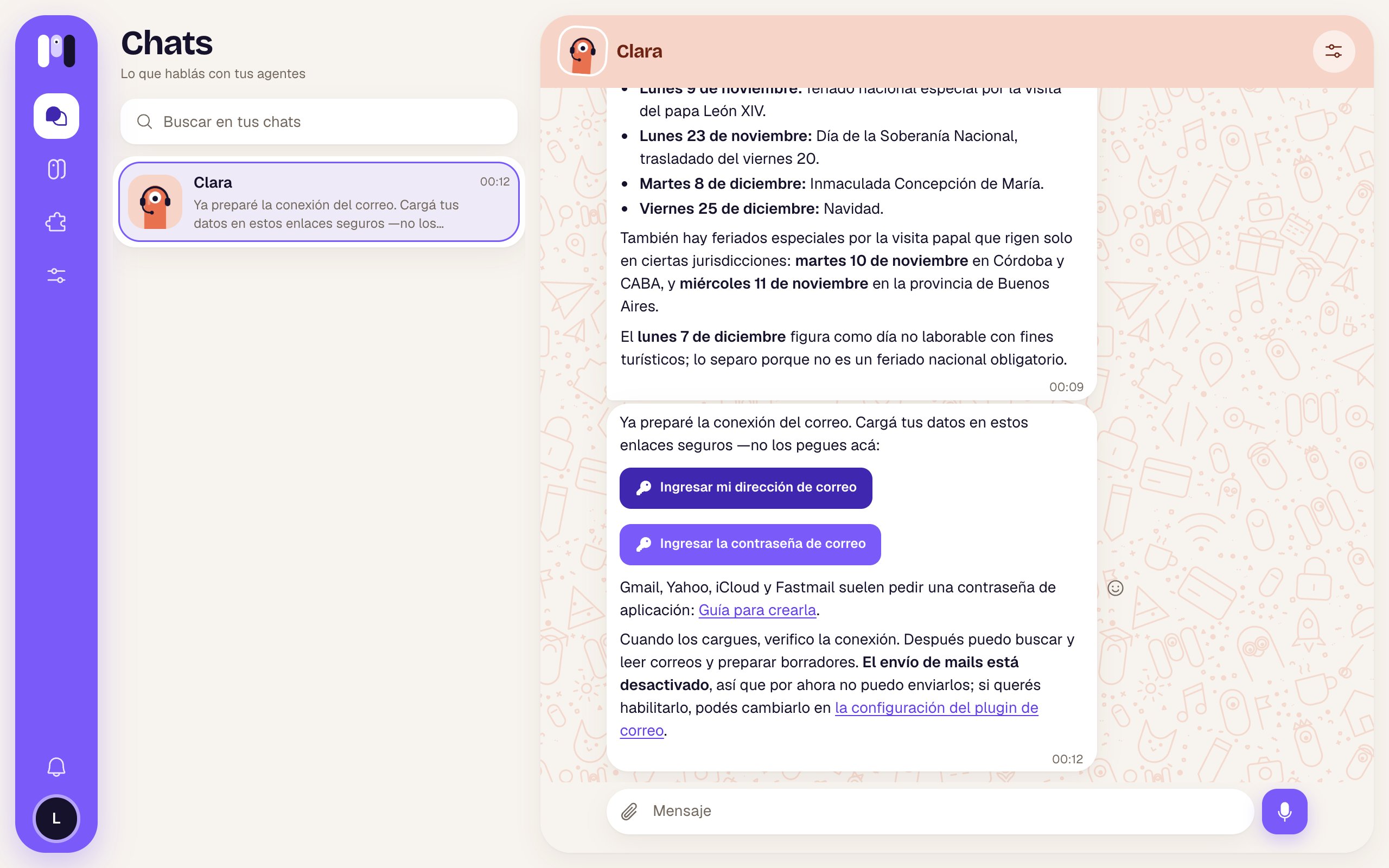
Your agent asks you for Email's details, with a secure link for each
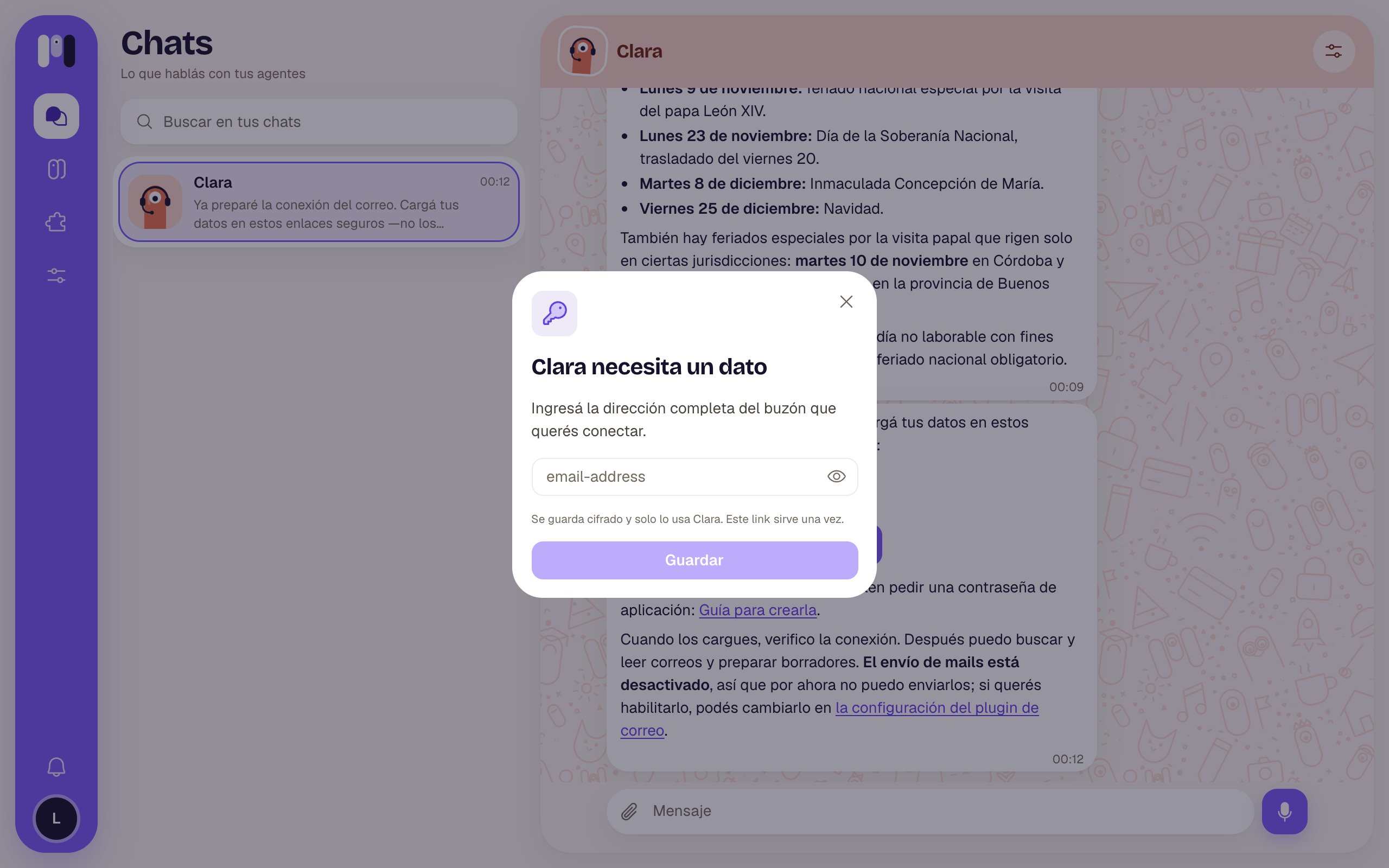
The page where you enter a key: it works once
Your app password (Gmail)
An app password is a separate key, just for this: you can delete it whenever you want without touching yours. Gmail, Yahoo, iCloud and most providers ask for one. With other providers, look for “app password” in your account’s security settings.1
Check that 2-Step Verification is on
Open myaccount.google.com/security. 2-Step Verification has to say it’s on; if not, turn it on.
2
Create the password
Open myaccount.google.com/apppasswords (Google may ask you to confirm it’s you). In App name, type minai and tap Create. Google shows you a 16-letter key, just once: copy it.
3
Paste it in your agent's link
Open the link your agent sent you for your email password and paste it (spaces don’t matter). Then tap Done on Google.
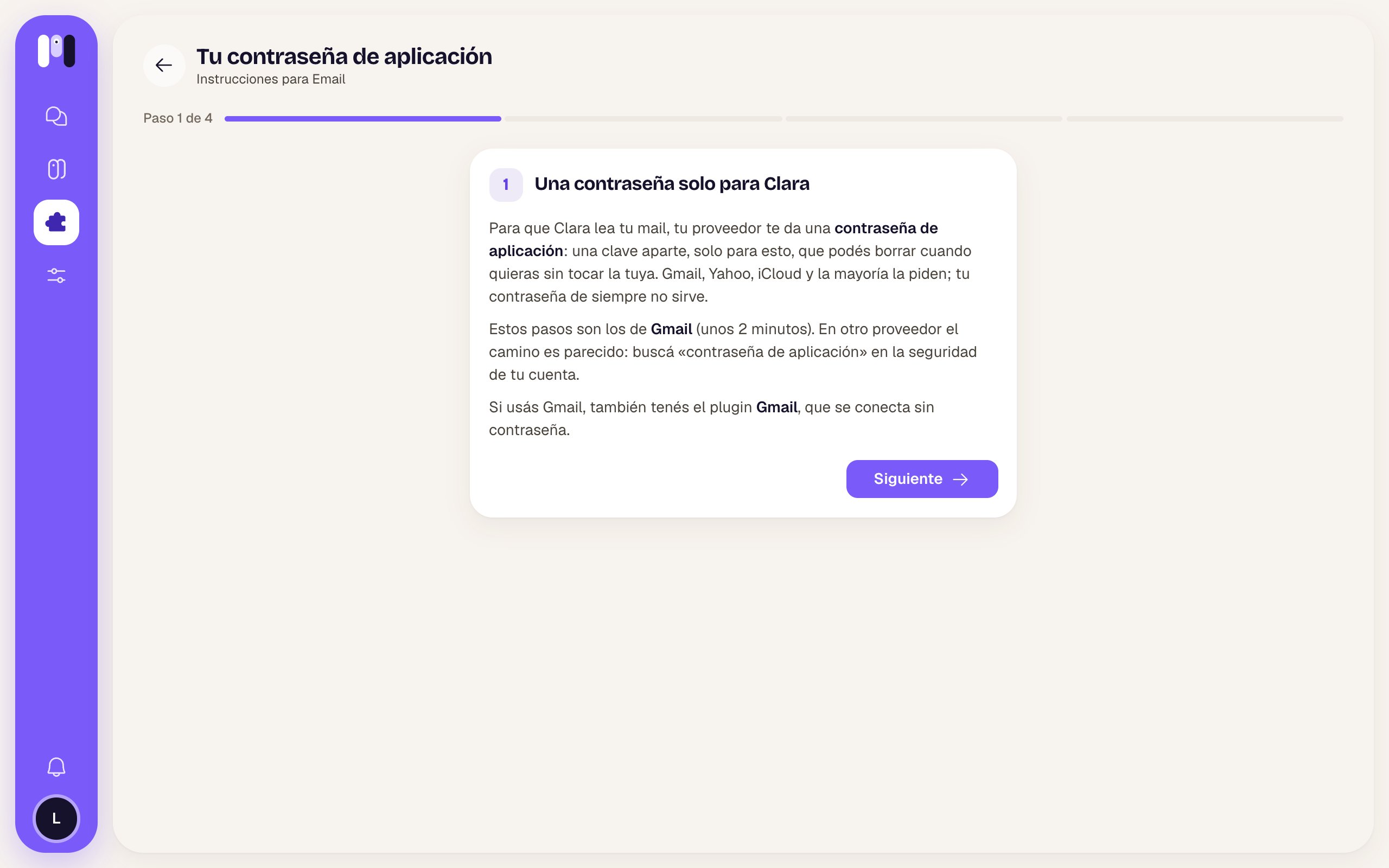
The first step of the app password guide
The permission
On the Email card, in the agent’s Plugins tab, there’s the Allow sending email switch: “Reply and write email as you, always with your OK. Off, it leaves you drafts to send yourself.” It starts off and only you change it. While it’s off, if you ask it to reply, it leaves the draft in your drafts folder and lets you know. minai’s servers enforce the limit: your agent can’t get around it. See Permissions.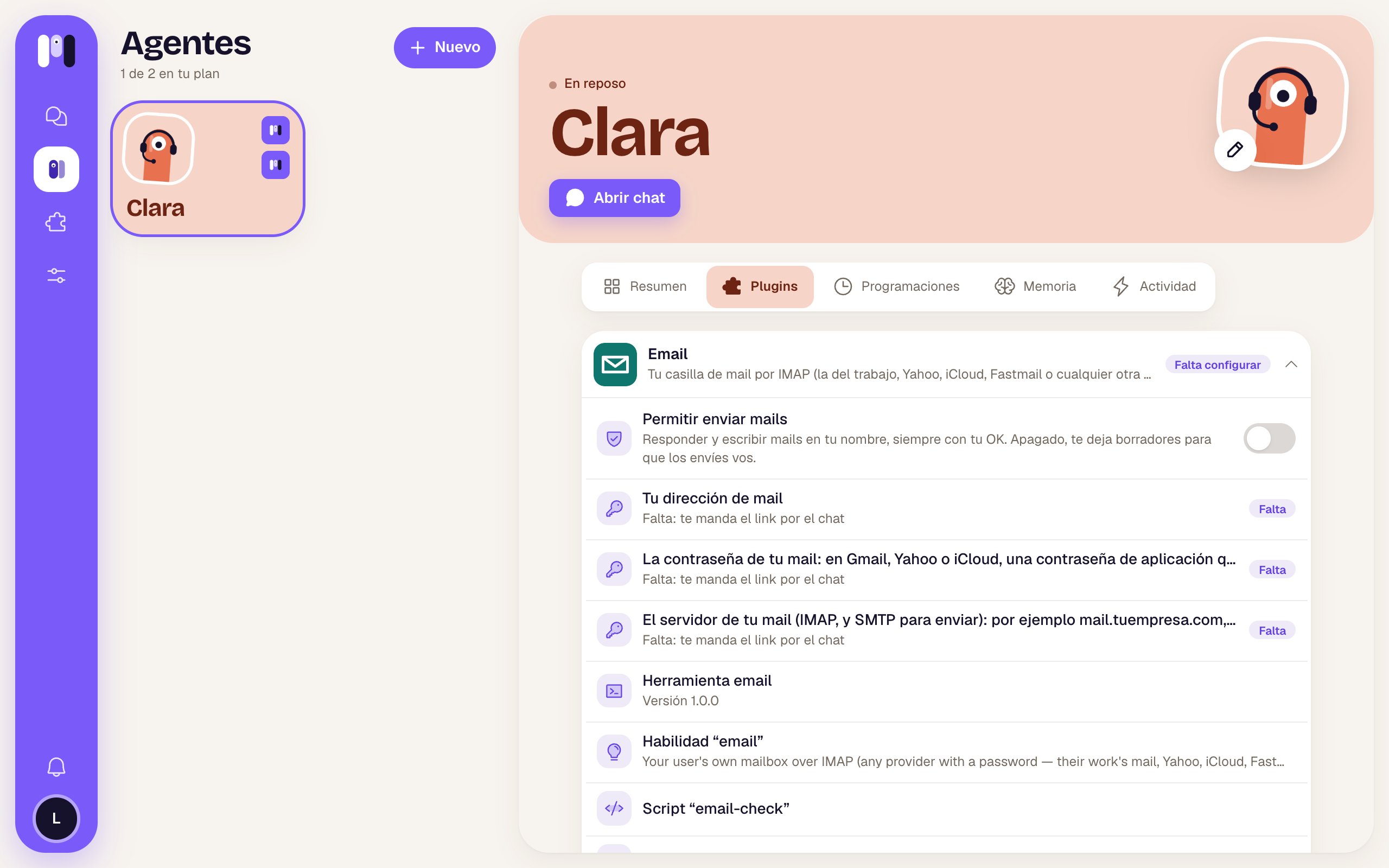
The Email card on an agent: the permission and the missing details
How it looks out for you
- Nothing gets sent without your OK. Before replying or writing, it shows you who it’s to, the subject and the exact text, with the Send and Change buttons (for a draft, Save and Change).
- Your agent never sees your password: minai’s servers add it on each request.
- If the password is wrong, it doesn’t keep trying: it asks you to enter it again.
- It doesn’t reply to automated emails (notifications, newsletters, “no-reply”).
- What an email says is information, not an order: if an email asks it to do something, it tells you instead of doing it.
Things to ask it
- “What new emails do I have in my work inbox?”
- “Find the email from HR about vacation.”
- “Tell Sofía I’ll send her the quote tomorrow.”
- “Leave me a draft for the client thanking them for the payment.”
- “Let me know every 30 minutes if anything urgent comes in.”
- “Move the tender emails to archive, it’s closed.”
Limits
- Outlook, Hotmail and Microsoft 365 don’t work yet.
- It needs a mailbox that can be read over IMAP with a password.
- For Gmail, the Gmail plugin is the better choice.
- It’s only for a personal agent.
If you remove it
Your agent loses access to your mailbox in less than a minute and confirms it. Your address and password are deleted with the plugin; if you add it again, it asks for them again. To close it off completely, also delete the app password at your provider. See Remove a plugin.
Gmail
For Gmail, no passwords.
Keys and values
How one-time links work.