

From the library
1
Find the plugin
In Plugins, search for it by name or browse the categories. Tap it to see what it includes and what it will ask you for.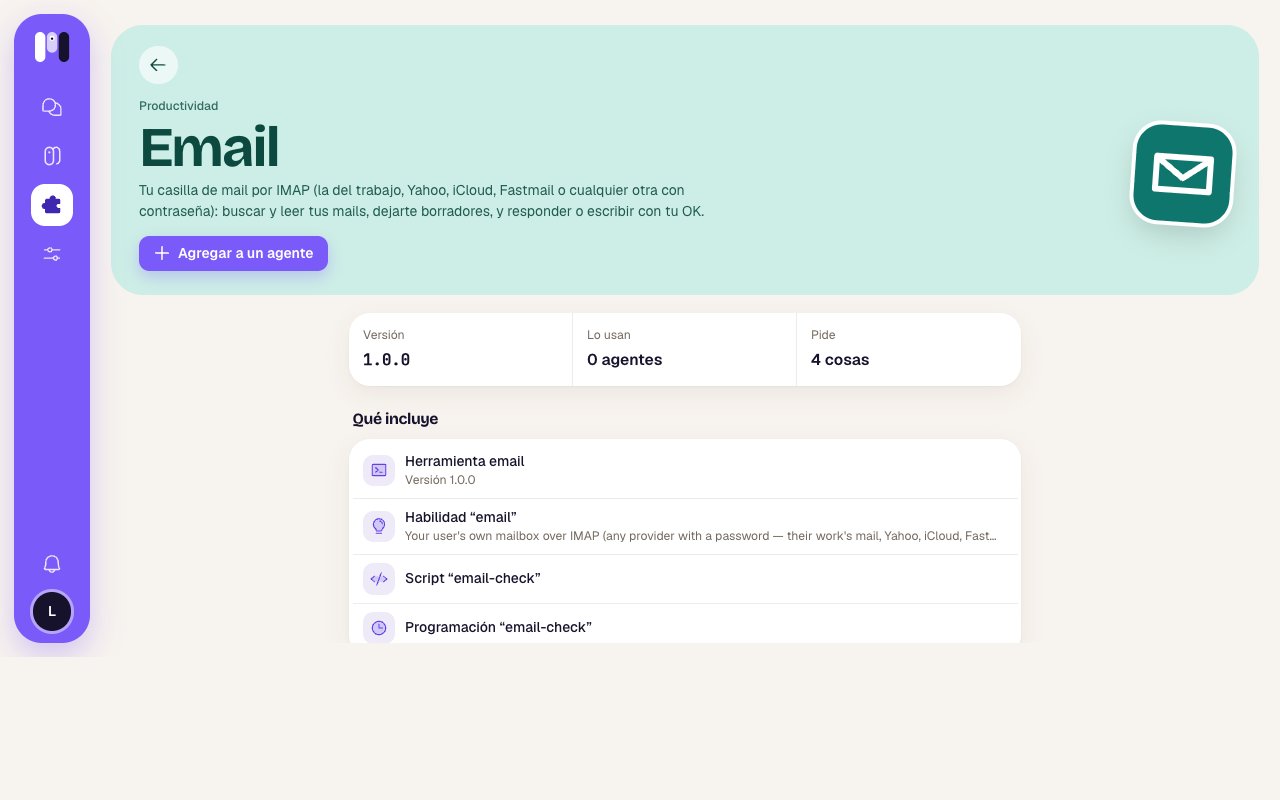
2
Choose the agent
Tap Add to an agent and choose which one. Some show up grayed out: Already has it, Paused (resume it first, so it sets the plugin up with you) or It’s a group’s (that plugin is for personal agents only).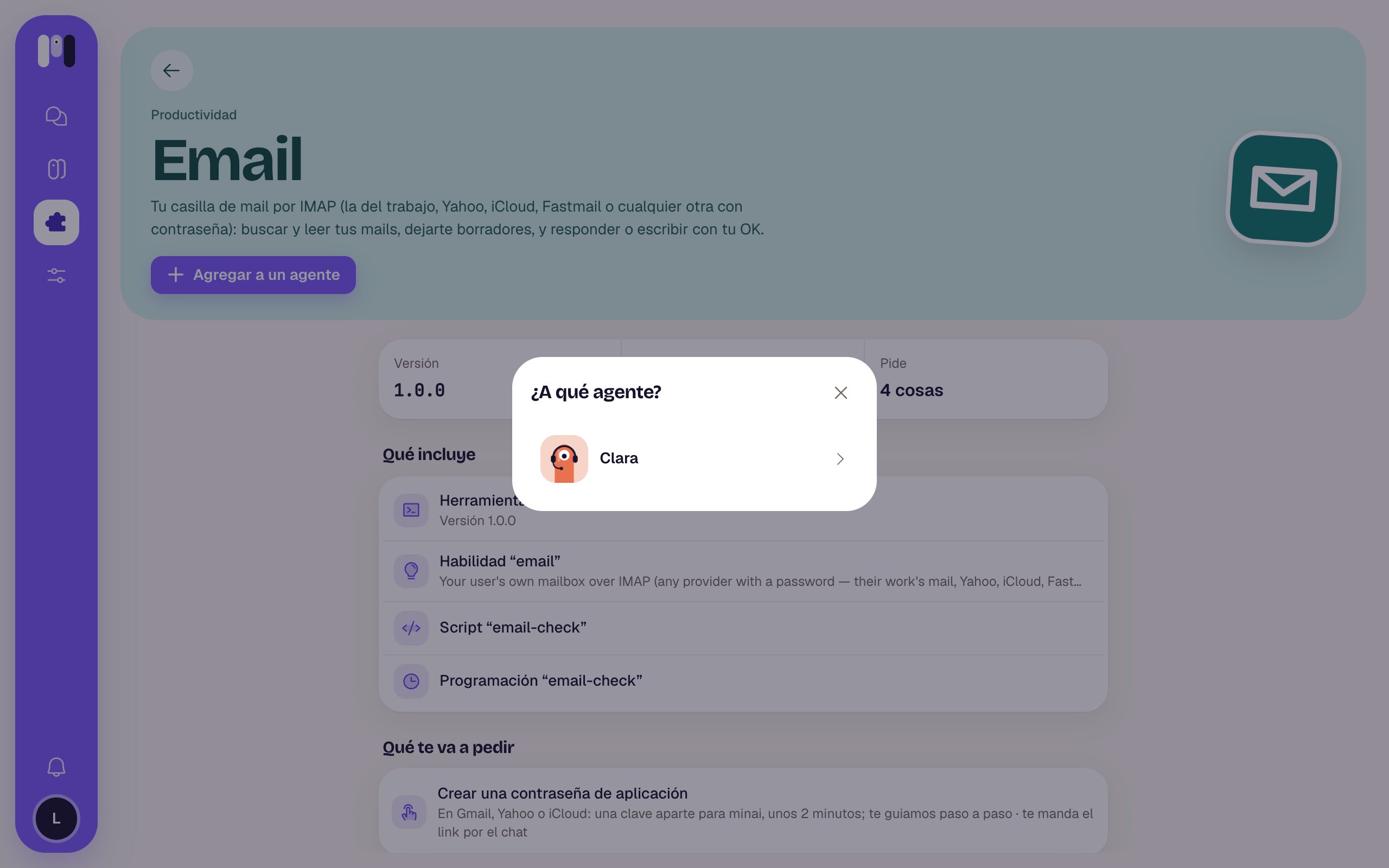
3
minai installs it
In a few seconds, the agent has it.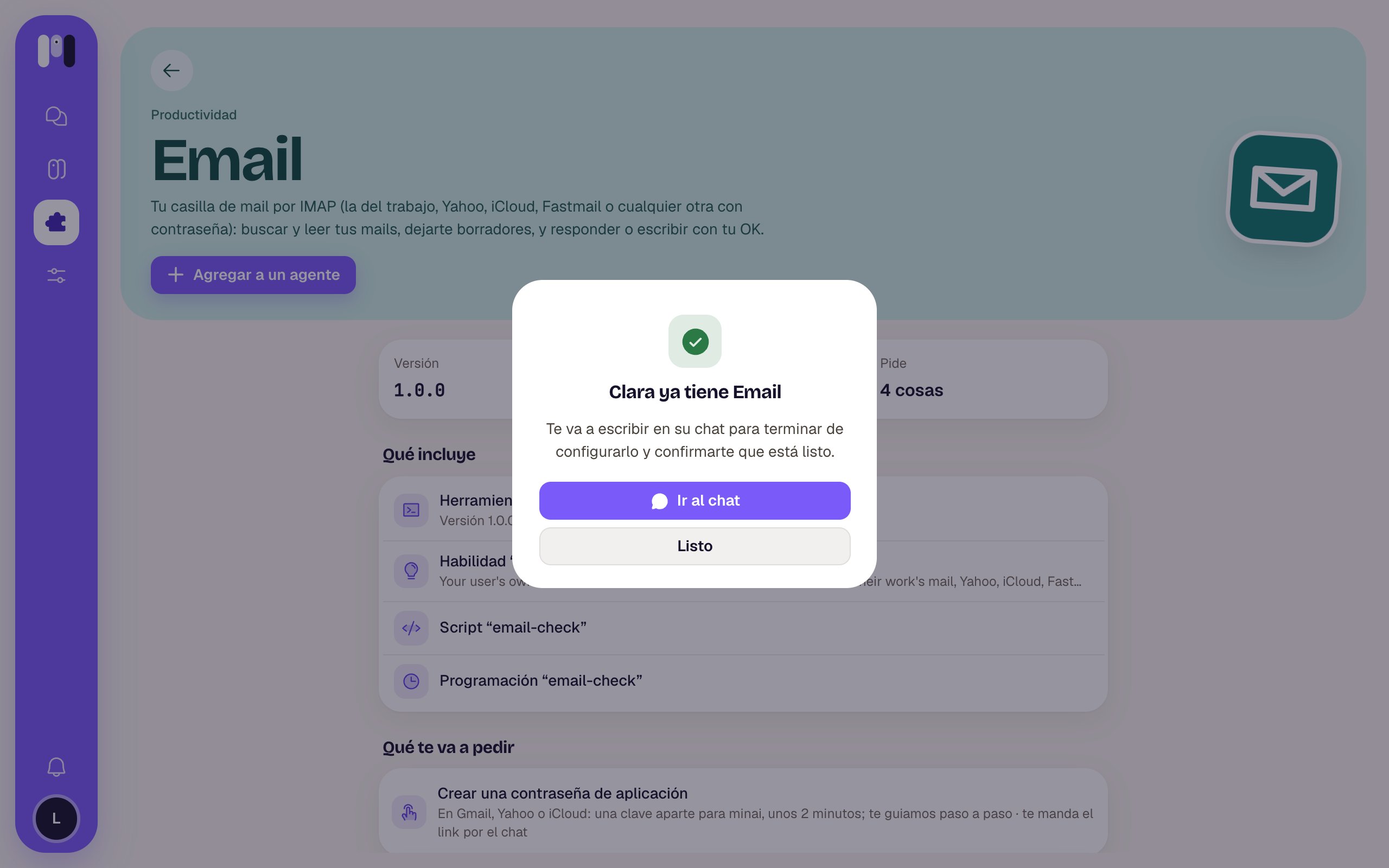
4
Finish setting it up with your agent
The agent writes to you in its chat to ask for what’s missing: it asks you for simple values right there, and for keys it sends you one-time links. Tap Go to the chat to carry on.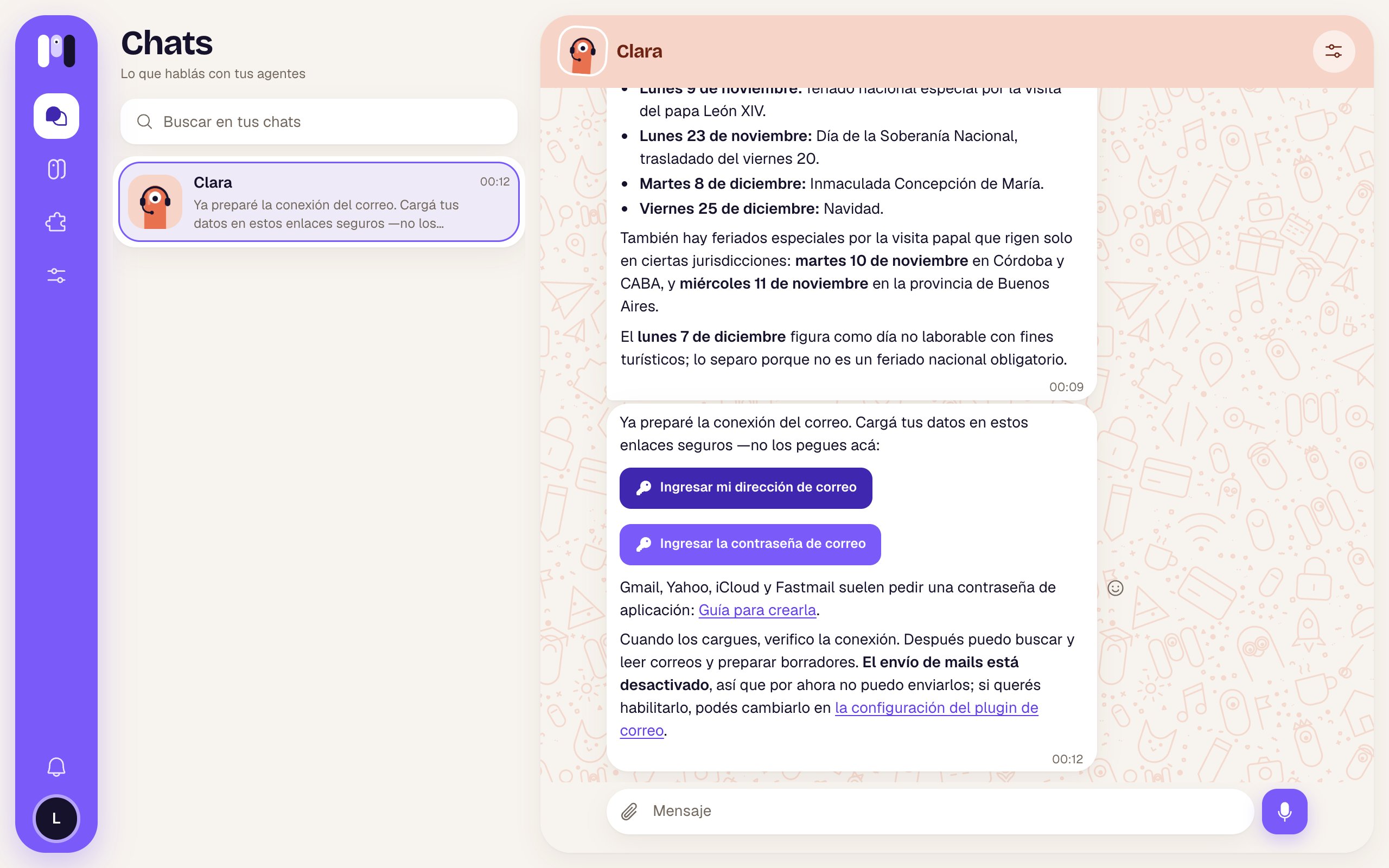
5
The agent confirms
When it has everything, it checks that it works and tells you what it can do now.
The Google plugins (Gmail, Calendar, Drive, Docs, Analytics, Search Console) and Atlassian have an installer on the web that opens when you add them: you complete it there and then the agent confirms in the chat. See Your Google app.
By asking the agent
Tell it what you need and it searches the library:- “Connect to my GitHub and tell me which PRs I have open.”
- “I want you to read my Gmail and let me know if anything comes in from the bank.”
- “Can you see my Mercado Pago transactions?”
Before adding it: what it will ask you for
On each plugin’s page, What it will ask you for tells you what you need to have at hand:- Nothing: it works as soon as you add it.
- Steps: for example, creating an app password or your Google app. If there’s a guide, tap See the instructions to read it first.
- Values: the ones entered in the chat (an account number, a region).
- Keys: the ones entered in one-time links and stored encrypted.
Keep reading
Permissions
What a plugin can do and what needs your OK.
Plugin catalog
All the plugins, one by one.