

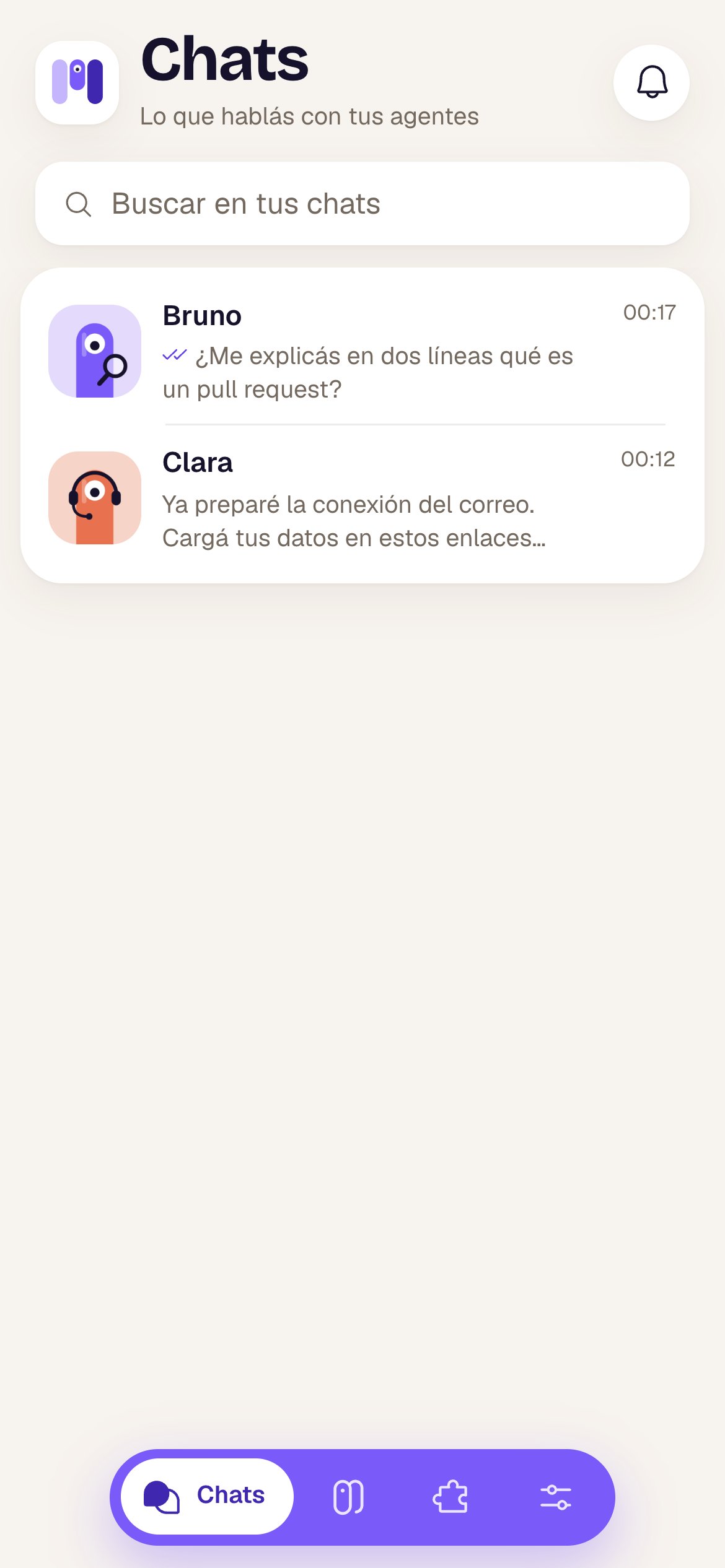
Installing it
On your phone, minai shows you the Install minai on your phone card. Tap it and it shows you the steps for your browser. In short:- iPhone (Safari)
- Android (Chrome)
- Samsung Internet
- Computer
- Tap Share (at the bottom in the middle; on iOS 26, first the three dots, at the bottom right).
- Tap Add to Home Screen (if you don’t see it, scroll down a bit or tap View More).
- Leave Open as Web App on, if it shows up, and tap Add.
Turning on notifications
Open minai from its icon and tap Turn on when it asks “Know when they write to you.” Your phone asks for permission: choose Allow. You can also turn them on in Settings → Notifications → On this device.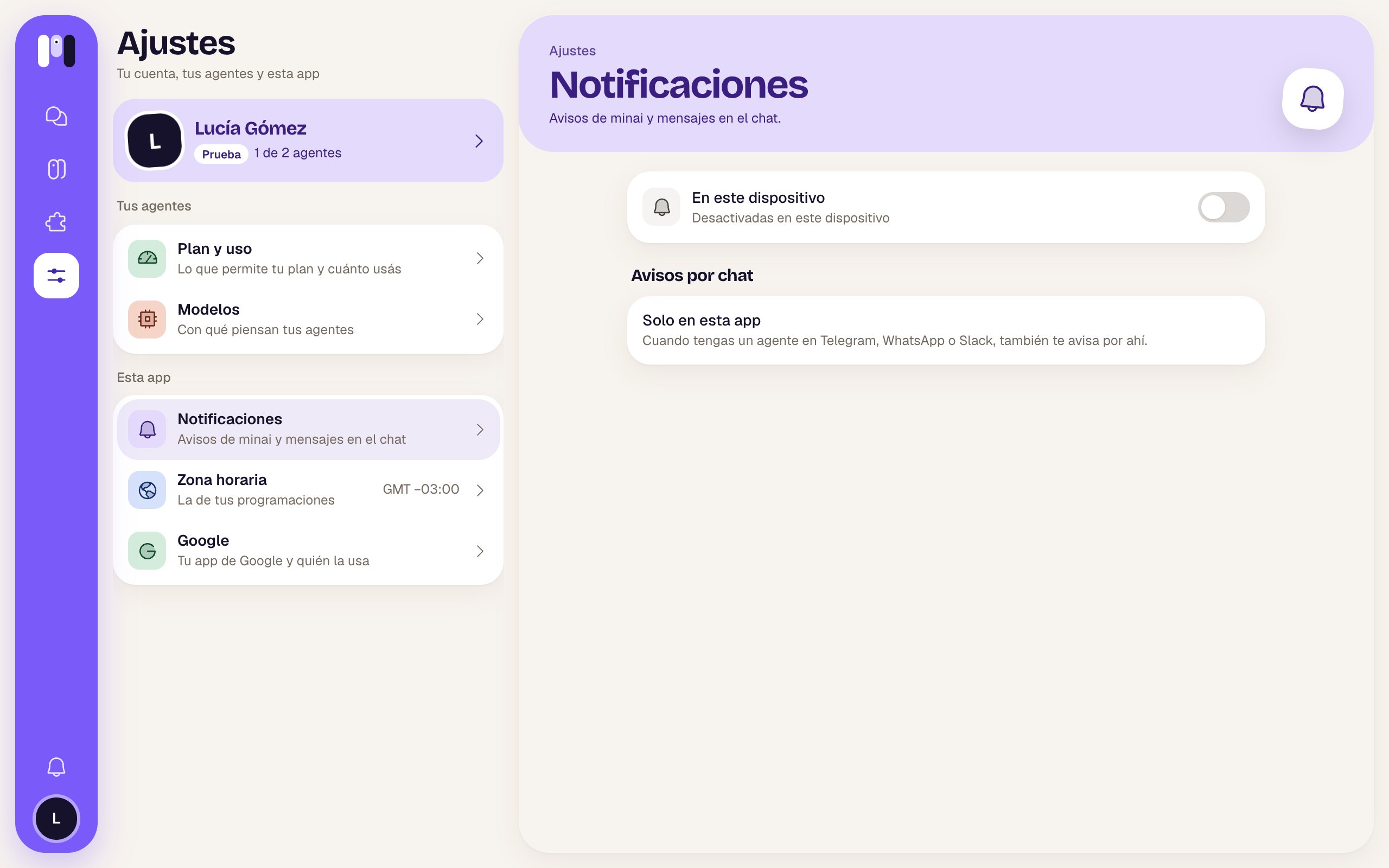
- Your agents’ messages in minai’s chat (not while that chat is open on any of your devices).
- minai’s notices: your plan, your AI subscription, a channel that stopped working.
On iPhone, notifications only work with minai installed. They’re turned on per device: if you use minai on two phones, turn them on on each one.