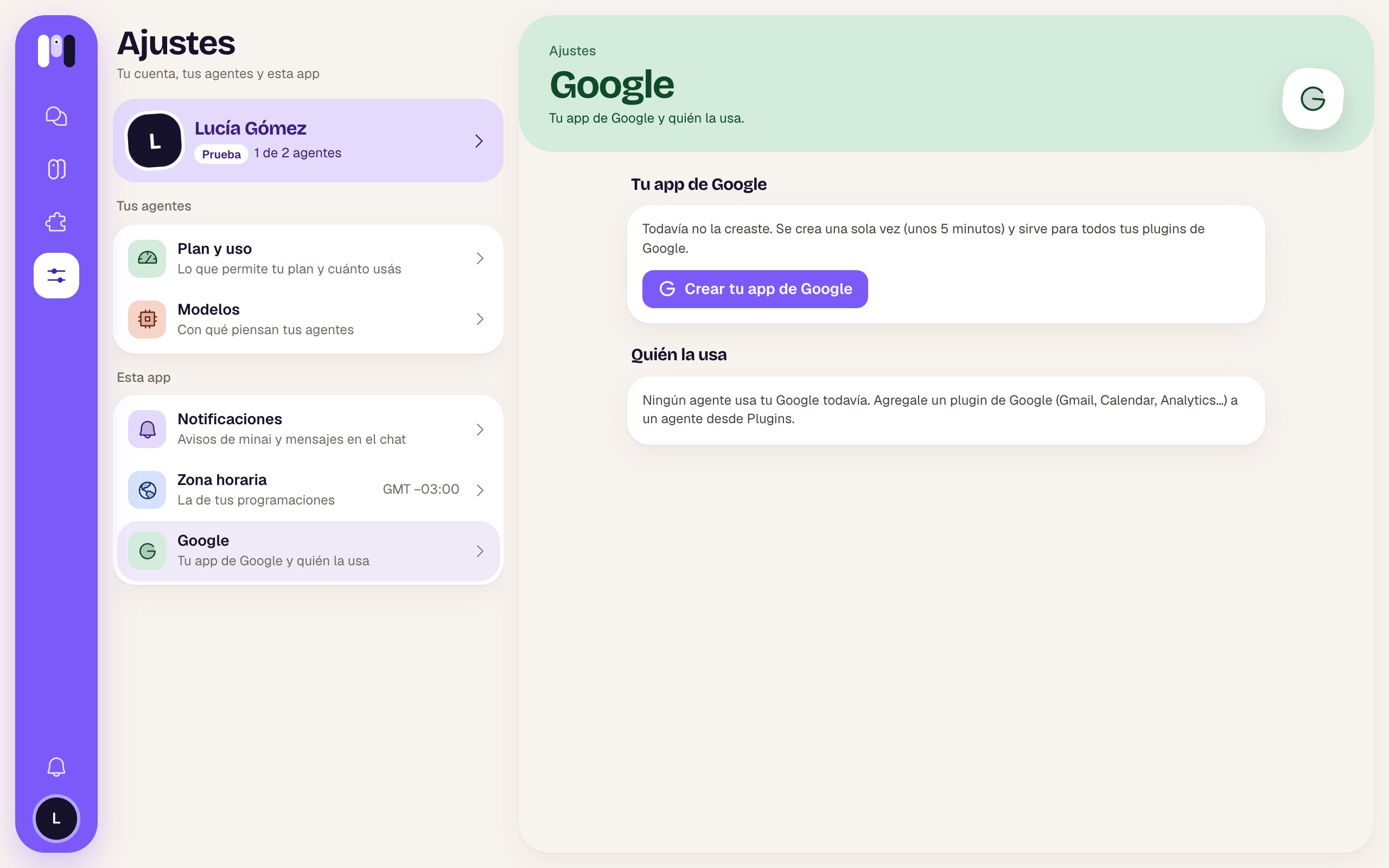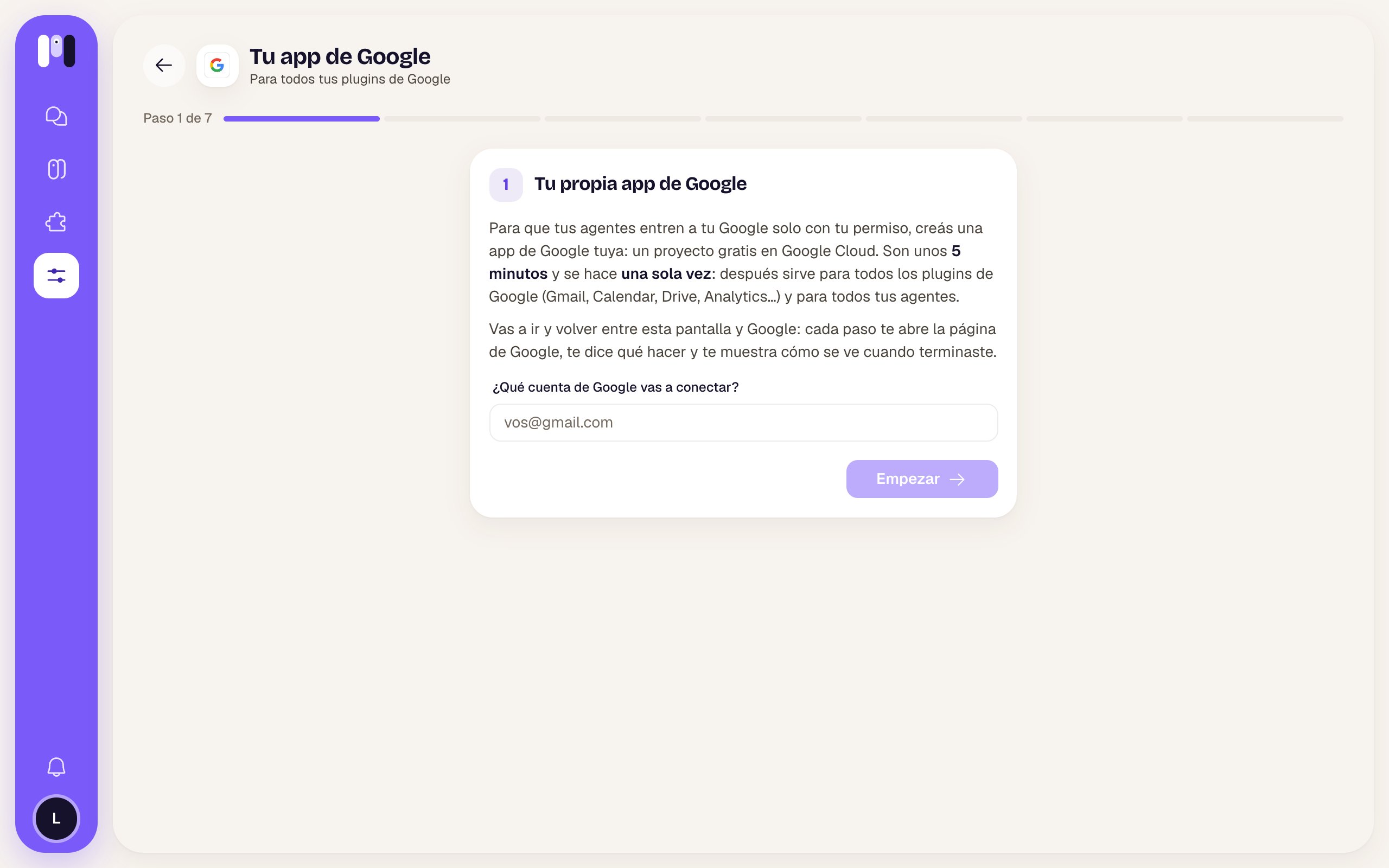
Where you do it
- When you add your first Google plugin, the installer starts here.
- Or beforehand, from Settings → Google → Create your Google app.
The steps
1
Your Google account
Type the account you’re going to connect. If it’s your company’s or your domain’s, mark it as a Google Workspace account (a couple of steps change).
2
Create a project
In Google Cloud, a project called minai. Copy its ID and paste it in minai.
3
Set up the permissions screen
It’s what Google shows you when you connect. Name minai, your email, audience External (or Internal on Workspace).
4
Fill in the app's details
You paste three minai links (home, privacy and terms) and the min-ai.ar domain. Don’t upload a logo: Google would ask to verify the app.
5
Publish the app (Gmail accounts)
Tap Publish app. Google says it should be verified: there’s no need, it’s yours and only you use it. Publishing it keeps the connection from dropping after 7 days. On Workspace, you skip this step.
6
Create the client
A client of type Web application with the address minai gives you. Before closing, tap Download JSON: Google won’t show you the secret again afterwards.
7
Upload the JSON
Tap Upload the JSON. minai tests it with Google and stores it: “Your Google app is ready.”
Then, for each Google plugin
With your app ready, each plugin only needs two things, inside its installer:- Turn on its API in your project (a direct link and Enable). For example, the Gmail API for Gmail; Docs needs the Docs one and the Drive one.
- Connect your account: you choose Read and act or Read only and tap Connect with Google.
Google will show you “Google hasn’t verified this app”. That’s expected: the app is yours (your email shows as the developer). Tap Advanced → Go to min-ai.ar (unsafe). If the permission has a checkbox, check it (it comes unchecked) and tap Continue.
Who uses it
In Settings → Google you see your app (with its project and when you created it) and which agents use your Google account, with which account and which permission. From there you can also Replace it.