

What you need
Telegram installed, on your phone or your computer, with your account.How to connect it
1
Choose Telegram
When you create the agent, under Where will you talk with Clara?, tap Telegram (“Its own bot, in your Telegram”).
2
Open Telegram and tap Start
Tap Open Telegram. The MinAI chat opens: tap Start. MinAI tells you “Tap the button to create Clara 👇”.
3
Tap “Create Clara” and confirm
Telegram shows you a box to create the bot: confirm it. MinAI tells you “Done ✅ Clara has its bot. Open it and tap Start.”. Meanwhile, in minai you’ll see “Waiting for Clara’s bot…”.
4
Open the new bot and tap Start
Tap Open Clara in Telegram, or Open @username in minai, and then Start. The app shows “Clara is writing to you” → Done.
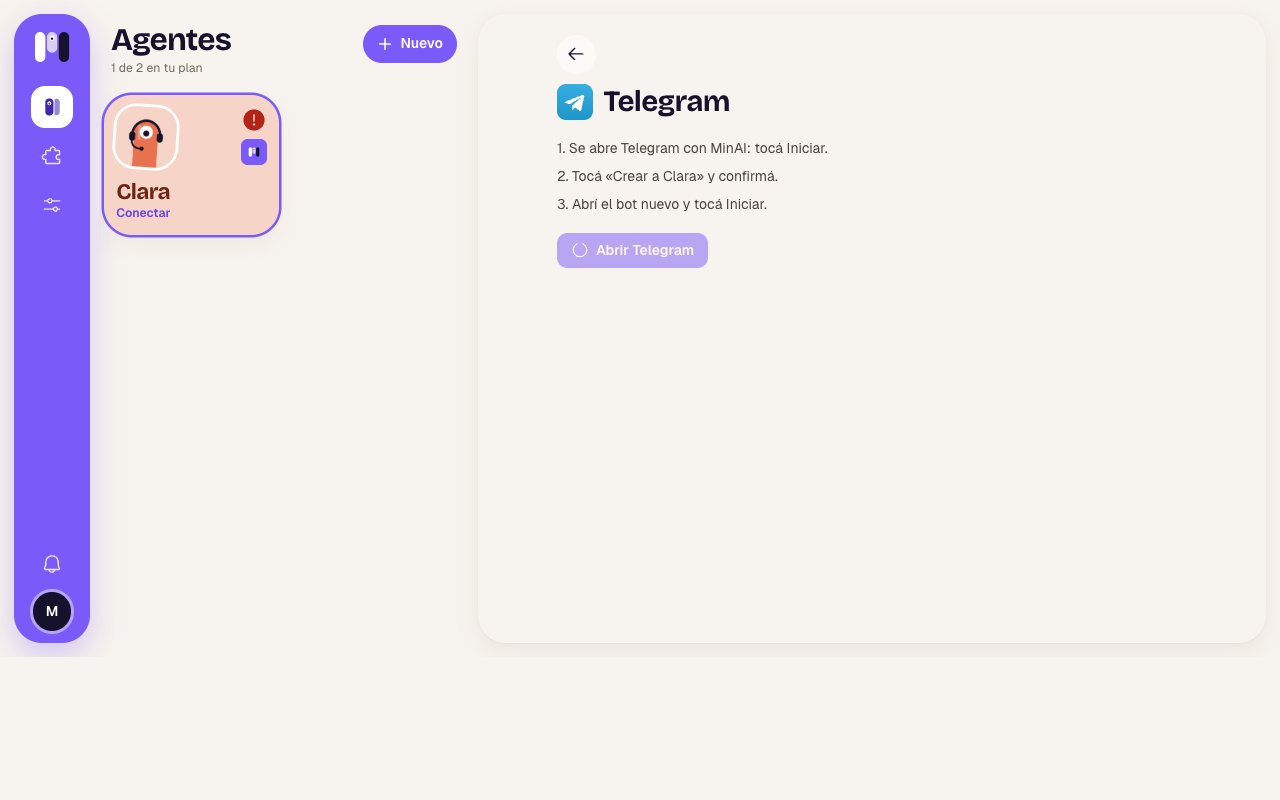
The Telegram steps in minai
How it behaves
- Formatting: bold, italics, code and links. No tables or headings: if needed, it puts it together as a list.
- Buttons: options show up as buttons under the message. Tap one and only the chosen one stays, with ✓ (for example, “✓ Doctor appointments”). If you tap another, Telegram tells you “You already picked an option.”. See Buttons and options.
- While it works: you see “typing…” at the top of the chat.
- Files, photos, audio and video: they go both ways. Images arrive as photos, and audio as audio or a voice note.
- Voice notes: they’re turned into text automatically so your agent understands them.
- Reactions: they work both ways.
- It’s yours: the bot is closed. If someone else messages it, it doesn’t answer.
- To stop it: send
/stopon its own, with nothing else, and it cuts short what it was doing.
Reconnect if something fails
If the bot stops working (for example, because you changed the bot’s token in BotFather), minai tries to fix it by itself on the next reply. If it can’t:1
Go to Where it talks
In the agent, Overview → Where it talks. You’ll see Disconnected and “The bot stopped answering”.
2
Tap Reconnect
minai asks Telegram for the bot’s new details and it works again.
3
If it didn't work
If you see “We couldn’t reconnect it”, you most likely deleted the bot in Telegram: change channels to create another one.
Change channels
A personal agent can move from Telegram to another channel and take everything with it: conversation, memory, plugins and schedules. In the old chat it leaves one last message (“This chat isn’t used anymore: you can delete it.”) and the bot steps away. See Change an agent.Limits
- minai can’t delete the Telegram bot: if you delete the agent or move it to another channel, the bot goes quiet, and you can delete it yourself from Telegram if you want.
- If you rename the agent, the bot changes its name and picture, but its @username stays the same.
- Up to 15 MB per file.
- Notifications that it wrote to you come from Telegram, not minai.
Agents for a group
A bot in a Telegram group, for everyone.
Compare channels
What changes from one channel to another.