All the plugins you can add to your agents, and each one’s page with what it brings and what it will ask you for. How to get there: Plugins in the bar. For a particular agent: its Plugins tab → Add plugins.

The library

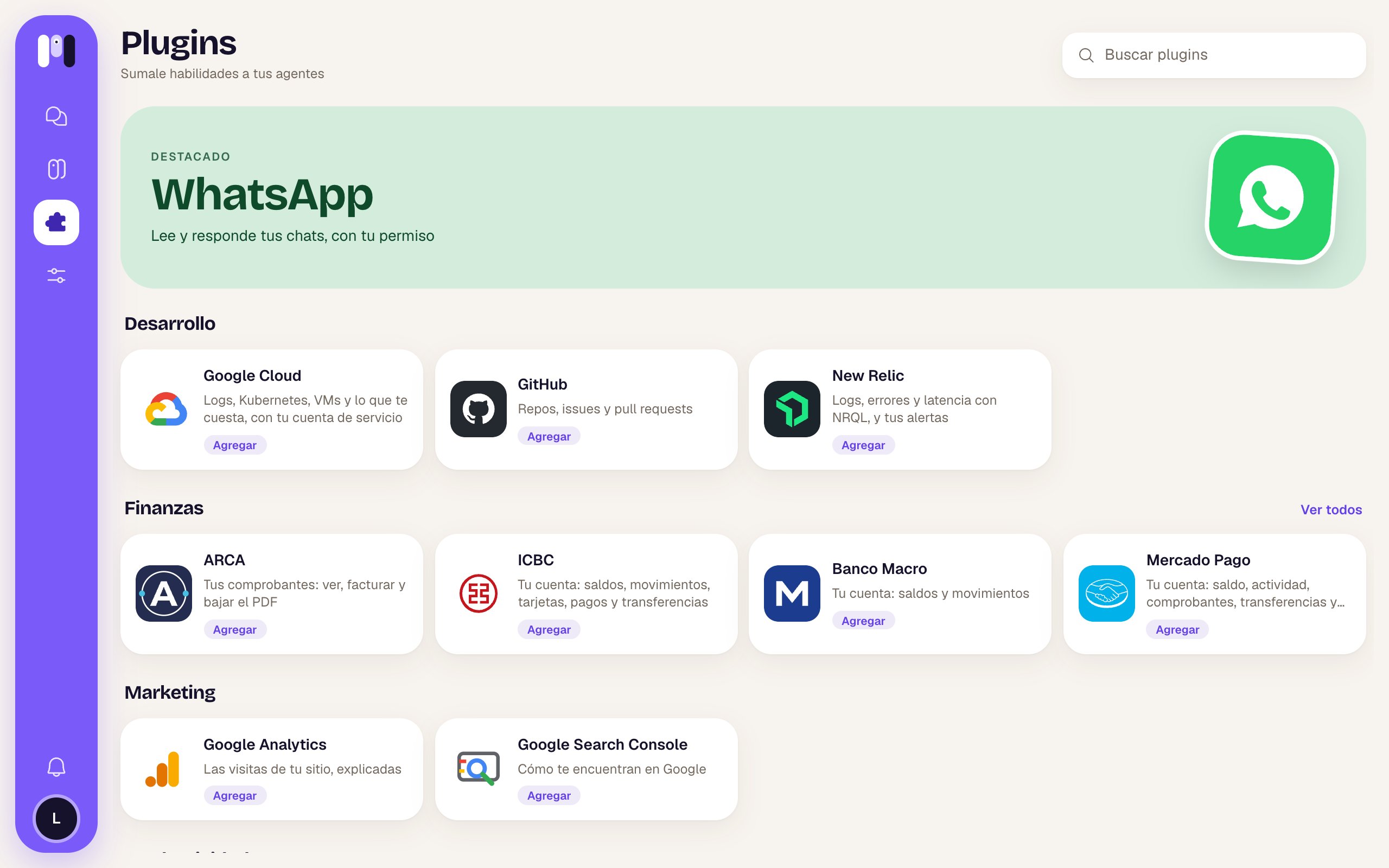
Library with WhatsApp featured and the Development, Finance and Marketing sections

The plugin library

Each card has the icon, the name, a line about what it does and a pill: Installed (green, if some agent already has it) or Add.

A plugin’s page
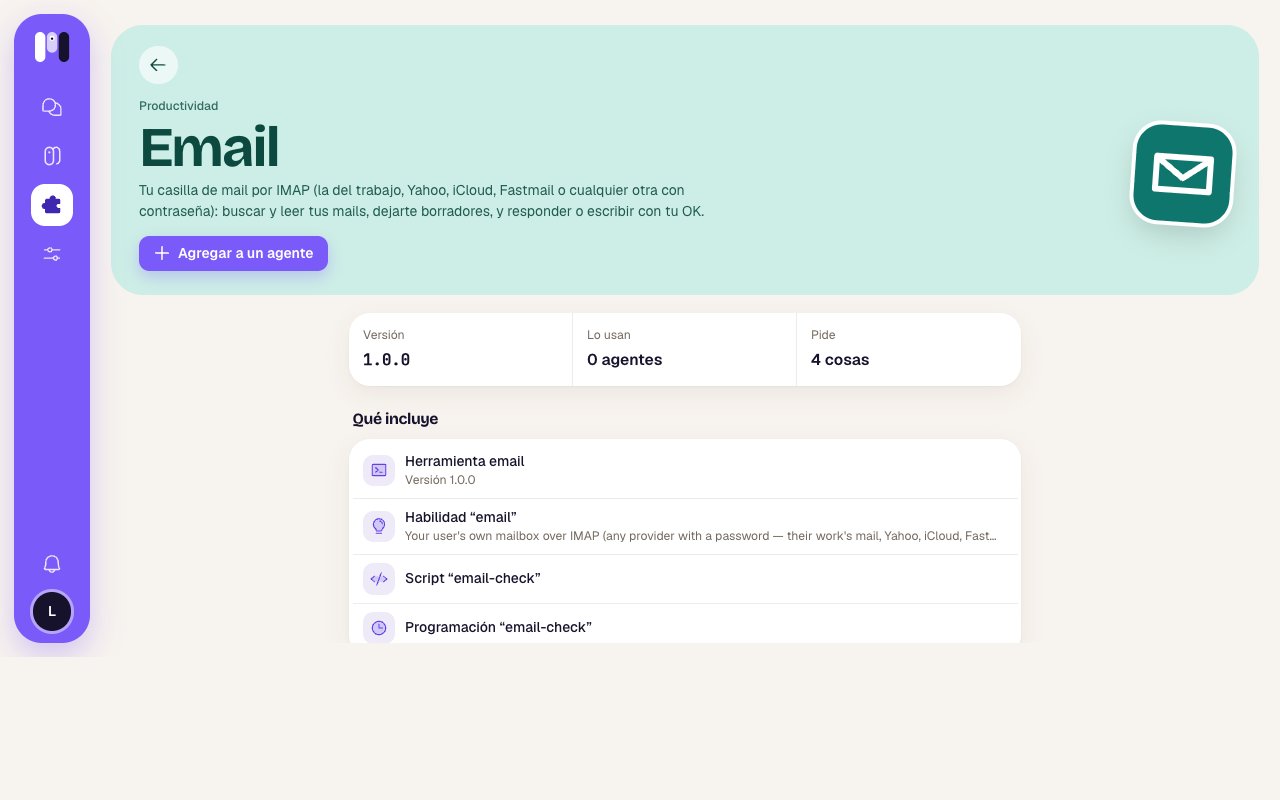
Email plugin page with the Add to an agent button, the details and What it includes

Email's page

Add a plugin

Add to an agent opens “Which agent?” with your agents. Some show up turned off with the reason: “Already has it”, “It’s a group’s” or “Paused”.
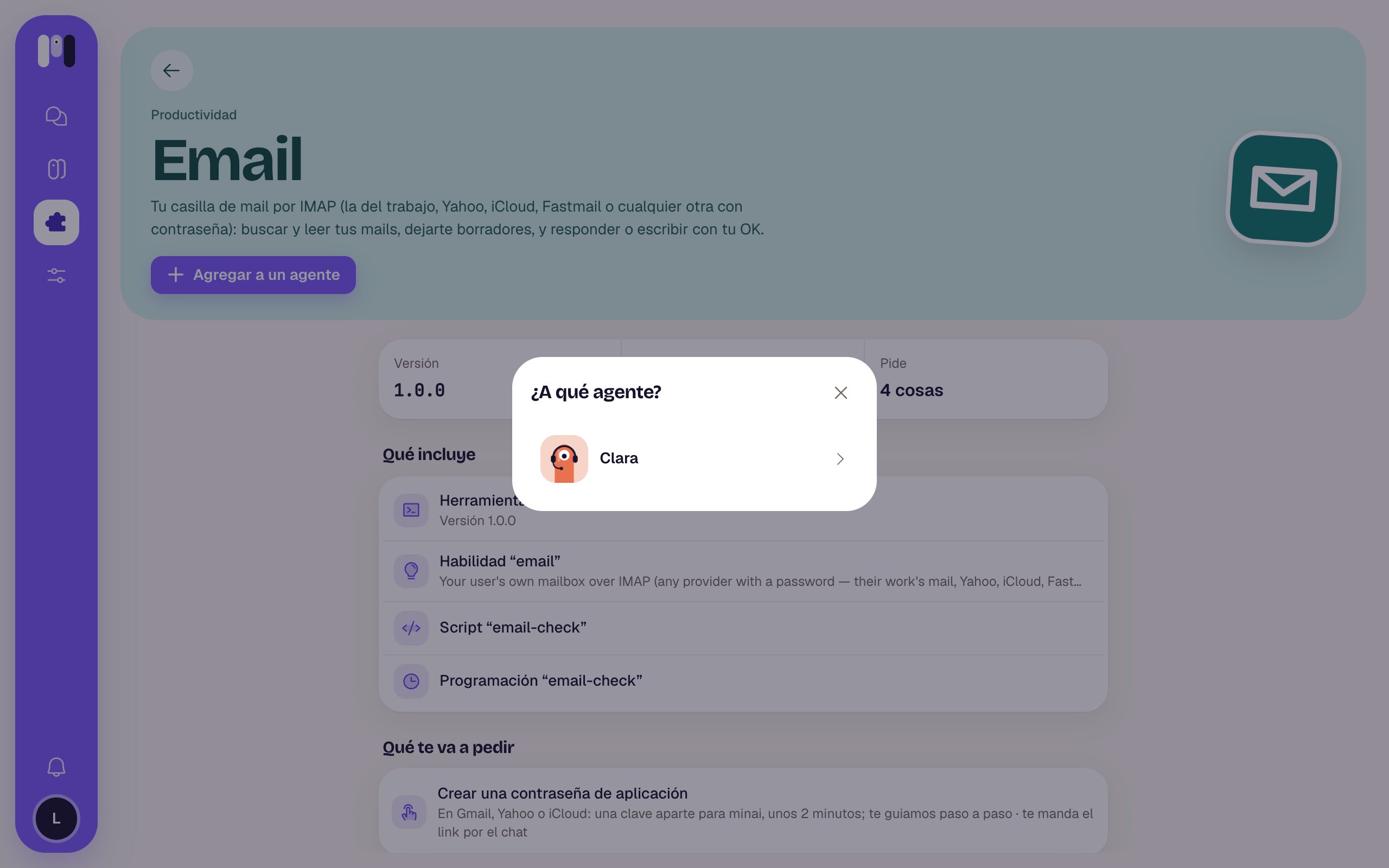
Which agent? window with Clara to choose
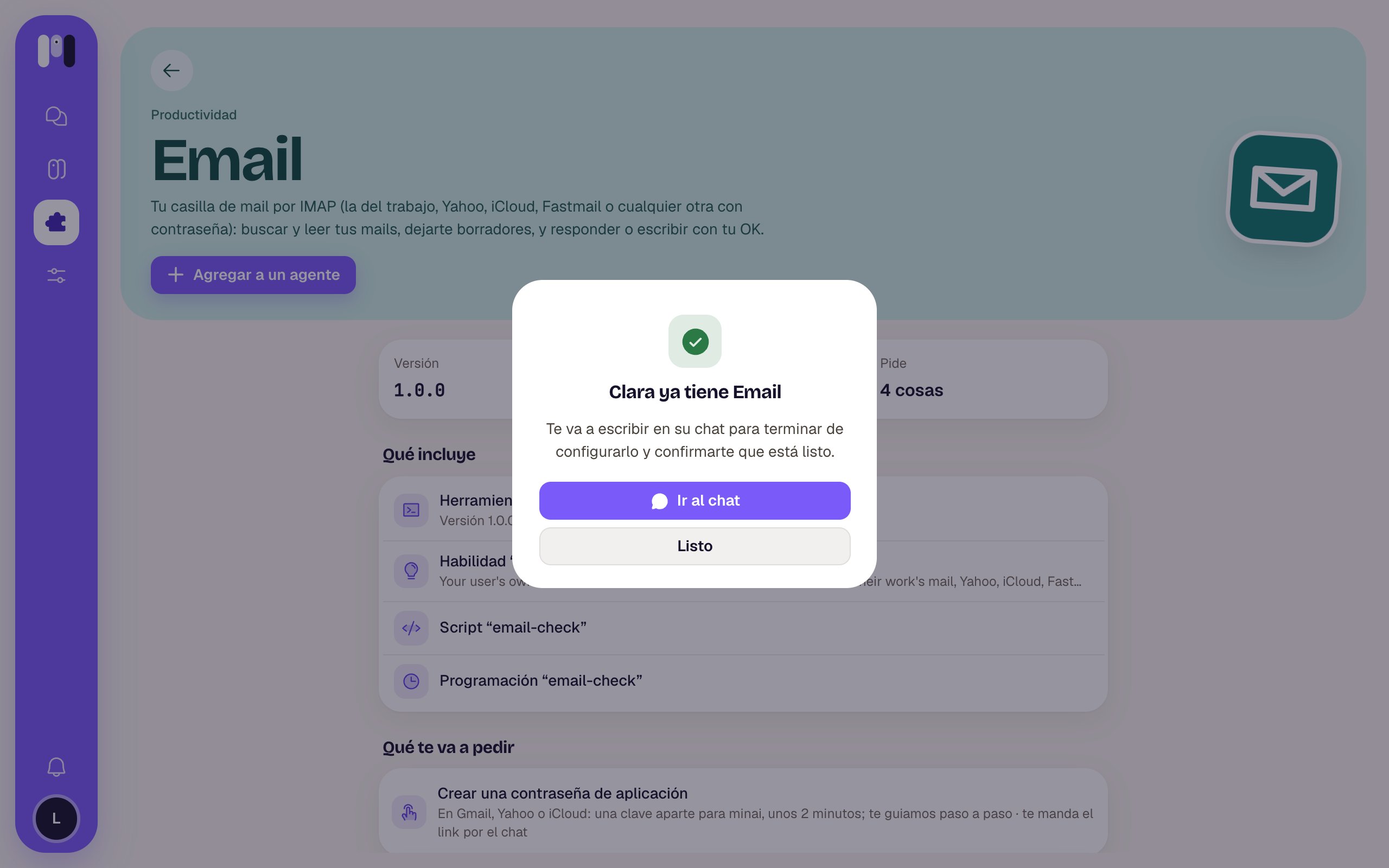
Pick one: “Adding Email to Clara…” and then “Clara now has Email” — “It’ll write to you in its chat to finish setting it up and let you know when it’s ready.”
  • Go to the chat (or Open Telegram, etc.) takes you to the conversation.
  • Done closes it.
Clara now has Email window with the Go to the chat and Done buttons
If it fails: “We couldn’t add it” with Try again. If you came from an agent, it’s added straight away without asking which one. The Google plugins (Gmail, Calendar, Drive, Docs, Analytics, Search Console) and Atlassian open their installer instead of this window: that’s where you connect your account. See Your Google app.
You can also ask the agent: “Add the Gmail plugin.” See Add a plugin.

The instructions

See the instructions opens a step-by-step guide: a progress bar (“Step 1 of 5”), each step with its explanation, links that open the service’s page (↗), boxes to Copy, screenshots that get bigger, and in green “You’re done when: …”. At the bottom, Back, Next and at the end Done. On a phone it suggests you continue on a computer.

All plugins

What each one does.

An agent's plugins

Set up, remove and delete keys.