

What you need
The first time an agent uses WhatsApp, you choose your account’s line. All your WhatsApp agents share that line, so with the next ones this step doesn’t show up.- A minai line (“No number of your own”): a number minai provides. You don’t need anything but your WhatsApp.
- Another line of mine (“A separate number for your agents”): a second WhatsApp number of yours (another phone, another SIM or a WhatsApp Business with another number), different from the one you chat with. That phone needs to have WhatsApp working.
Why can’t it be my own number?
Because WhatsApp doesn’t notify you of messages sent by your own account: if the agent talked from your number, you’d never find out what it writes to you. That’s why the line is always another number, and you talk to it from yours.Having your agent read your WhatsApp chats and draft replies for you is something else: that’s the WhatsApp plugin. That one does use your number, and nothing goes out without your OK.
How to connect it
- A minai line
- Another line of mine
1
Choose WhatsApp
When you create the agent, under Where will you talk with Clara?, tap WhatsApp (“A group in your WhatsApp”).
2
Choose the line
Under Which line?, tap A minai line. It’s assigned instantly: there’s nothing to link. If it says No room, there are no free lines right now and the other option is the way to go.
3
Introduce yourself to the line
Tap Open WhatsApp. A chat opens with minai’s number and a message already written, something like “Linking code: HG7-KFH”. Send it as is, from your usual WhatsApp. The code lasts one hour.
4
Done, your group
The line answers “Done ✅ I’m creating Clara’s group for you.” and adds you to the group. In minai you see “I created the group «Clara»” → Done. Your agent writes to you there.
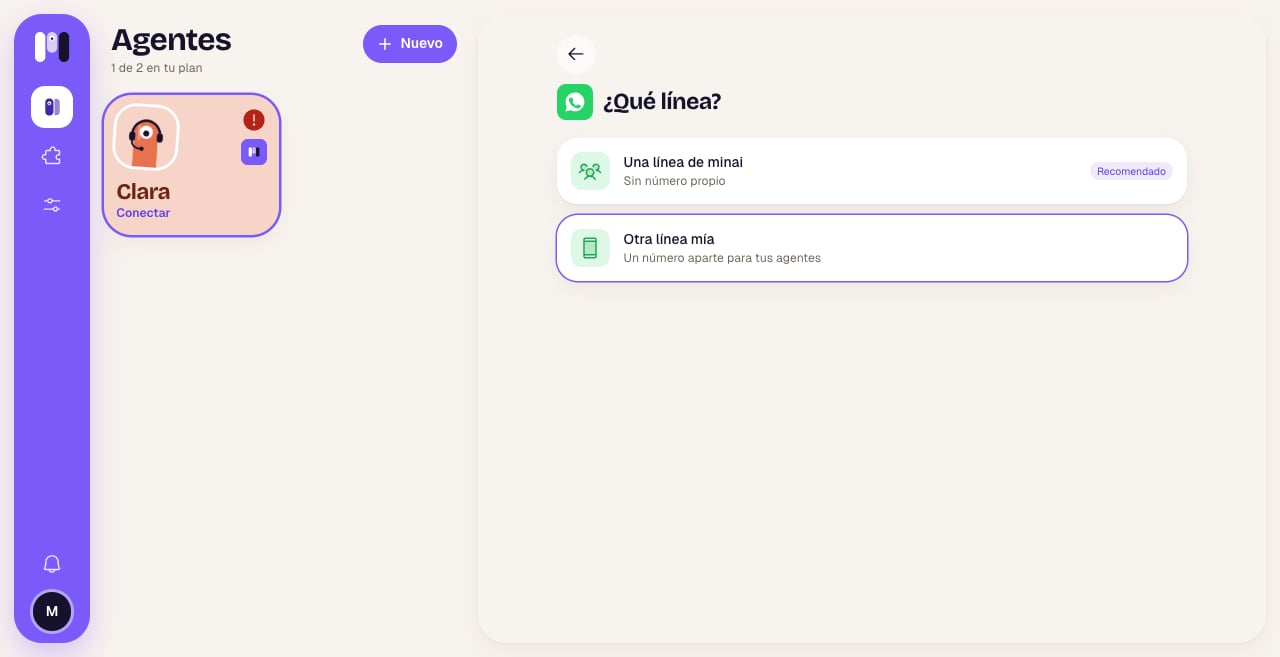
Choosing the line
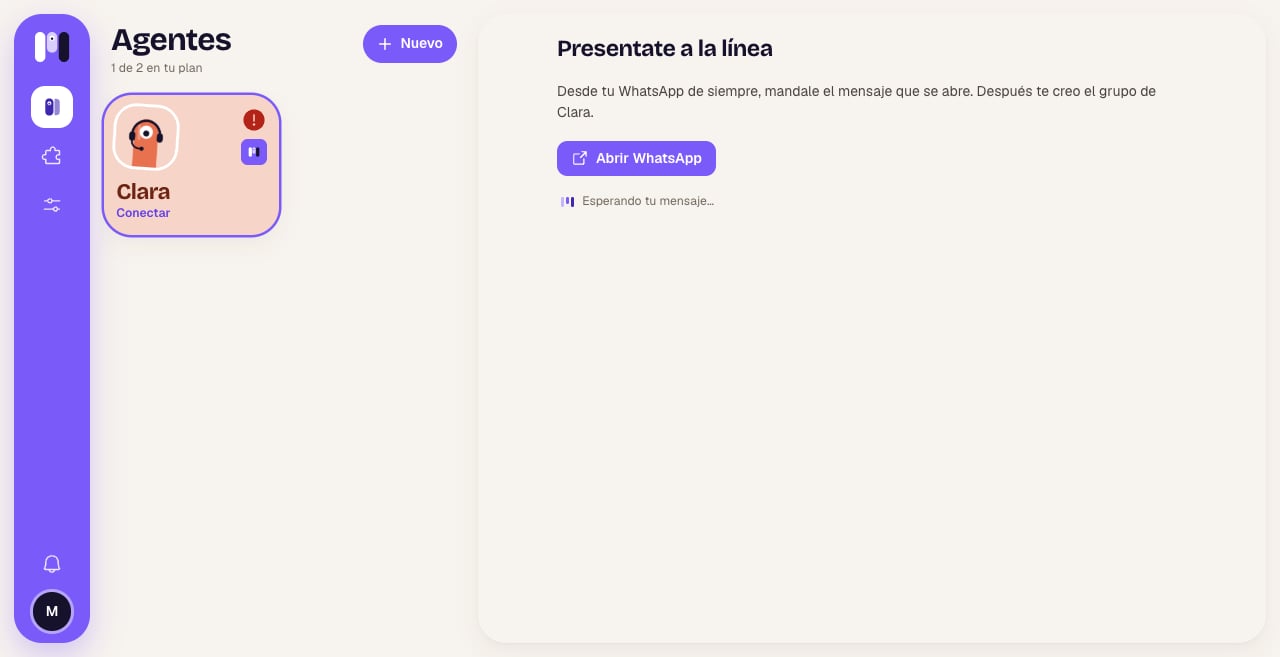
Introduce yourself to the line from your usual WhatsApp
How it behaves
- Formatting: only bold, italics,
strikethroughand code blocks. No tables, headings or links with text: web addresses are written out in full. - No buttons: WhatsApp doesn’t have them, so options arrive as a numbered list at the end of the message. You answer with the number or the text. See Buttons and options.
- While it works: you see “typing…”.
- Files, photos, audio and video: they go both ways.
- Voice notes: they’re turned into text automatically.
- Reactions: they work both ways.
- Only you: in a personal agent’s group, if you add someone else, the agent doesn’t answer them.
- To stop it: send
/stopon its own, with nothing else.
Reconnect if something fails
- A minai line
- Another line of mine
If the line has a problem, in Overview → Where it talks you see No line and “It’s a minai line and we’re already reconnecting it.”. You don’t have to do anything: your agent answers again as soon as it’s back.
Change channels
A personal agent can move from WhatsApp to another channel and take everything with it. In the old group it leaves one last message (“This group isn’t used anymore: you can leave and delete it.”) and the line leaves the group. See Change an agent.Limits
- Your own number can never be the line.
- Only one line per account, shared by all your WhatsApp agents. Having Another line of mine counts in your plan as “Own WhatsApp”; the minai line doesn’t count.
- If you rename a personal agent, its group changes name and picture. A group agent’s group keeps its name.
- Up to 15 MB per file.
- Notifications that it wrote to you come from WhatsApp, not minai.

WhatsApp plugin
Have your agent read your chats and reply with your OK.
Agents for a group
An agent in a WhatsApp group, for everyone.