

The chat list
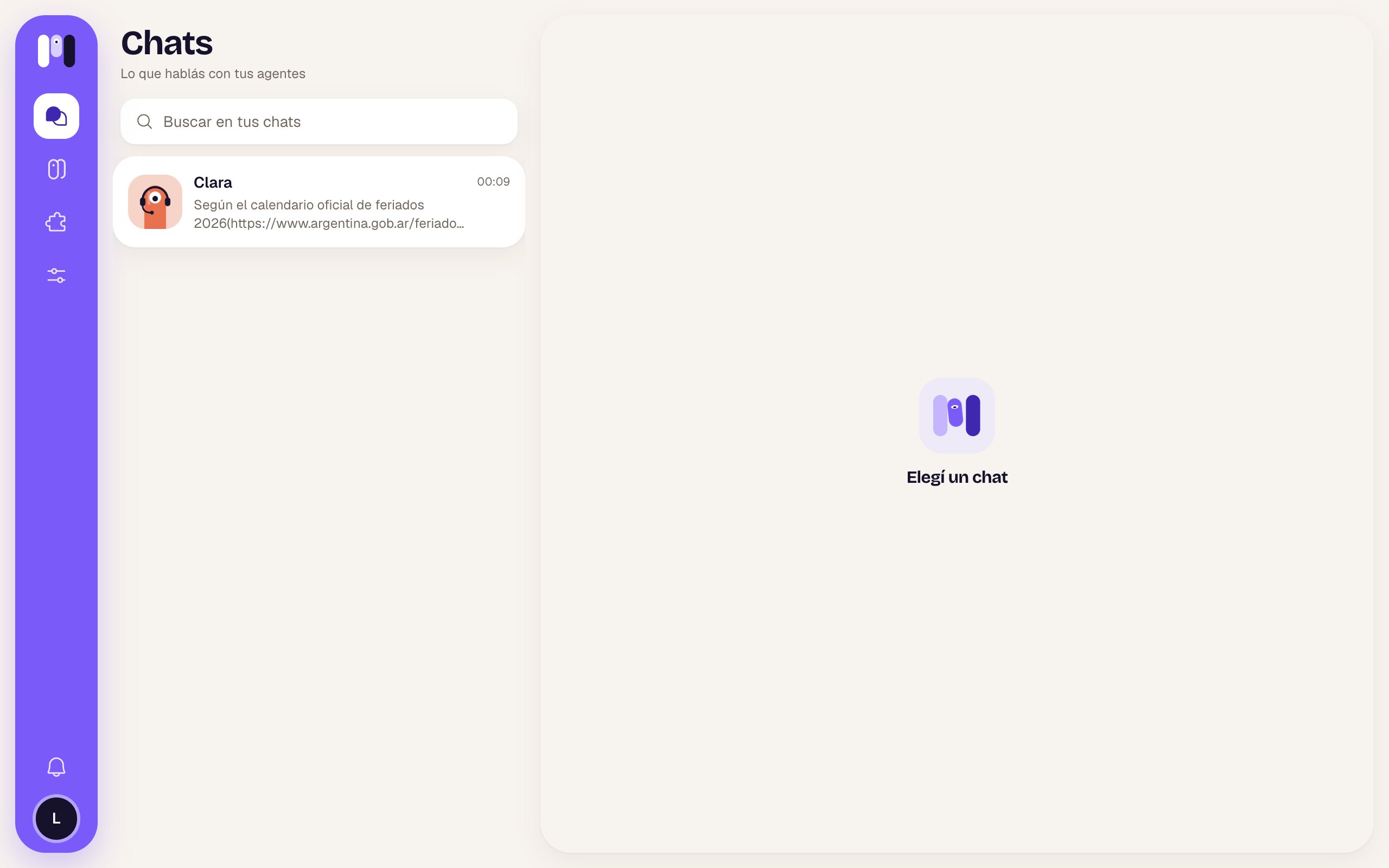
The list on the left; on the right, “Pick a chat” until you open one
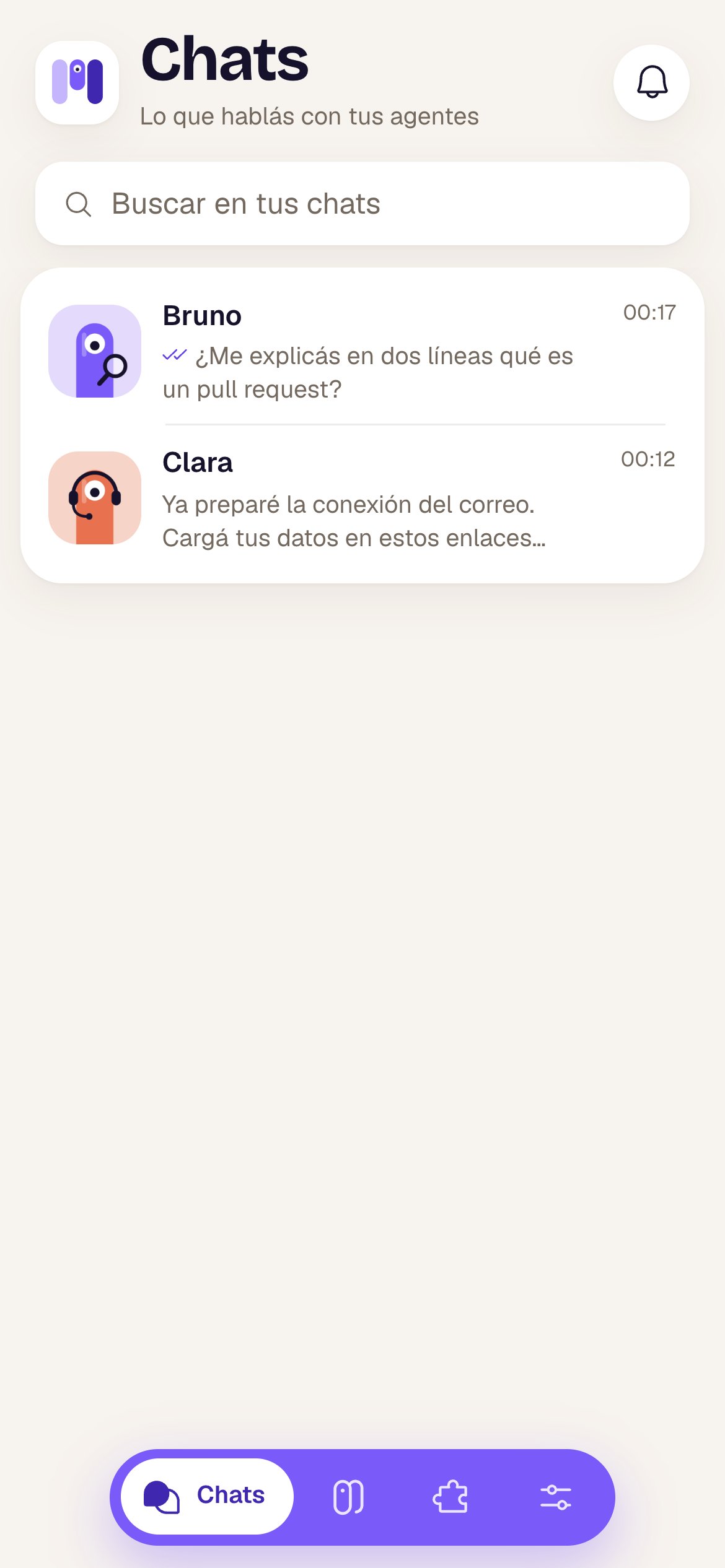
In each row:
- Last message: with ✓✓ in front if you wrote it; “📷 Photo”, “🎤 Audio” or “📎” and the file name if it was an attachment; in a group, the name of whoever wrote it.
- “working…” with the animated minis while the agent is doing something.
- Time: “10:42”, “yesterday” or the date.
- Number of unread messages; the row is tinted while there are unread ones.
- Telegram, WhatsApp or Slack chats carry that app’s logo in the corner of the face.
The conversation
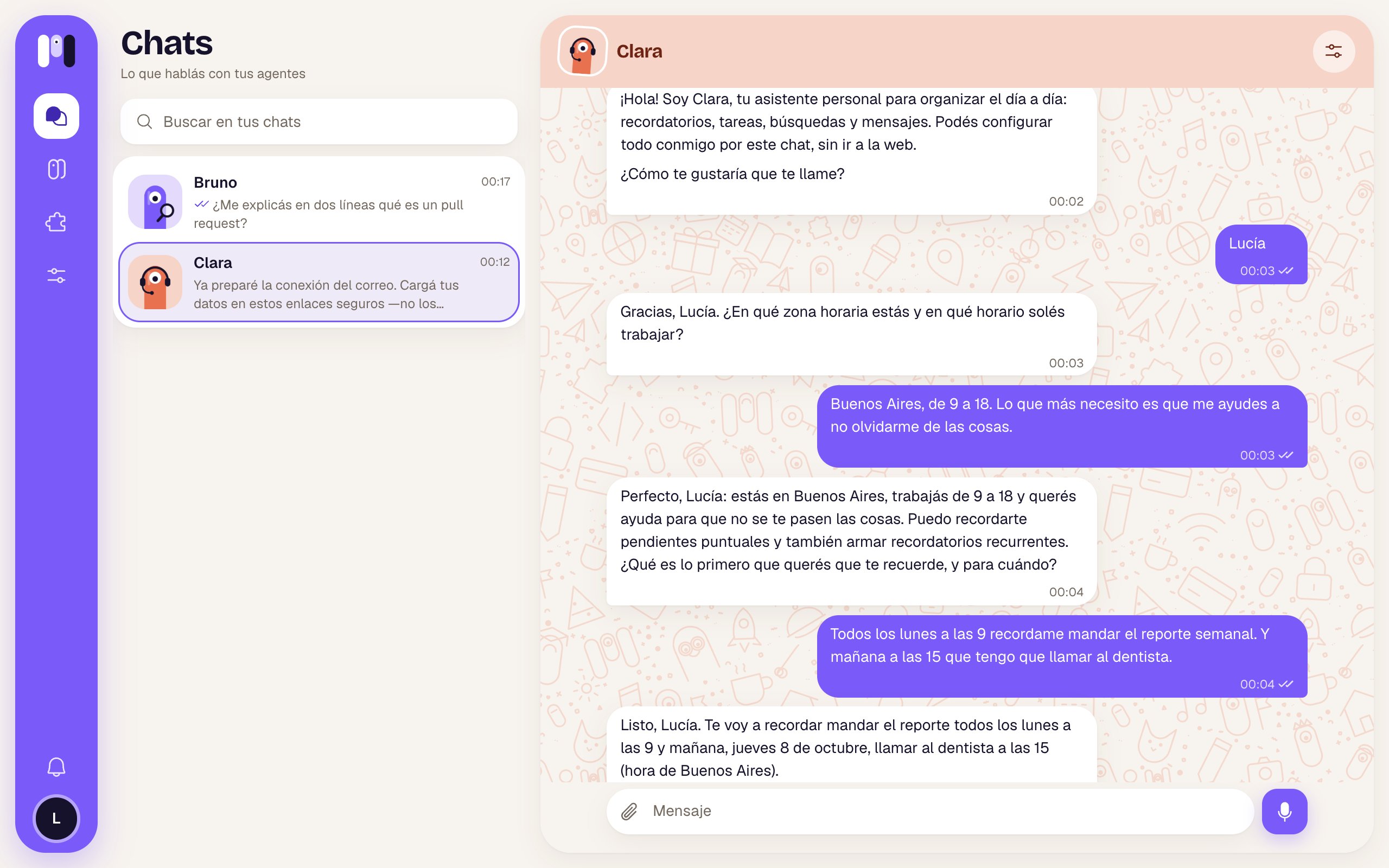
A conversation with Clara on a computer
At the top
- Arrow (phone only): goes back to the agent’s page if you came from there, otherwise to the list.
- The agent’s face and name: tap them to go to its page.
- Under the name: “working…” while it’s doing something, or “on Telegram”, “on WhatsApp”, “on Slack” if it’s an outside chat.
- See agent (sliders, on the right): opens the agent’s page.
The bubbles
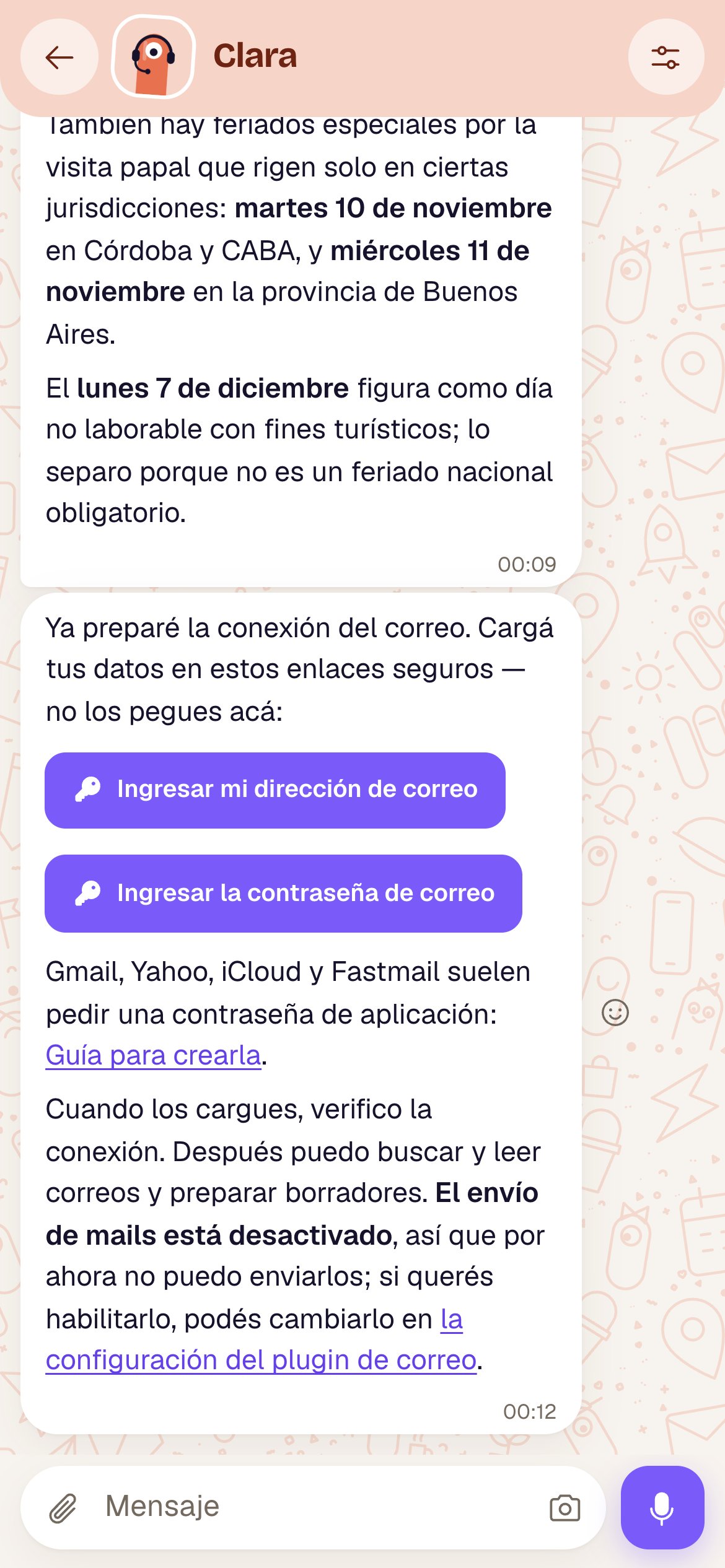
- Yours, on the right, in violet. The agent’s, on the left, in white, with bold, lists, tables, code and links.
- On yours (in minai chat only), next to the time:
- Reactions: the agent’s messages have a smiley face (React; on a computer it shows up when you hover). Pick 👍 ❤️ 😂 😮 😢 🙏; tap the same one again to remove it. The agent can react to yours too: you see it under your bubble.
- New messages ↓: if you’re reading further up and something comes in, this pill shows up to take you down.
Option buttons
When the agent gives you options, they show up as buttons under its message. Tap one and it’s as if you’d answered that. You choose only once: the chosen one gets a ✓ and the rest turn off. If an option is a link, it opens in another tab (↗). See Buttons.One-time link buttons
When the agent sends you a link to enter something safely, in minai chat you don’t see the link: you see a button.
Links to a plugin’s instructions or to an agent’s page open inside the app. All of this is in One-time links.
Photos, voice notes and files
- Photos: shown as thumbnails (the top part of the image). Tap one and the viewer opens full screen, in dark: at the top it says “number/total · file name”; Open the original (↗) opens it in another tab and Close (✕) exits. If there are several, use Previous and Next or the keyboard arrows; Esc or tapping outside closes it. A very tall screenshot shows at the screen’s width and scrolls.
- Voice notes: Play / Pause, a bar to jump to any point, the time, and a speed button that goes through x1, x1.5 and x2 (this browser remembers it). Only one plays at a time.
- Videos: play right there.
- Other files: a card with the name and size. Tap it to download it.
While the agent is working
A bubble shows up with the animated minis and, next to it, a line in italics with what it says it’s doing (up to two lines, each replacing the last).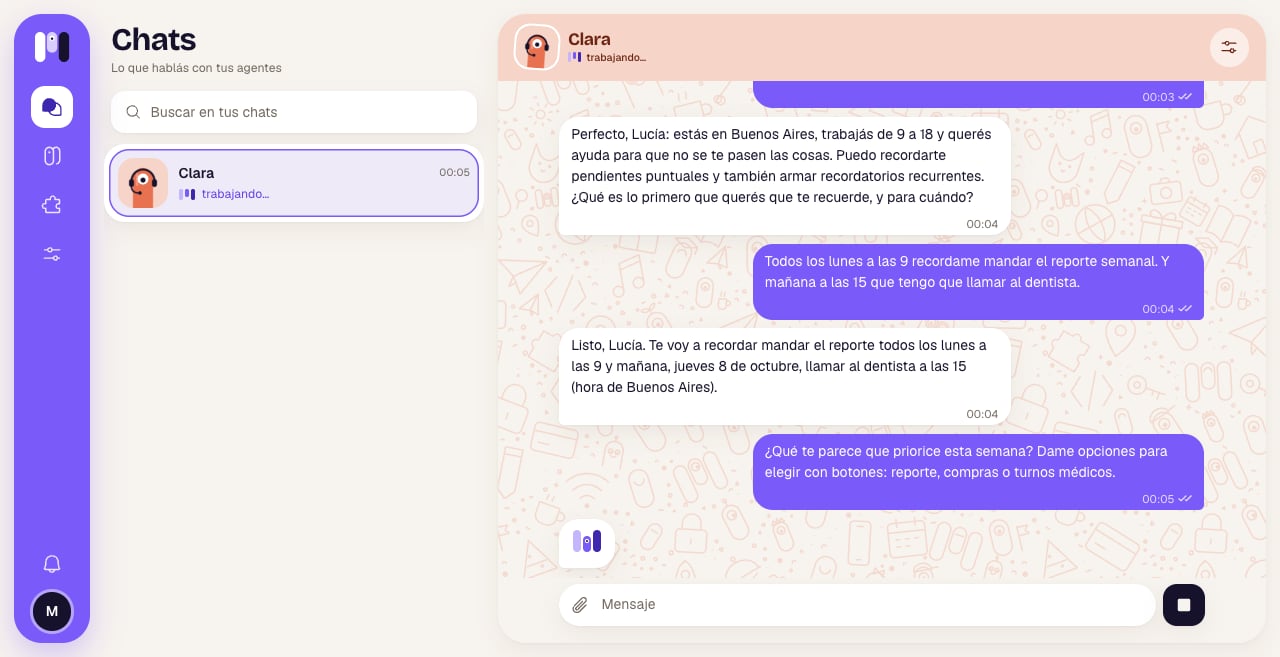
Clara working: the bubble with the minis and the stop button
When the agent can’t take your message
Instead of an answer, a card shows up:While it’s open
Opening a chat marks it as read. While you have it on screen, its messages don’t send you notifications.The bar for typing
Only in minai chat.
The round button on the right changes with what’s going on:
Voice notes are transcribed so the agent understands them, and they count toward your plan’s Transcribed audio minutes.
Stop only cuts short what it’s doing right now; the conversation goes on. For a stuck agent there’s Restart. See Stop, restart and pause.
Telegram, WhatsApp or Slack chats
You see them in minai read-only: you write in that app.- Instead of the bar for typing there’s a Send on Telegram button (or WhatsApp, or Slack) that opens the app, or the text “This chat is written in…”.
- Reactions and option buttons can’t be tapped from here.
- In a group, each message shows the name of whoever wrote it.
- Unread messages clear when you read them here or when you answer there.
minai chat
What’s special about talking here.
One-time links
Keys, WhatsApp and Google.