

- One agent, in a direct chat. Your agent talks to you in a chat with the minai app. It’s the simplest, but you’ll have a single personal agent on Teams.
- Several agents, each in its own channel. You create a Teams team just for you and minai makes a channel for each agent. You write to them without mentioning them.
What you need
- A work or school Microsoft Teams account (Microsoft 365). Personal or free Teams can’t add apps.
- Your organization must allow uploading custom apps. If Teams doesn’t show Upload a custom app, ask whoever manages Teams in your organization.
- To have several agents, being able to create teams in Teams (almost always allowed).
Pick Teams and how to use it
1
Pick Microsoft Teams
When you create the agent, in Where will you talk with Clara?, tap Microsoft Teams (“A chat or a channel in your Teams”).
2
Pick how to use Teams (first time only)
In How do you want to use Teams? pick One agent, in a direct chat or Several agents, each in its own channel. The steps for each are below.
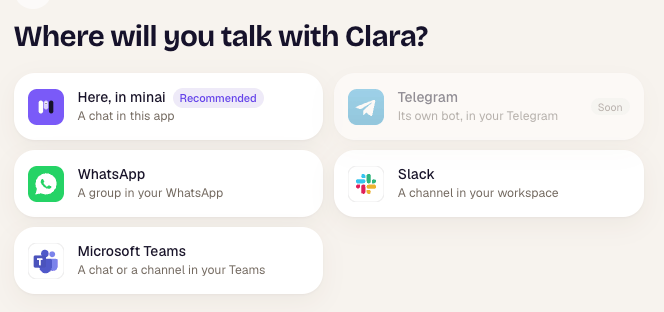
Microsoft Teams among the channels
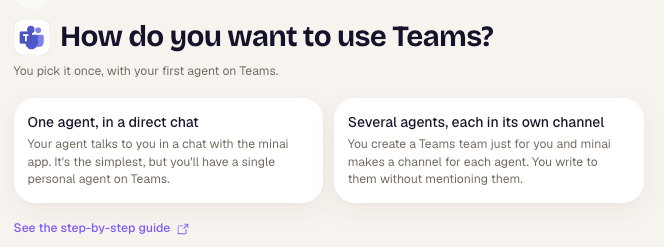
The two ways to use Teams
One agent, in a direct chat
minai shows you three steps and a code: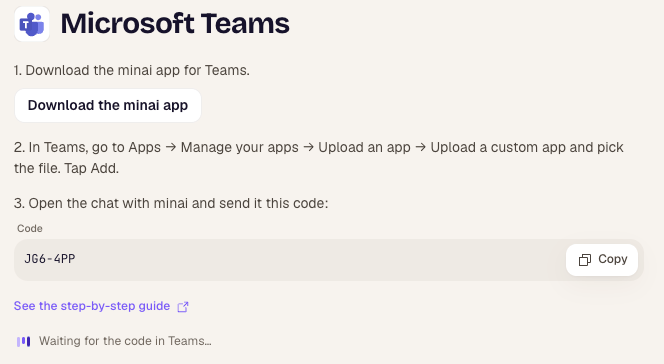
The steps for the direct chat
1
Download the minai app
Tap Download the minai app. You get a
minai-teams.zip file: no need to open it.2
Upload it to Teams
In Teams, go to Apps in the left bar and, at the very bottom, Manage your apps.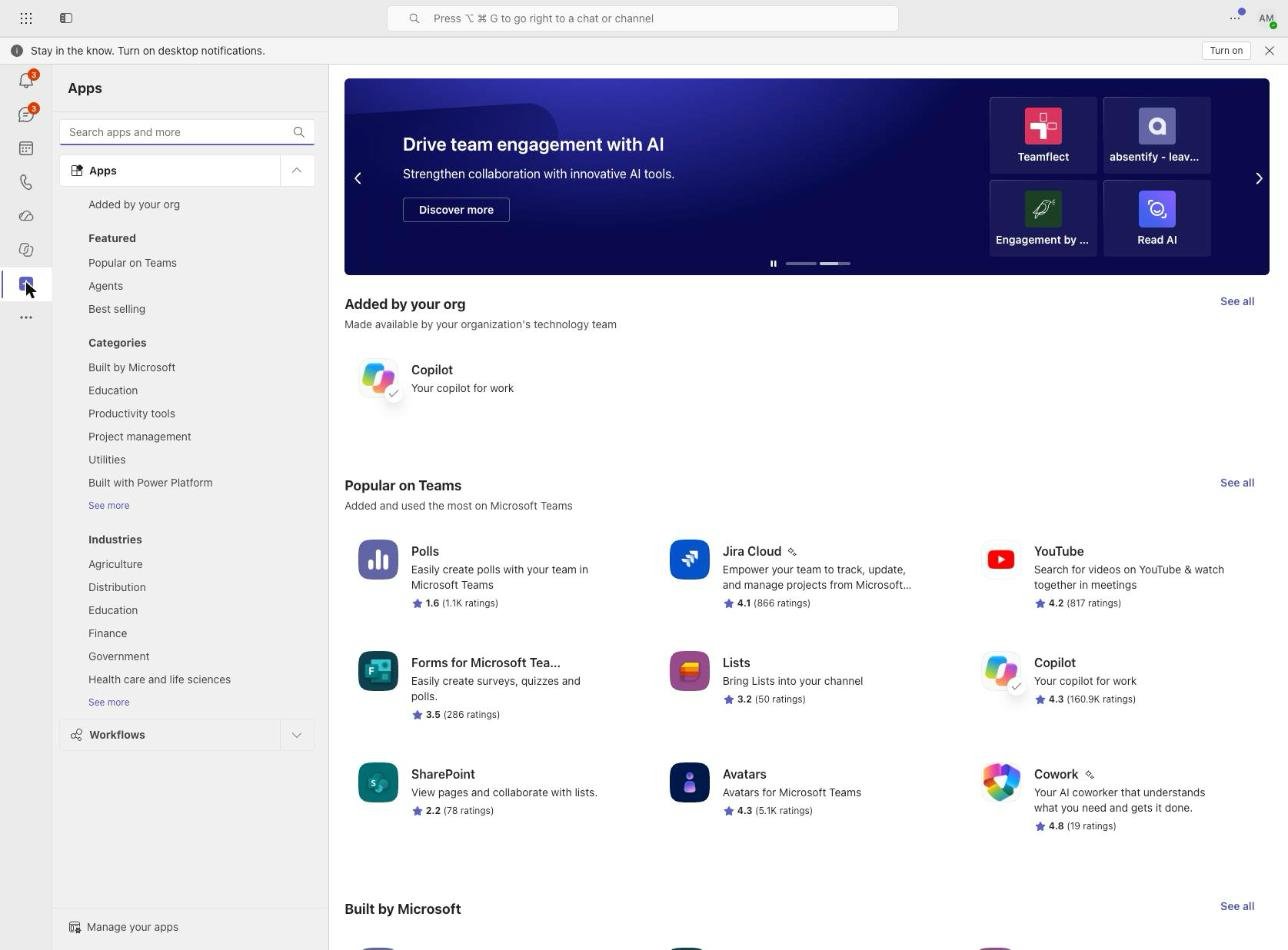
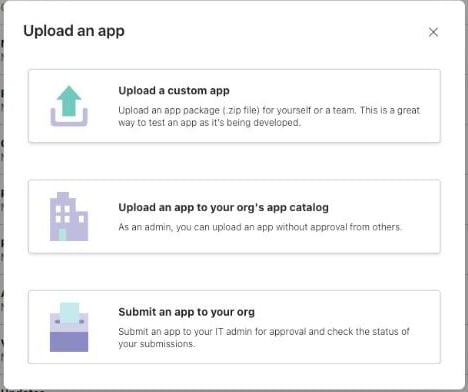
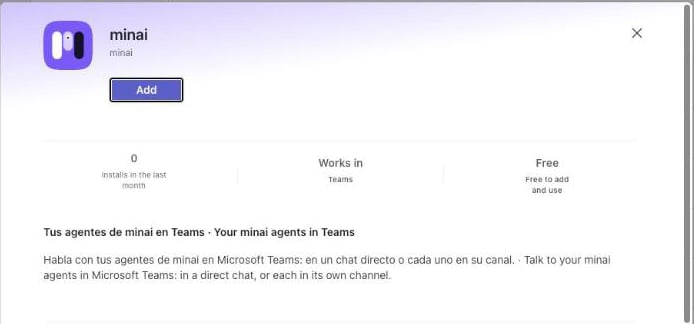
minai-teams.zip file.3
Send it the code
In the chat with minai, send the code minai showed you (for example,
K9W-N84). The code works once and expires in an hour: if it did, pick Teams again in minai to get another one.4
Done
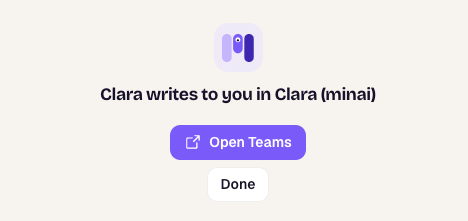
minai shows that your agent writes to you in Teams, with Open Teams and Done. Your agent writes first in the chat.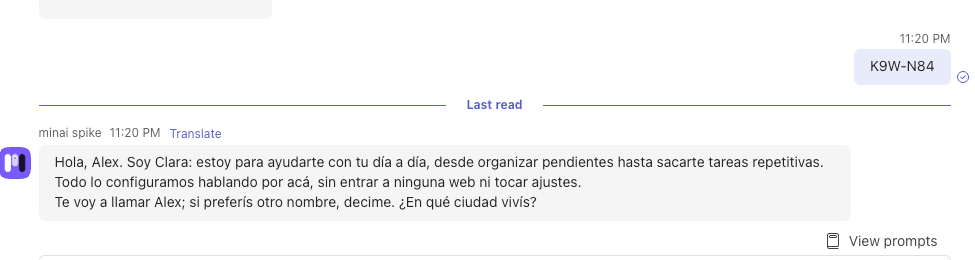
Several agents, each in its own channel
minai shows you four steps and a code: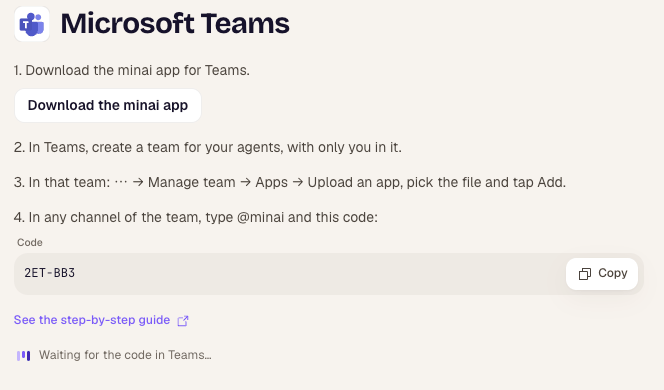
The steps for a team of agents
1
Download the minai app
Tap Download the minai app (a
minai-teams.zip file).2
Create a team for your agents
In Teams, in Chat (or Teams), tap the new icon → New team. Name it (for example, “My minai agents”), leave it Private and don’t add anyone else: that way only you see your agents’ channels.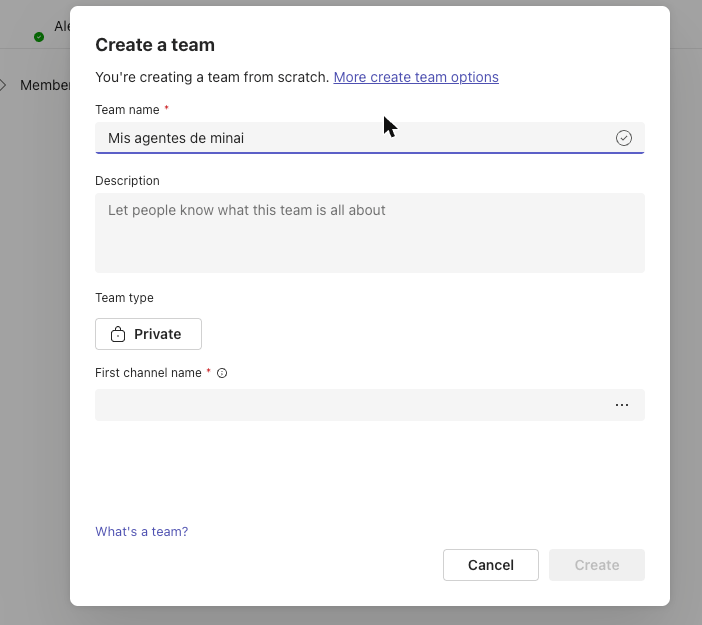
3
Upload the app to that team
In the team, tap ⋯ → Manage team.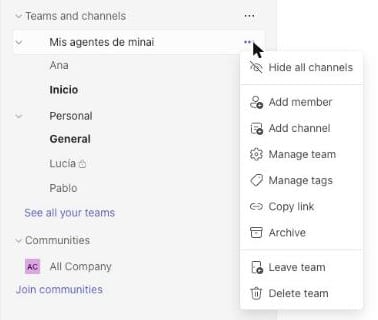
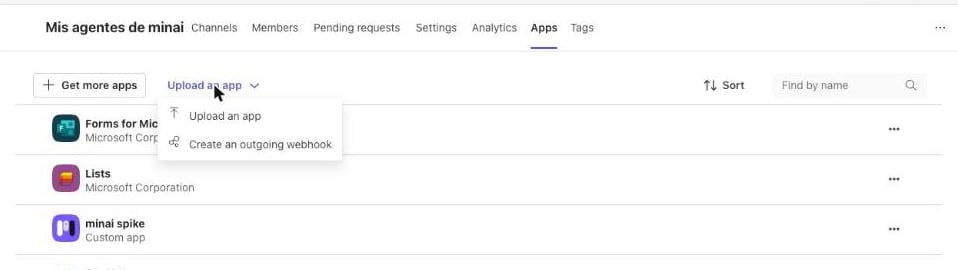
minai-teams.zip, tap Add and then pick a channel of the team and Go.4
Mention minai with the code
In any channel of the team, type 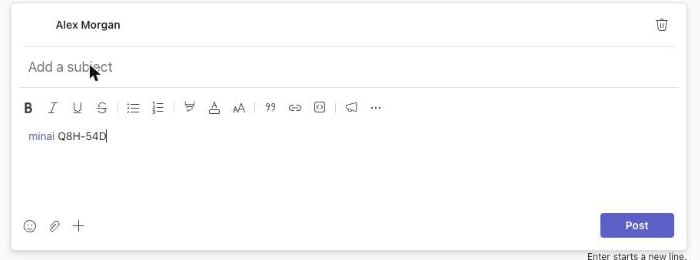
@minai, pick minai in the list and add the code (for example, @minai Q8H-54D). Send it.5
minai creates the agent's channel
minai creates a channel named after your agent and answers in the thread. Your agent writes first there.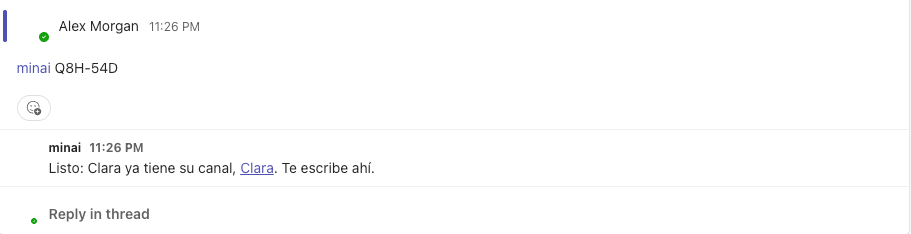
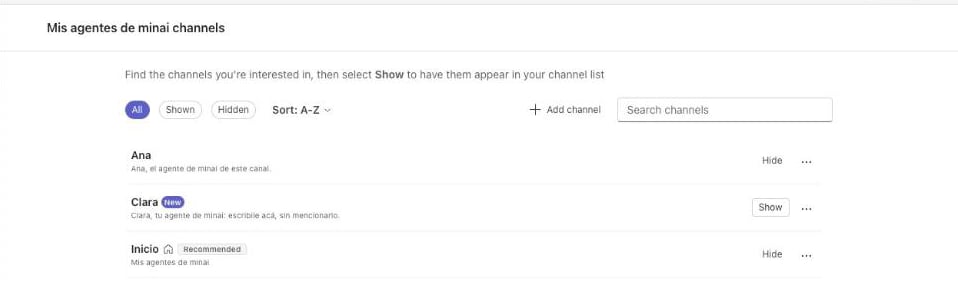
The team's channels: Show the agent's
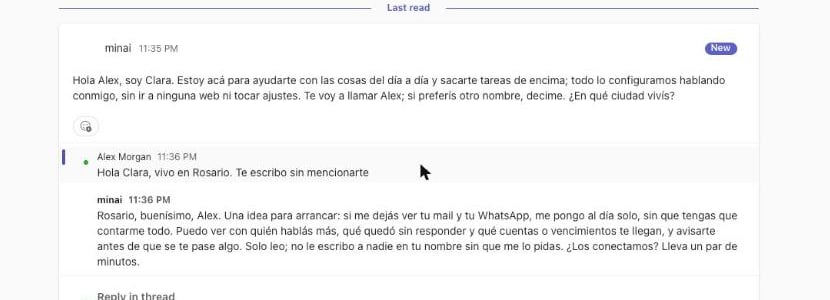
Clara's channel: you answer in the thread, without mentioning her
The next agent gets its channel right away
Agents for a group
A group agent uses a channel of a team (or a Teams group chat) where the minai app is:- If it isn’t there yet, upload the app to that team (⋯ → Manage team → Apps → Upload an app).
- In the channel the agent will use, type
@minaiand the code minai shows you.
How it behaves
- Format: bold, italics, code, lists, quotes and links. No tables, headings or strikethrough. Very long messages arrive split.
- Name: Teams shows every message as minai, not with the agent’s name. In an agent’s channel you know it by the channel’s name; where several share a space, the message starts with its name.
- Buttons: options show as buttons under the message. You tap one and the message marks it with ✓. See Buttons and options.
- While it works: you see “typing…”.
- Files and photos: the ones you send reach it (up to 15 MB). The agent can send you images; other files not yet.
- Reactions: yours reach it; the agent can’t react on Teams.
- Only you: in a personal agent’s chat or channel, only whoever connected it talks to it.
- To stop it: send
/stopon its own.
Limits
- Teams comes with the Pro and Business plans, like Slack. See Plans.
- In the direct chat, a single personal agent.
- Teams private channels aren’t used for agents: Teams makes you mention the app in every message there.
- If the minai app is removed from the chat or the team, the agents stop talking there. Connect them again from Where it talks.
- If in a team your agent only answers when you mention it, remove the minai app from that team and upload it again (it happens when an older version of the app was uploaded). Then connect your agents again from Where it talks.
- Teams gives you the notifications of its messages.
Agents for a group
An agent in a Teams channel, for the whole team.
Compare channels
What changes from one channel to another.