

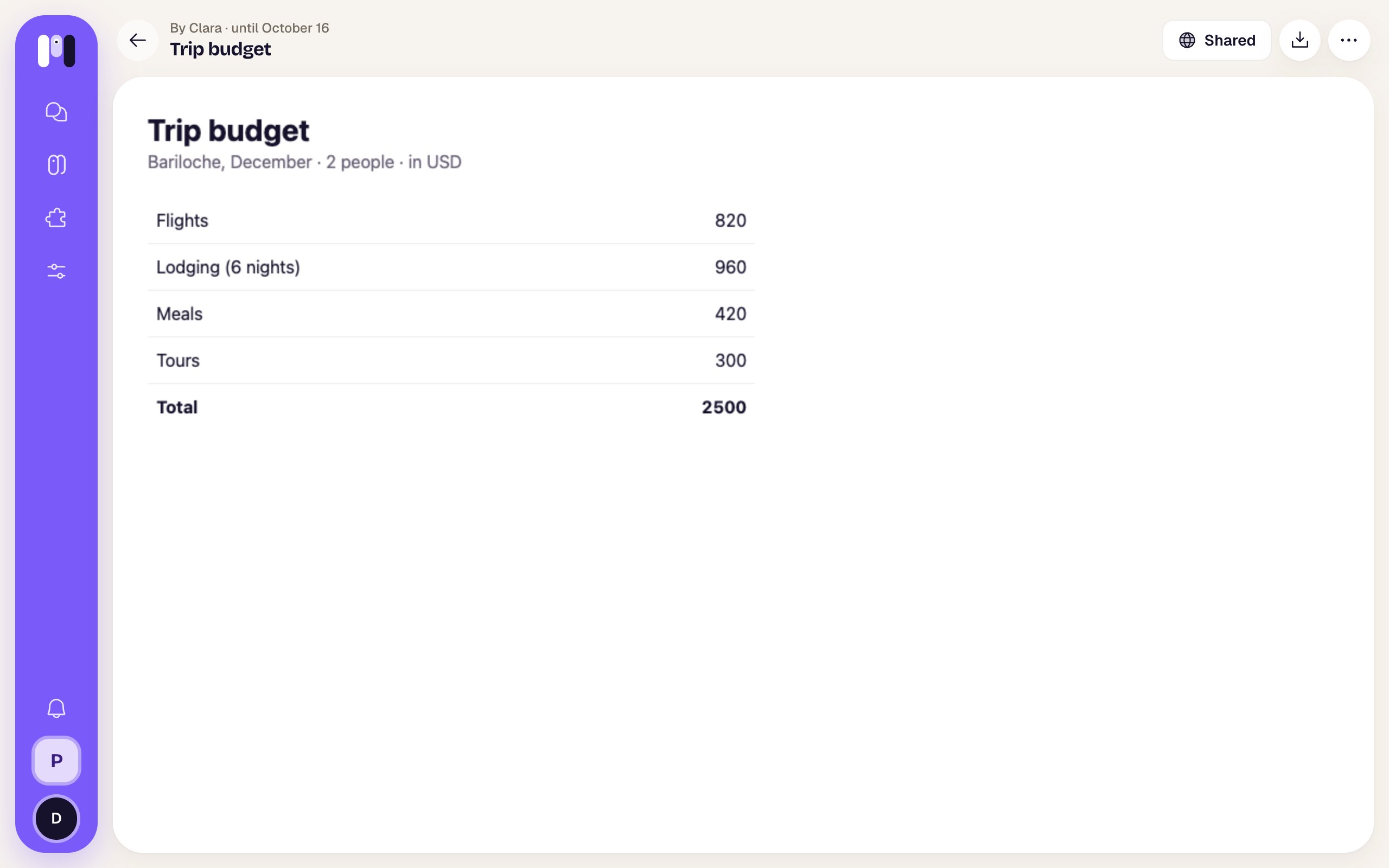
One of Clara's artifacts on a computer
Ask for a page
Ask for it like anything else, on any channel:- “Make me a page with the trip budget, split by day.”
- “Compare these three quotes for me, with a chart.”
- “Send me the month’s summary as a page I can show my accountant.”
- “Update the trip page with the new hotel.”
What it can have
- Text, tables, charts, pictures and interactive things: filters, tabs, a calculator.
- Everything it shows goes inside the page when the agent makes it. Afterwards it doesn’t fetch data from the internet or send forms, and it doesn’t save what you change in it. If the data changes, ask for a new version.
- The page runs apart from minai: it can’t see your session or your data in the app.
- Up to 2 MB per page. If it’s bigger, the agent shrinks the pictures or links them.
- Up to 100 live artifacts per space. When it hits the limit, the agent deletes an old one or updates one that already exists.
If it sends you an attached
.html file (not a link), it’s just another file: it opens in the chat’s viewer. See Chats.Private until you share them
When an agent makes an artifact, it’s private: the link it sends is the app’s (it starts with minai’s address followed by/a/). Only you and the people in this space open it, with their minai account. If the link belongs to another of your spaces, it opens too.
If you open the link before signing in to minai, it asks you to sign in first; once you do (on that same device and within half an hour), the app takes you straight to the artifact.
To show it to someone without an account, you share it: that creates a separate public link. An agent can have its artifacts public from the start: see Who can open an agent’s artifacts.
An artifact’s page
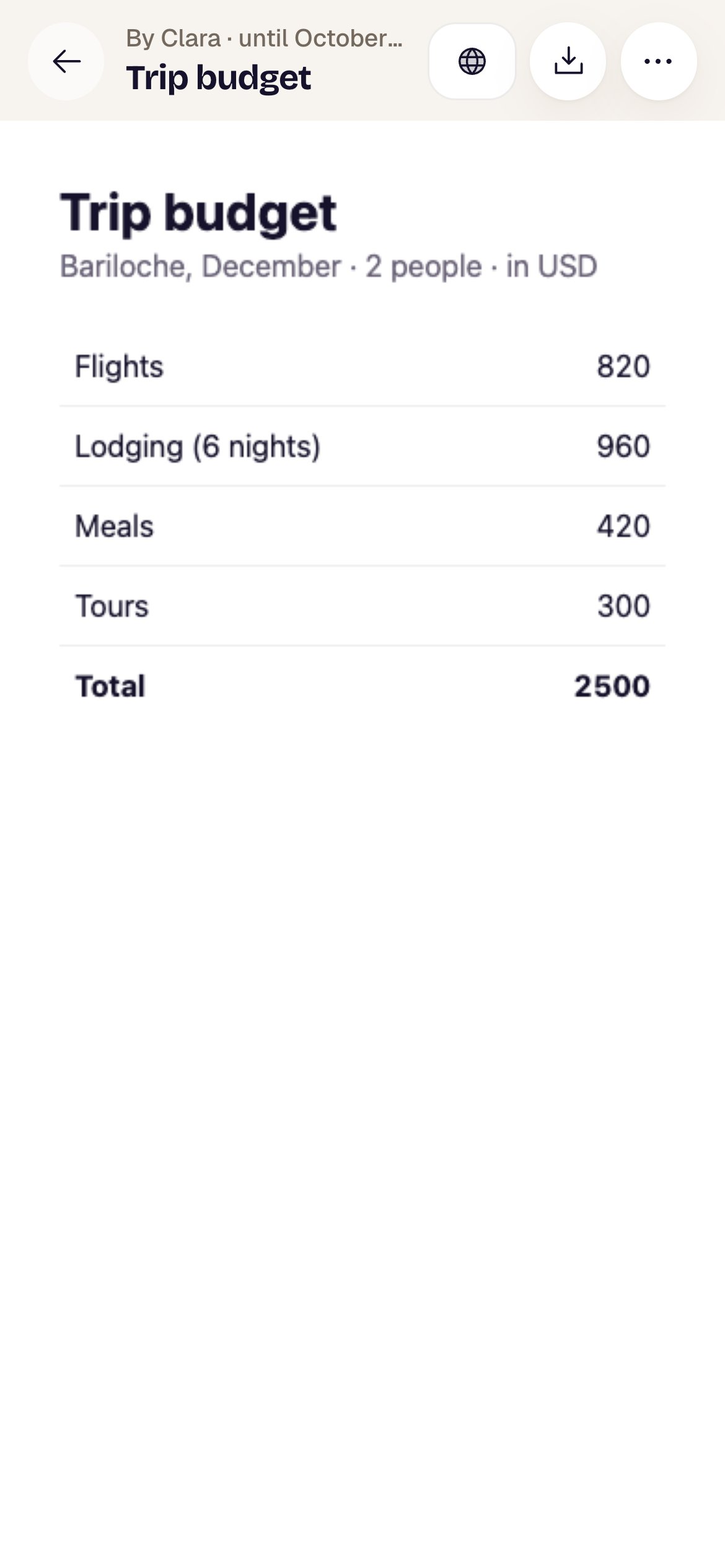
Below, the agent’s page, as big as the screen allows and on a white background even if you use the dark theme. Links inside the page open in another tab.
In minai chat, links to a private artifact open in the same tab. Ctrl or Cmd + click opens them in another one. Public links always open separately.
Share it
Tap Share. The sheet says “Share “Trip budget”” and “Anyone with the link will be able to see it, until October 16. You can stop sharing it whenever you want.”. Tap Create public link.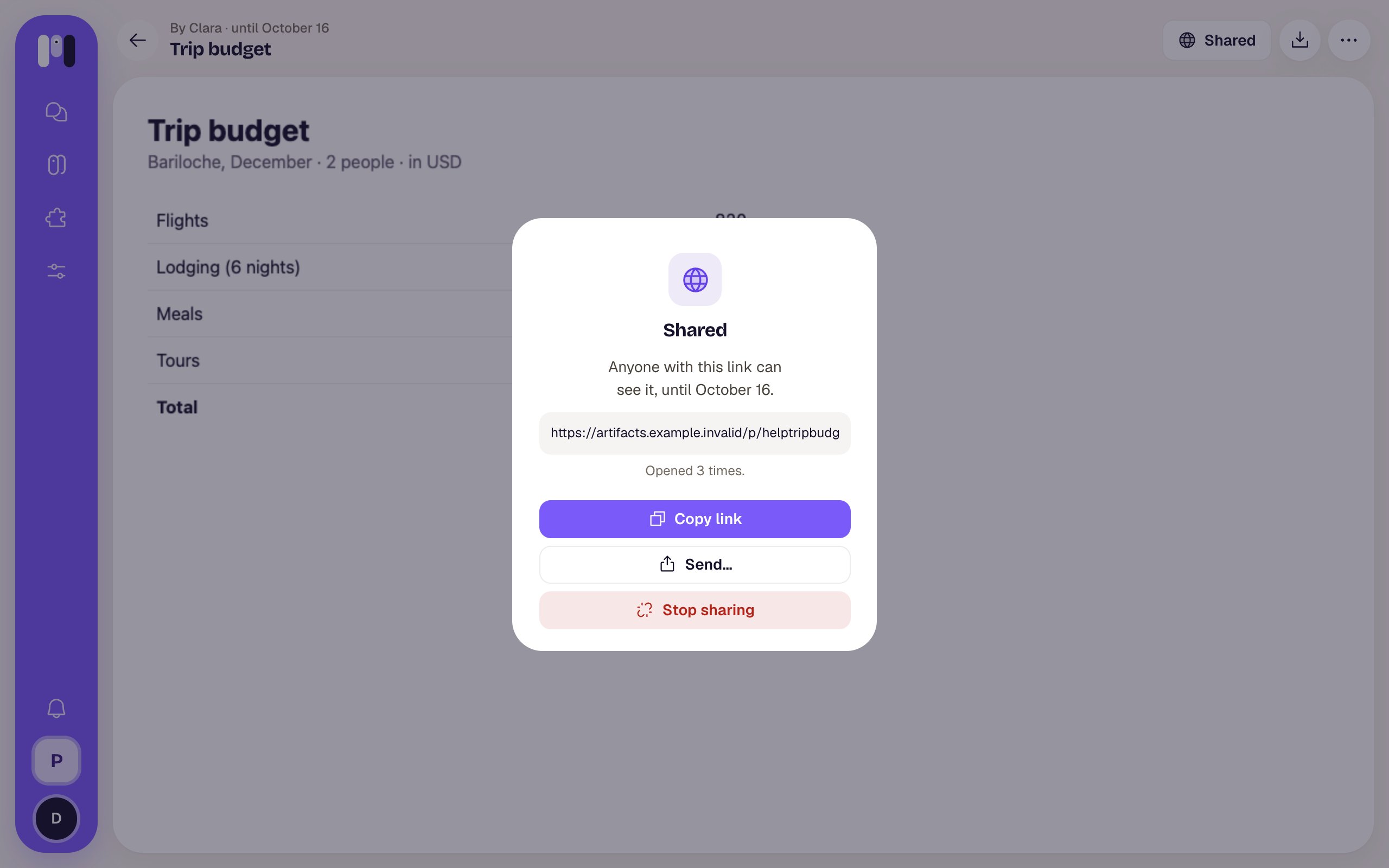
The public link, with how many times it was opened
If something fails: “That didn’t work. Try again.”.
The public link always shows the latest version. If the agent updated it after you shared it, above the page you see “The public link already shows this version (version 2).”.
What people see on the public link
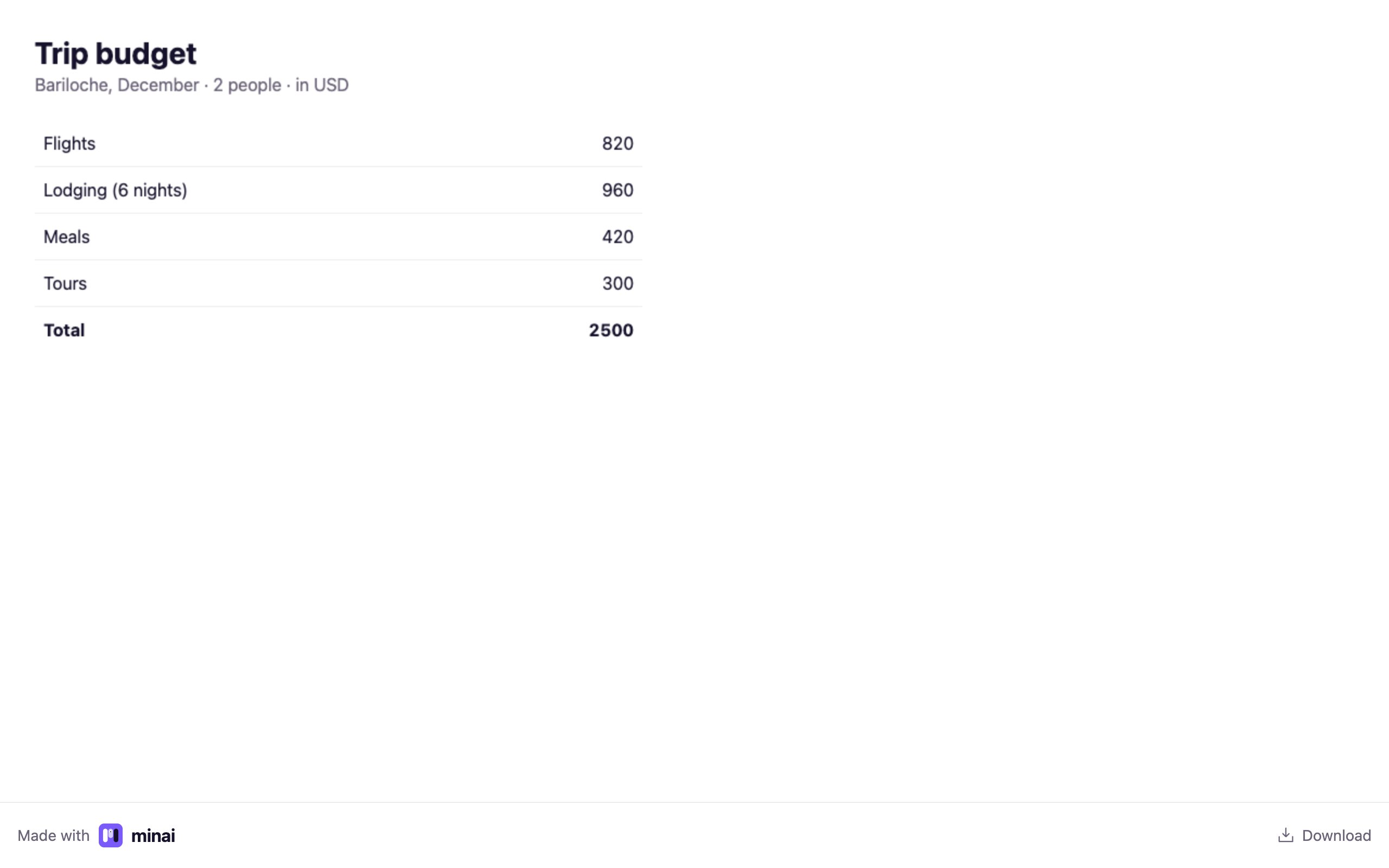
The public page: the artifact and, at the bottom, Made with minai and Download
- The agent’s page, full screen, with nothing of your account or the app.
- At the bottom, a bar with Made with minai (goes to minai’s website) and Download, which downloads the page as a file. On a phone, Download opens the phone’s share menu with the file.
- That bar is in your account’s language.
- If you stopped sharing it, deleted it or it expired: “This link is no longer available” — “Whoever shared it stopped sharing it, or it expired.”.
Download it
The Download button (next to Share) gives you the page as an.html file named after the artifact’s title. It opens in any browser, with no internet or account.
- On a computer: it’s saved like any download; the page stays open.
- On a phone: the phone’s share menu opens with the file: Save to Files, WhatsApp, email or whatever you have.
More options
Tap ⋯ (More options). The sheet shows the title and: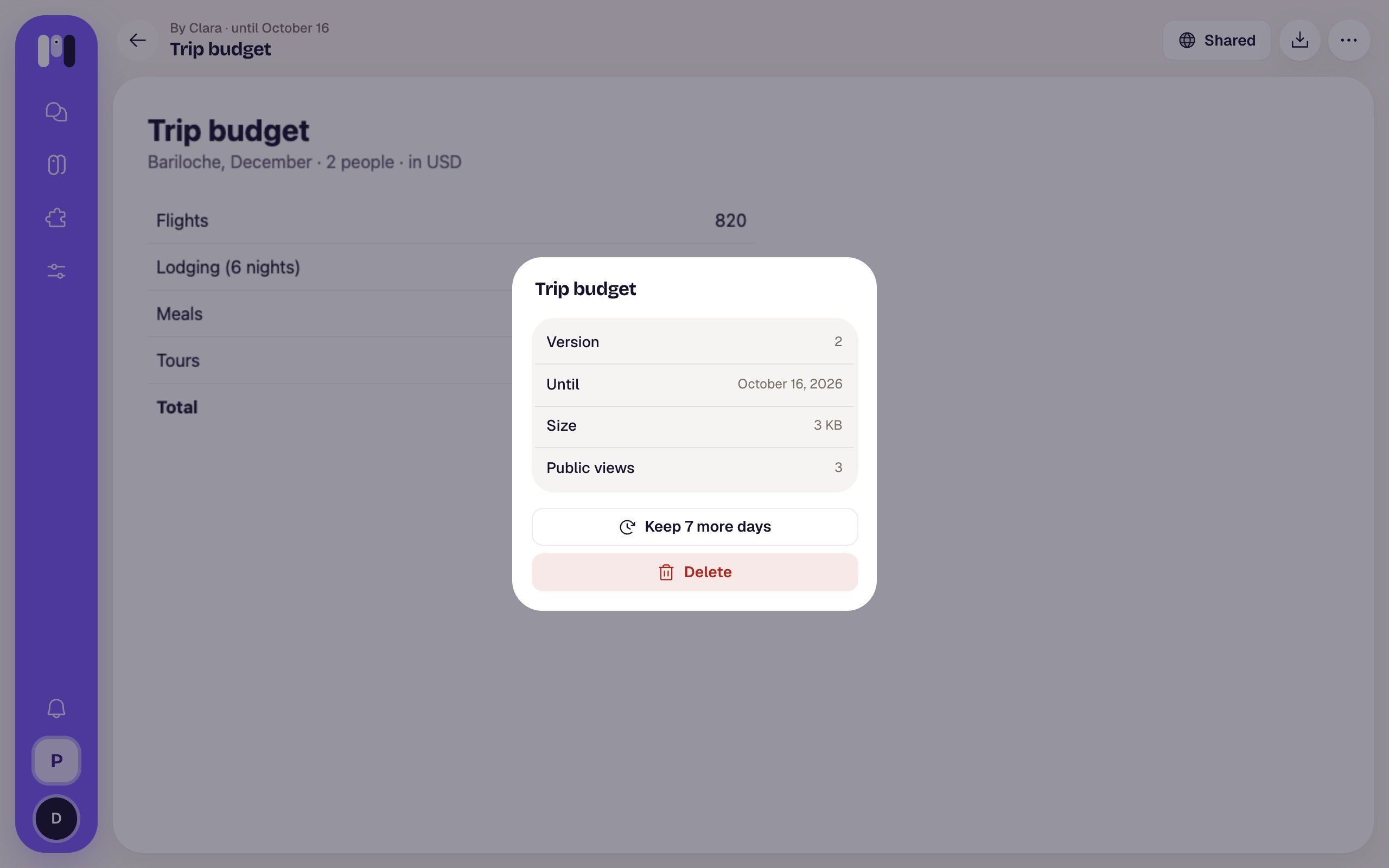
- Keep 7 more days: adds a week to what it had left. You can tap it again, up to one month from today at most. The public link, if it has one, lasts the same.
- Delete (red): asks “Delete “Trip budget”?” — “Its links stop working at once, the public one too.”. Once you confirm, you go back to where you were. It can’t be undone.
How long it lasts
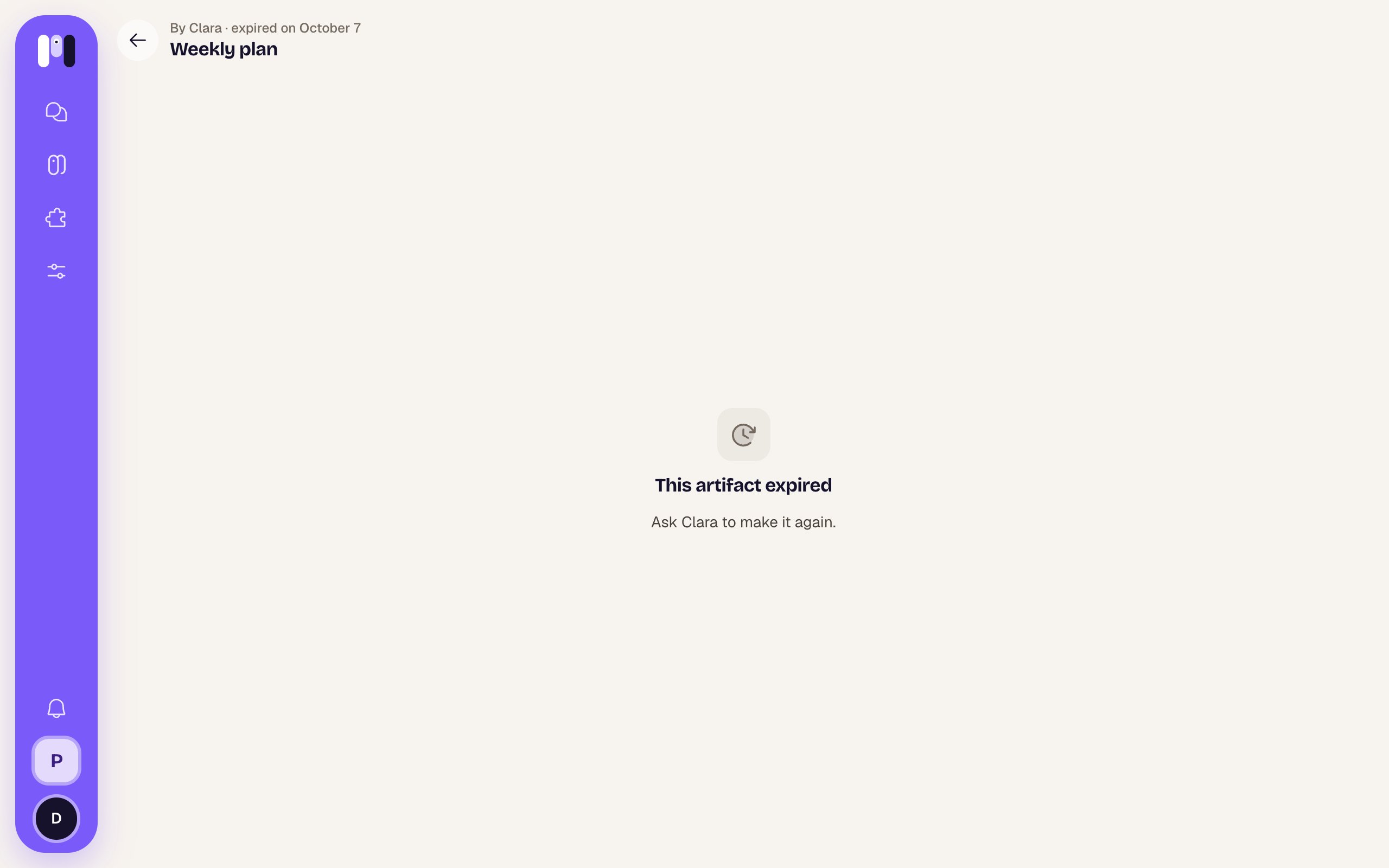
An expired artifact can’t be recovered. Opening it shows “This artifact expired” — “Ask Clara to make it again.”, and “expired on …” at the top, with no buttons.
The artifacts list
Settings → Artifacts (“The pages your agents made”), in the Your agents group. It shows the artifacts of the space you’re in, from all its agents, with the most recently changed on top. To see another space’s, switch to that space.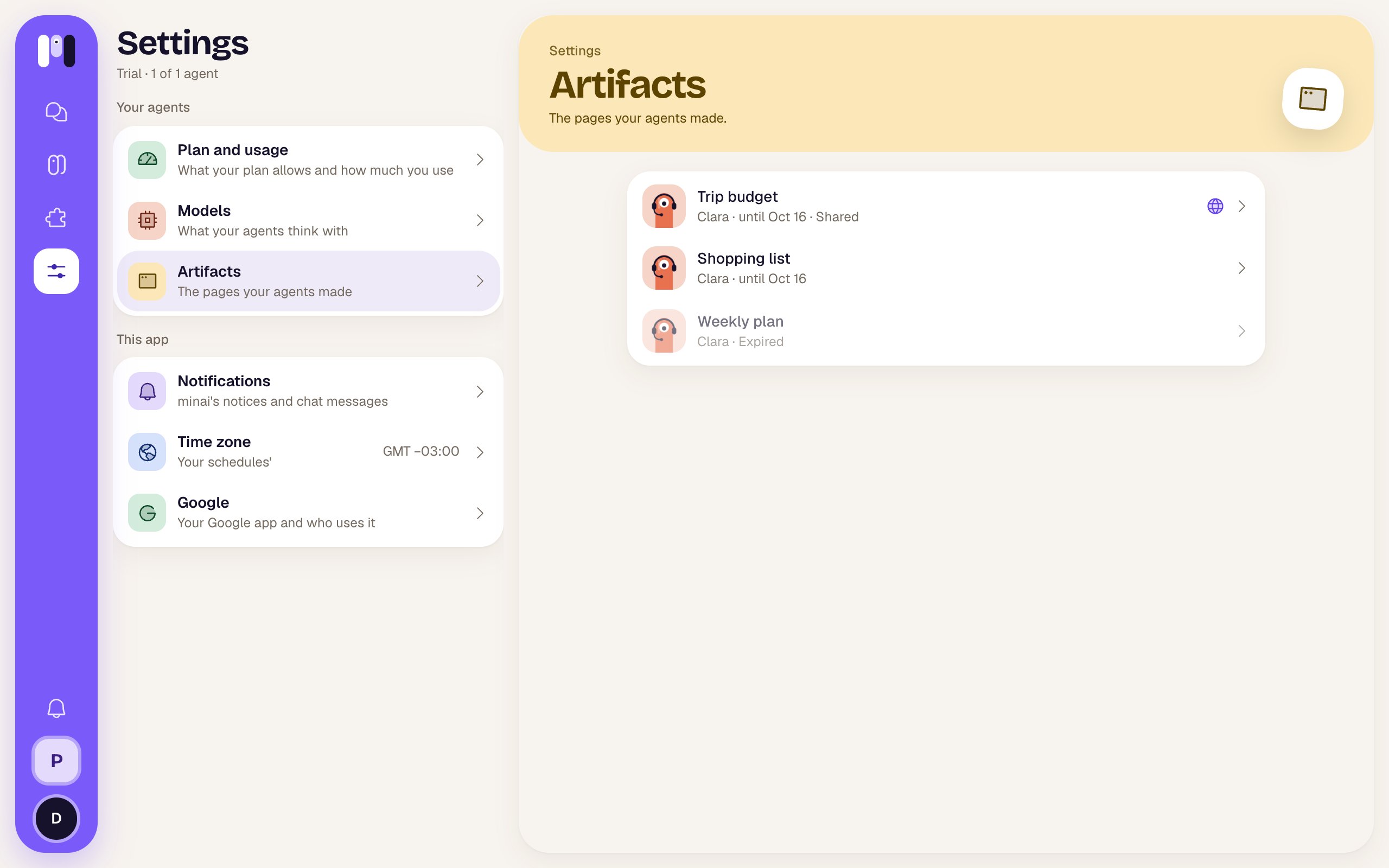
The list: one shared, others private and one expired
- The face of the agent that made it, the title and, below, “Clara · until Oct 16” (or whichever date).
- Shared and a globe if it has a public link.
- Dimmed and marked Expired if it already expired.
Who can open an agent’s artifacts
On the agent’s page, Overview → Artifacts, you choose for that agent: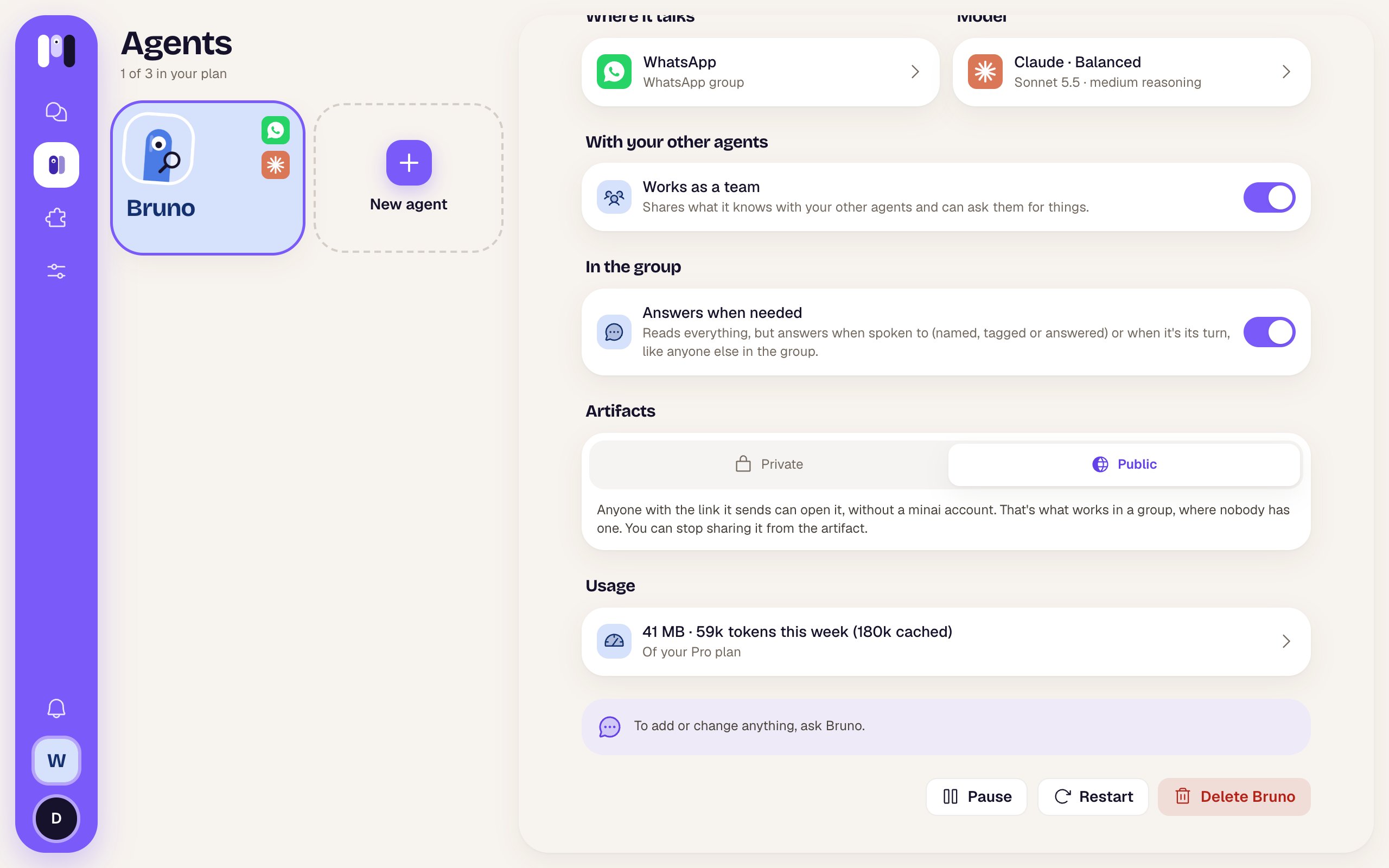
- A personal agent, like Clara, starts on Private.
- A For a group agent, like Bruno, starts on Public: the group’s people have no minai account, so the agent sends the public link right away.
- The change applies to what the agent publishes from then on, new versions included. Switching to Private doesn’t stop sharing the ones that already have a public link: do that from each artifact, with Stop sharing.
Chats
Where the links reach you.
Agent: Overview
Private or public, for each agent.