

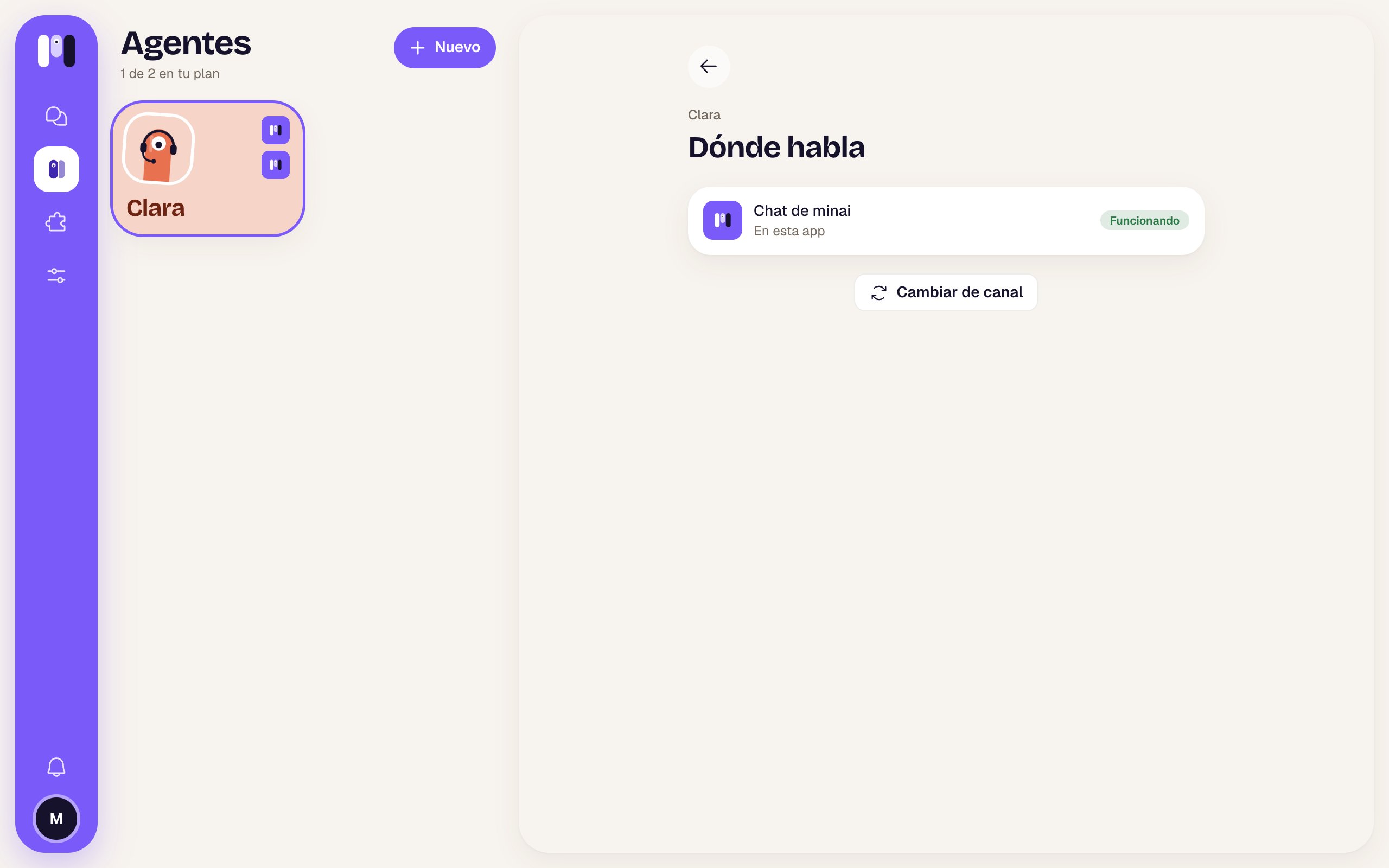
Clara talks in minai chat, and it's working
No channel
“No channel yet” — “Choose where you’ll talk with Clara.” and Connect a channel, which opens the channel choice. See Create an agent.The channel row
It shows the channel’s logo, its name and where it is:
And a status on the right:
When it isn’t working
See WhatsApp and Telegram.
Group agents
They show “The whole group talks to it” and how to add people:- Telegram: with the group’s invite link.
- WhatsApp: “You’re the group’s admin: add and remove people from WhatsApp.”
- Slack: “Add people to the channel from Slack, with /invite.”
Change channel
Personal agents only. Change channel asks you to confirm: “Change Clara’s channel?” — “The current channel keeps working until the new one is ready. What’s left there (the group, the bot, the channel) is yours to delete.” → Choose another channel. Then you see “Where will Clara talk now?” with every channel except the current one. If one says Soon, it isn’t available yet. Pick one and follow the same steps as when you created the agent. When the new one is ready, the agent leaves a last message on the old one and goes.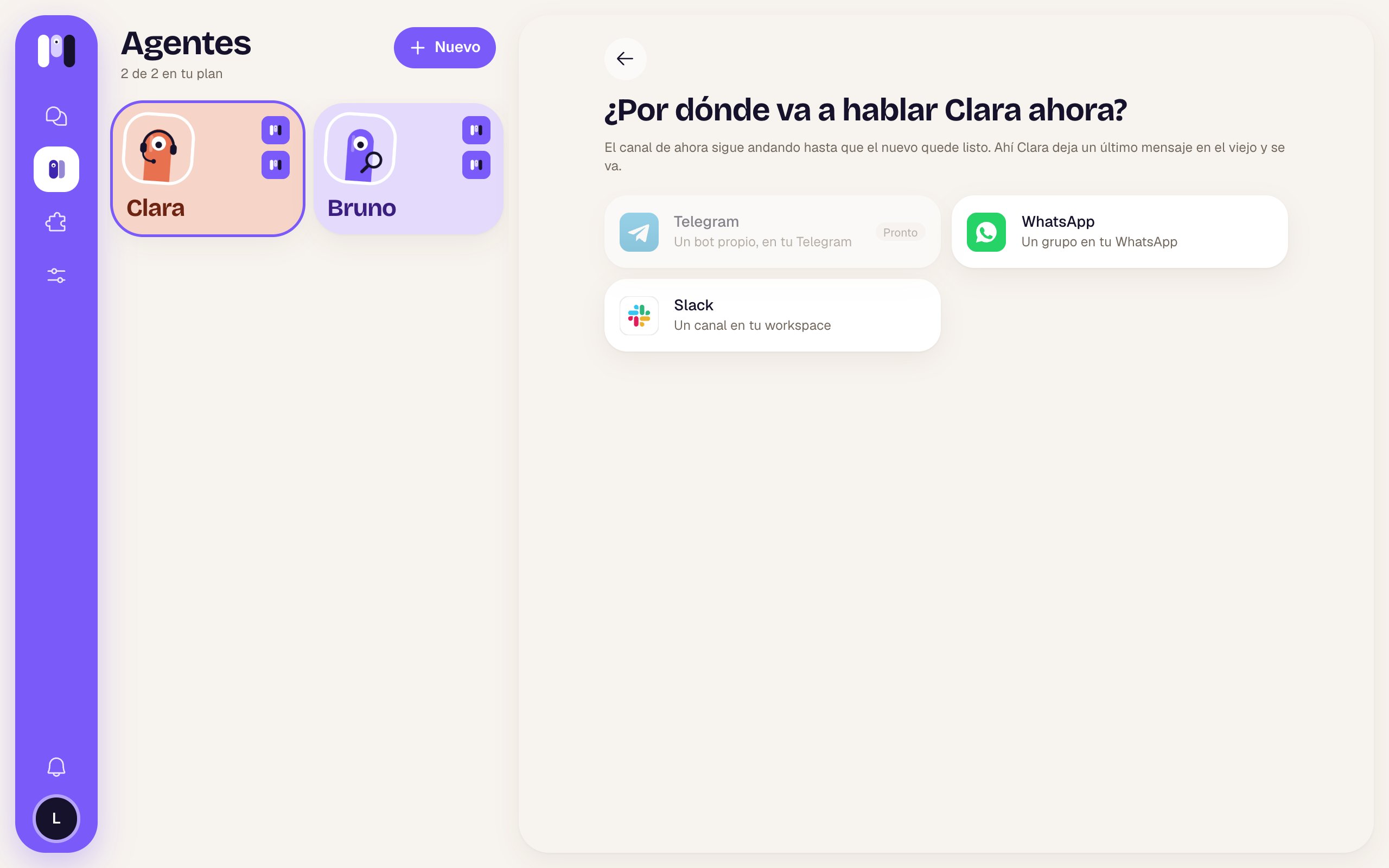
Choosing Clara's new channel
What’s left on the old channel (the WhatsApp group, the Telegram bot, the Slack channel) isn’t deleted by itself: delete it yourself if you want.
Channels
Which channel suits you.
Channel comparison
What you can do on each one.