

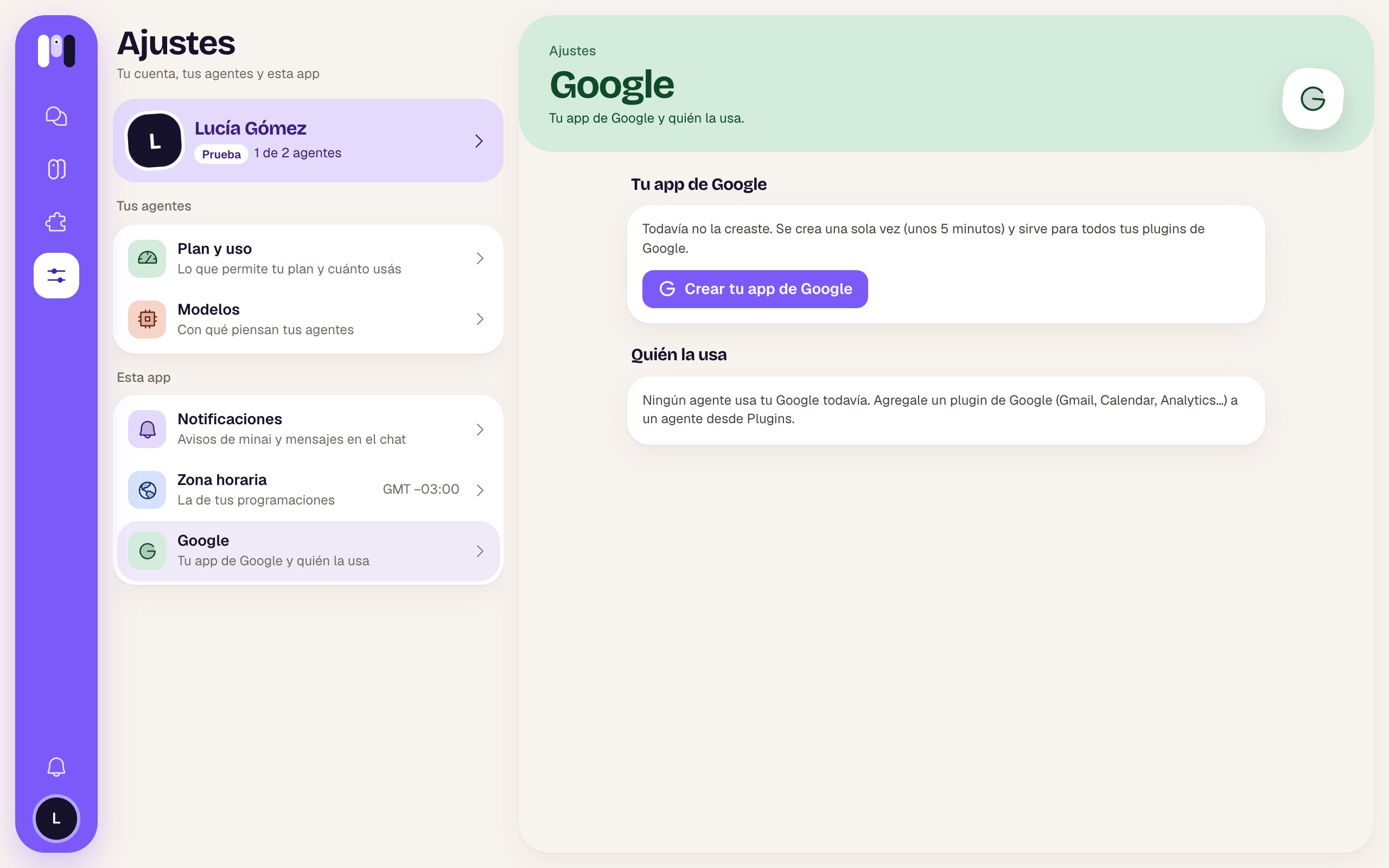
No Google app yet
Your Google app
Who uses it
One row for each Google plugin on each agent: “Gmail · Clara”, with the connected email and whether it’s read only or read and act. Tap it to go to that agent’s plugins. If none uses it: “No agent uses your Google yet. Add a Google plugin (Gmail, Calendar, Analytics…) to an agent from Plugins.”Create your Google app
Create your Google app opens a step-by-step guide, “Your Google app” — “For all your Google plugins”, with its progress bar (“Step 1 of 7”). You go back and forth between this screen and Google: each step opens the Google page for you, tells you what to do and shows you what it looks like when you’re done.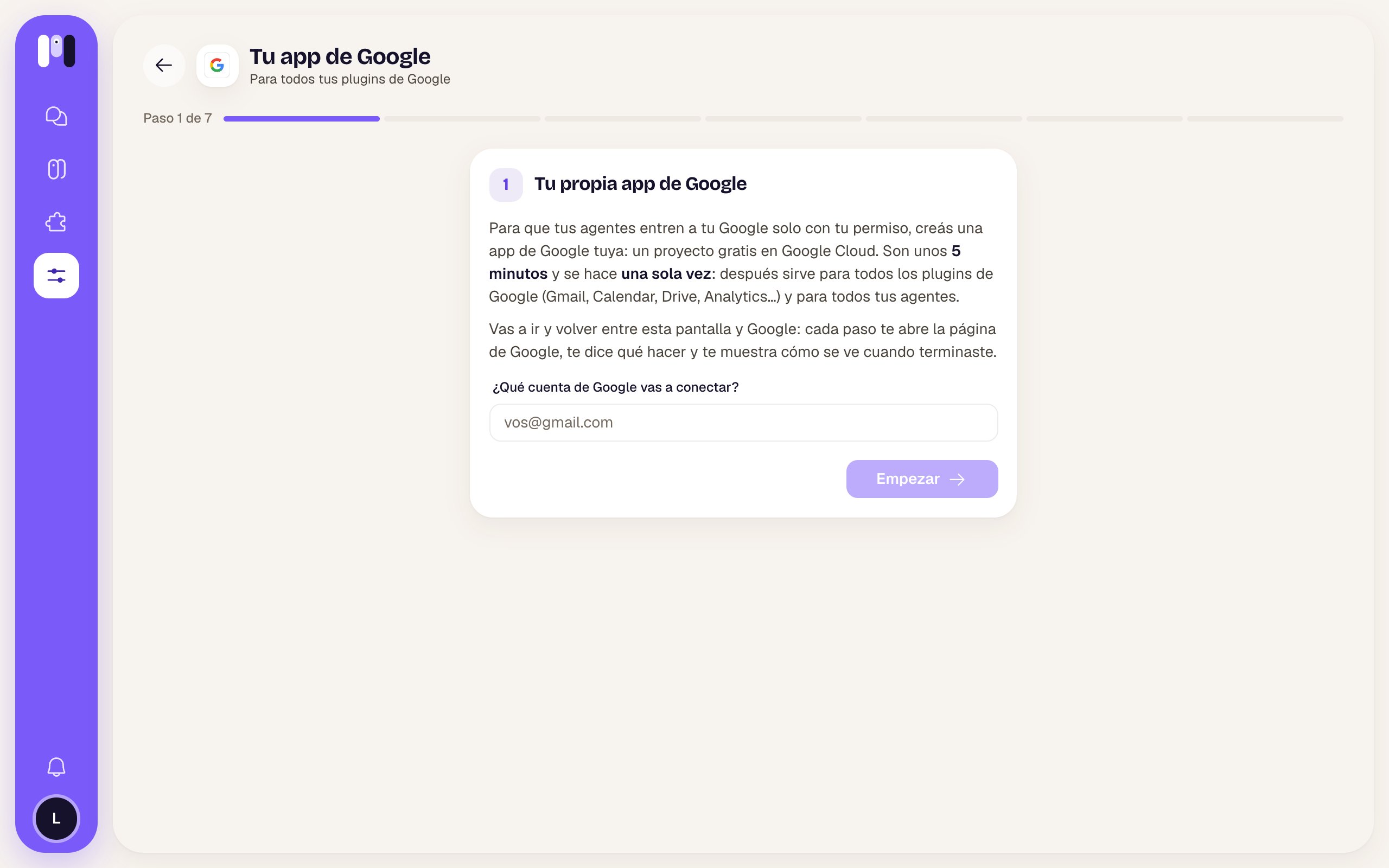
The first step: which Google account you'll connect
- First you enter your Google account and tap Start. If it’s a Google Workspace account (your company’s or your domain’s), check that box: some steps change.
- Along the way it asks for the Project ID (optional).
- At the end, Upload the JSON you downloaded from Google, or paste the ID and the secret by hand.
- It ends with “Your Google app is ready. You can now add Google plugins to your agents.” and Back to Settings.
Your Google app
The full guide.
Gmail
One of the plugins that use it.