

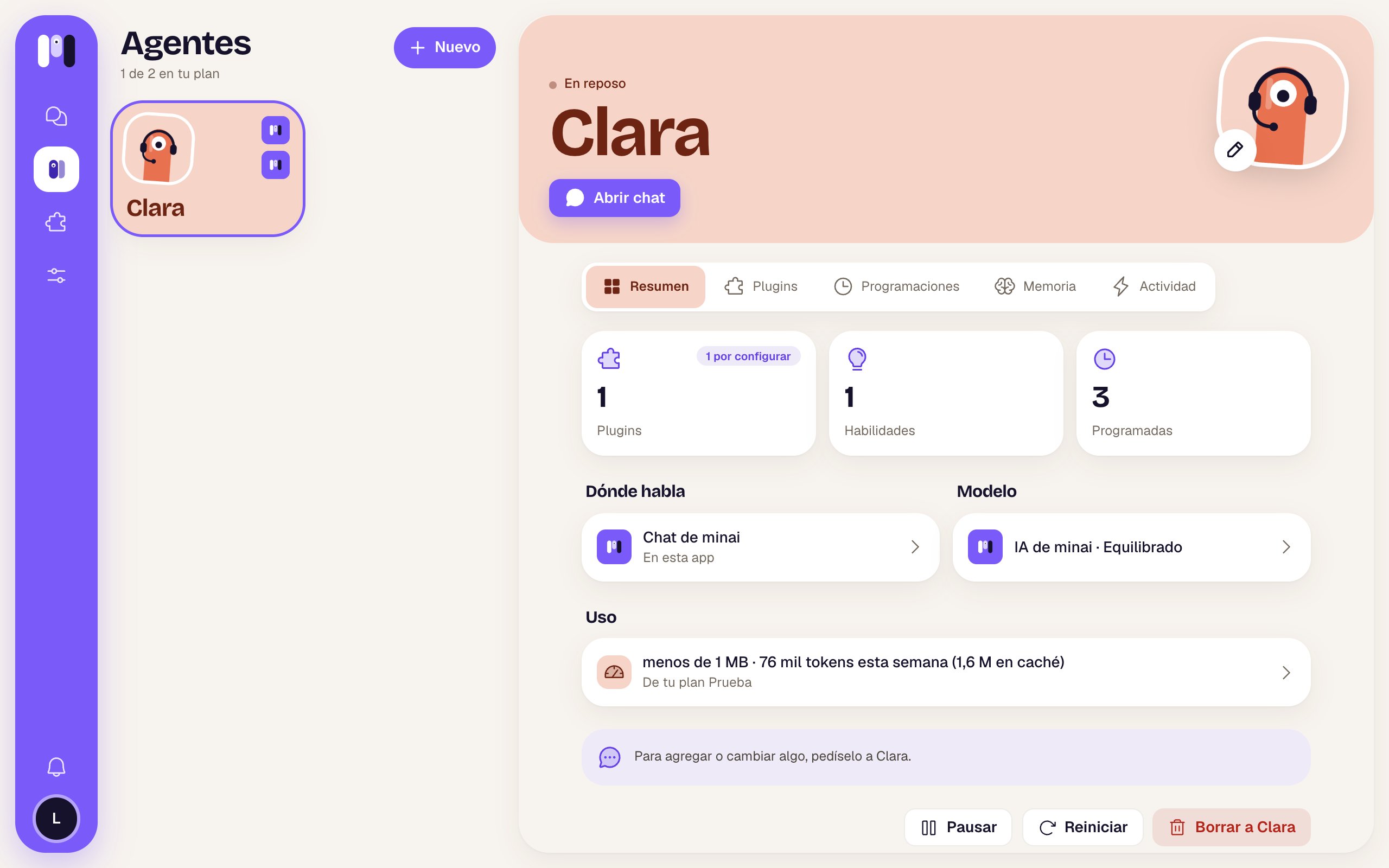
Clara's overview
The header
It’s on every one of the agent’s tabs, in its color.
Below are the tabs: Overview, Plugins, Schedules, Memory and Activity. On a phone, only the selected one shows its name. The page refreshes by itself every 15 seconds.
The three numbers
Where it talks
Only if it already has a channel. It shows the channel (“minai chat”, “Telegram”, “WhatsApp”, “Slack”) and where: “In this app”, the bot’s @, the group or the Slack channel. If something’s wrong, it says “It isn’t working” in red. Tap it to go to Where it talks.Model
The AI and the level, for example “minai’s AI · Balanced”. Tap it to go to Model.Usage
The space it takes up and this week’s tokens (for example “less than 1 MB · 76k tokens this week”), or “No tokens this week”. Below, which plan it comes out of. Tap it to go to Plan and usage.The hint
“To add or change anything, ask Clara.” In minai almost everything gets set up by chatting with the agent: plugins, schedules, what it should remember.The actions
At the very bottom:
If one of these doesn’t go through, you see “That didn’t work. Try again.”.
Stop, restart and pause
When to use each one and what happens.
Change an agent
Name, face, AI, level and channel.